WiseChat
Last updated: October 23, 2026
Instantly Find Answers with WiseChat in Wisedocs
Manual document review slows you down and increases operational risk. Wisedocs' AI-powered chat panel, WiseChat, changes the game by letting you instantly ask questions about your case files—no more digging through endless pages.
Step 1: Open a case from your Cases dashboard.
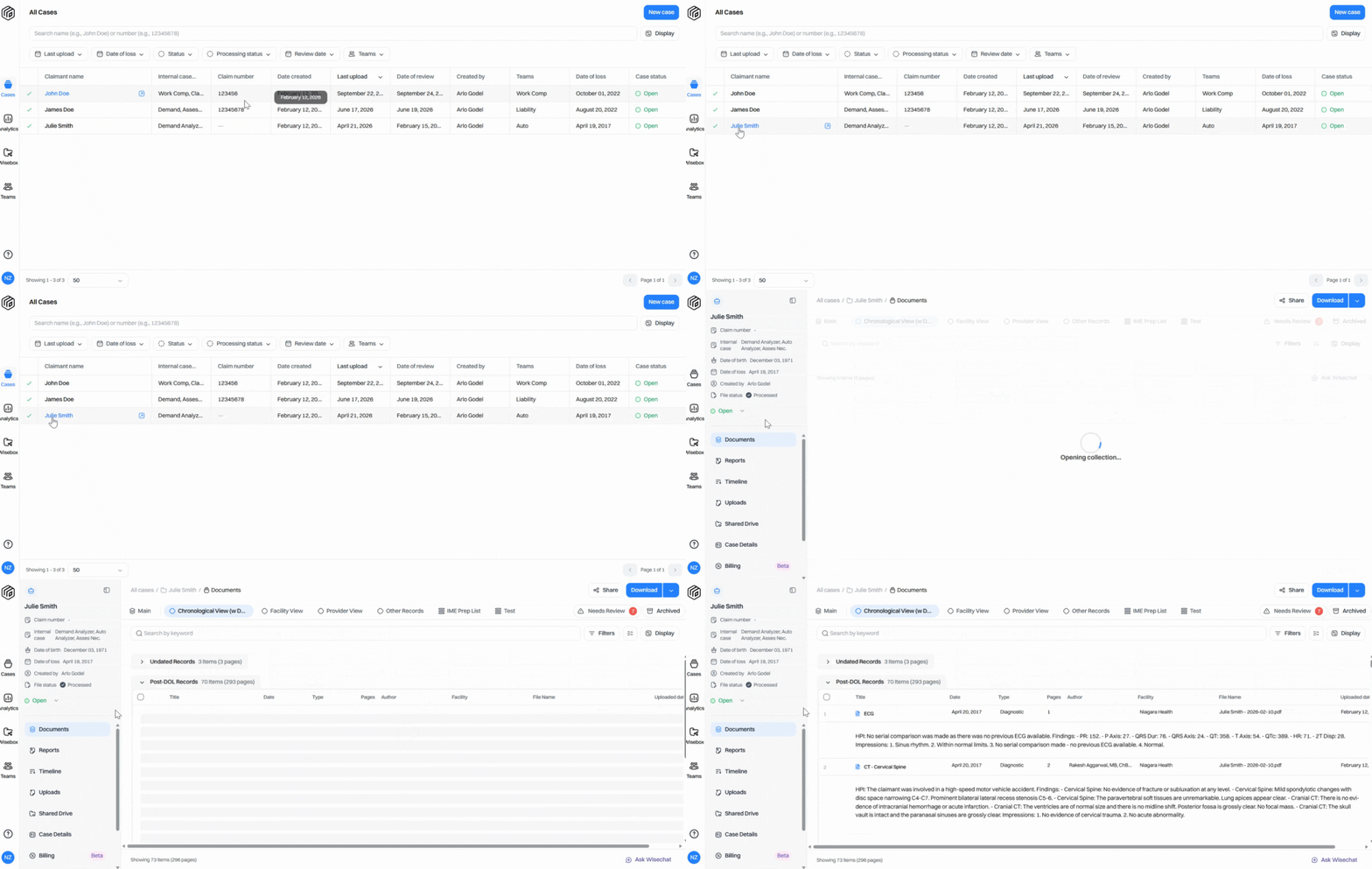
Please Note: WiseChat becomes active only after processing finishes. Documents work best if they’re also summarized, since WiseChat pulls answers from summaries, indexed metadata, and analyzers.
Step 2: From the sidebar options, scroll to the bottom and click Ask WiseChat.
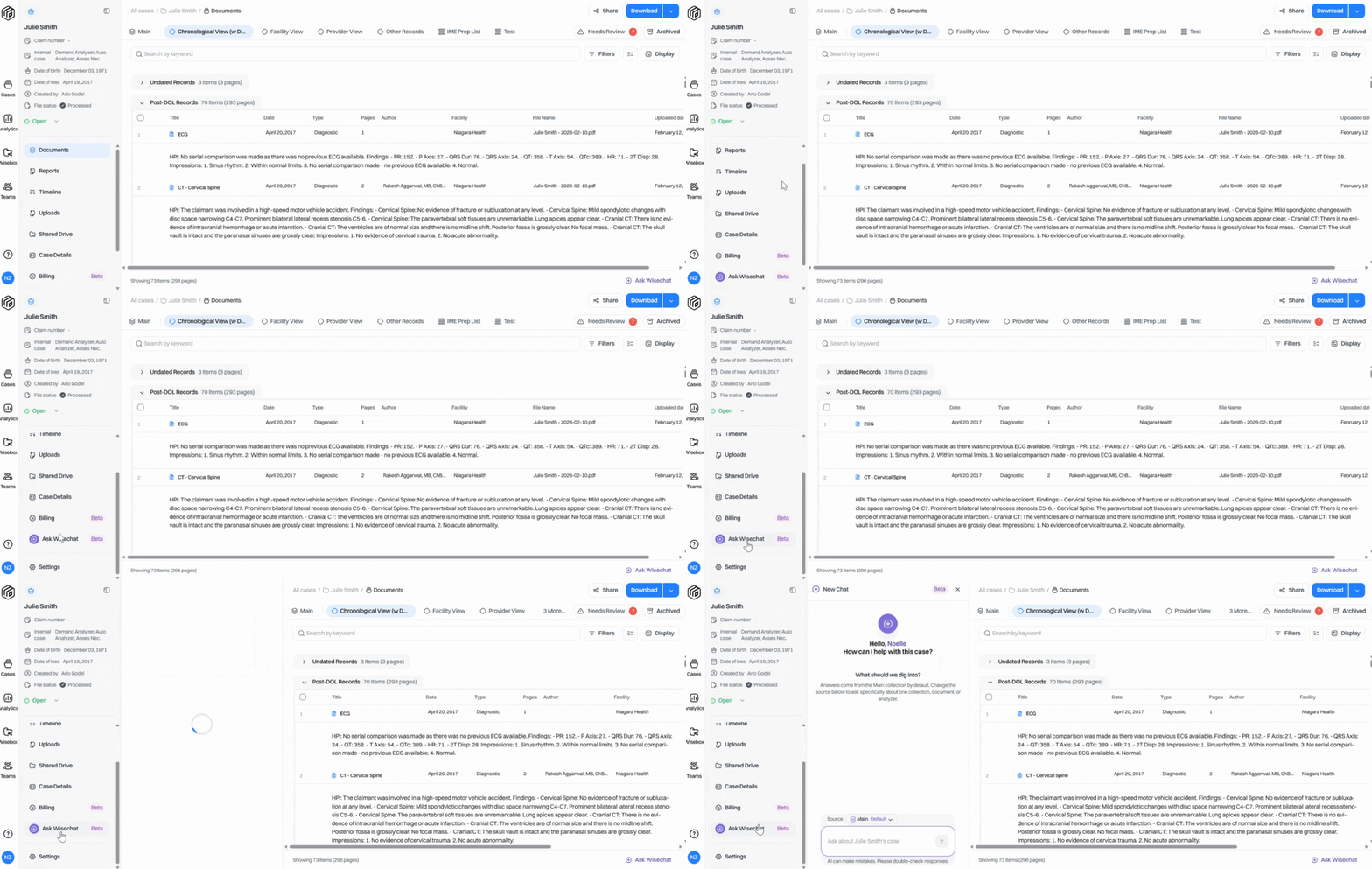
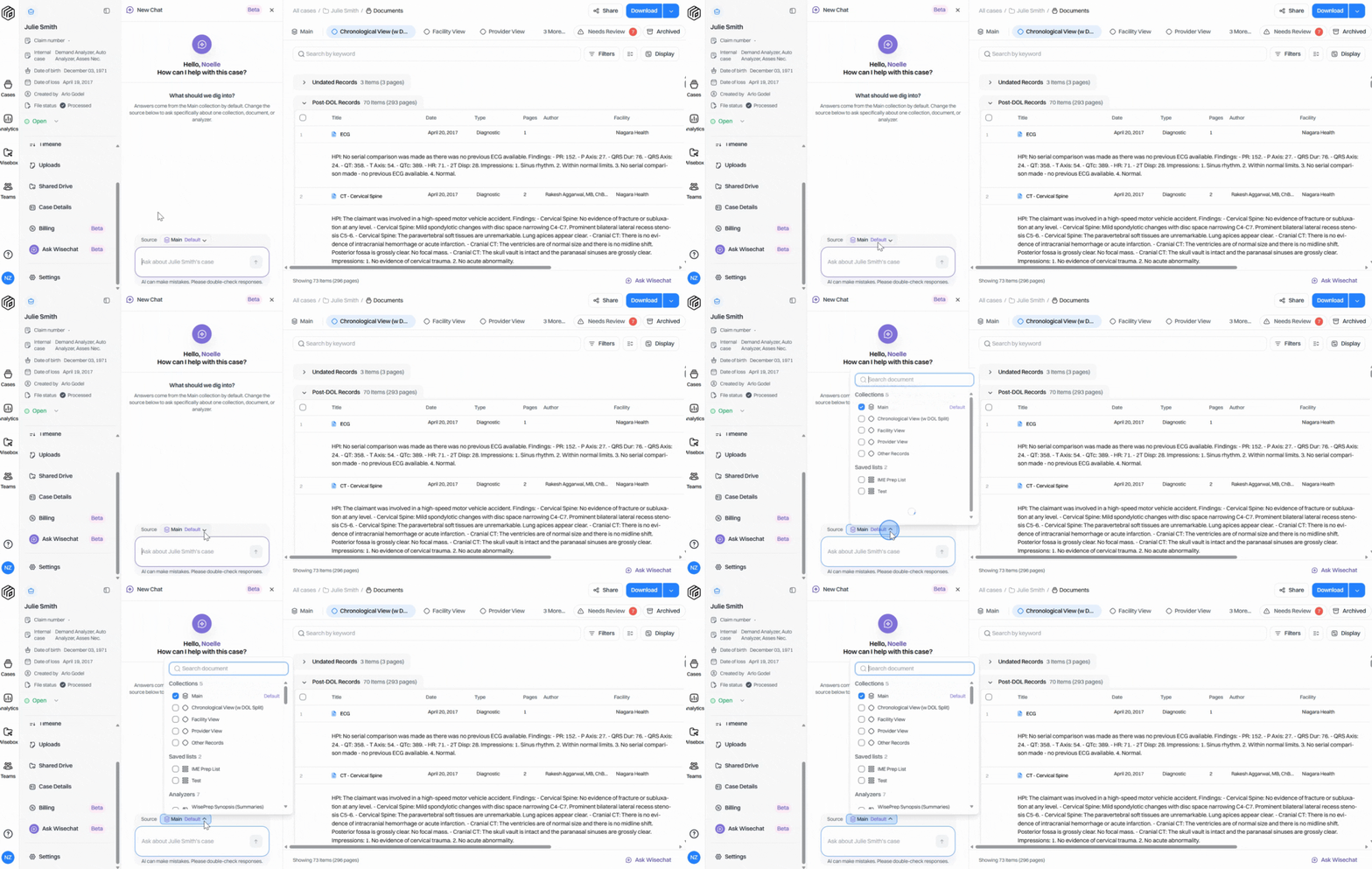
Step 3: Select the source where WiseChat should look for answers. The default source will be the Main collection, but you can switch the source to:
Another collection
Any saved lists
Any generated analyzers
Individual documents (you can include multiple docs at once)
Step 4: Once your source is selected, type your question in the WiseChat text box in plain language—no special wording needed.
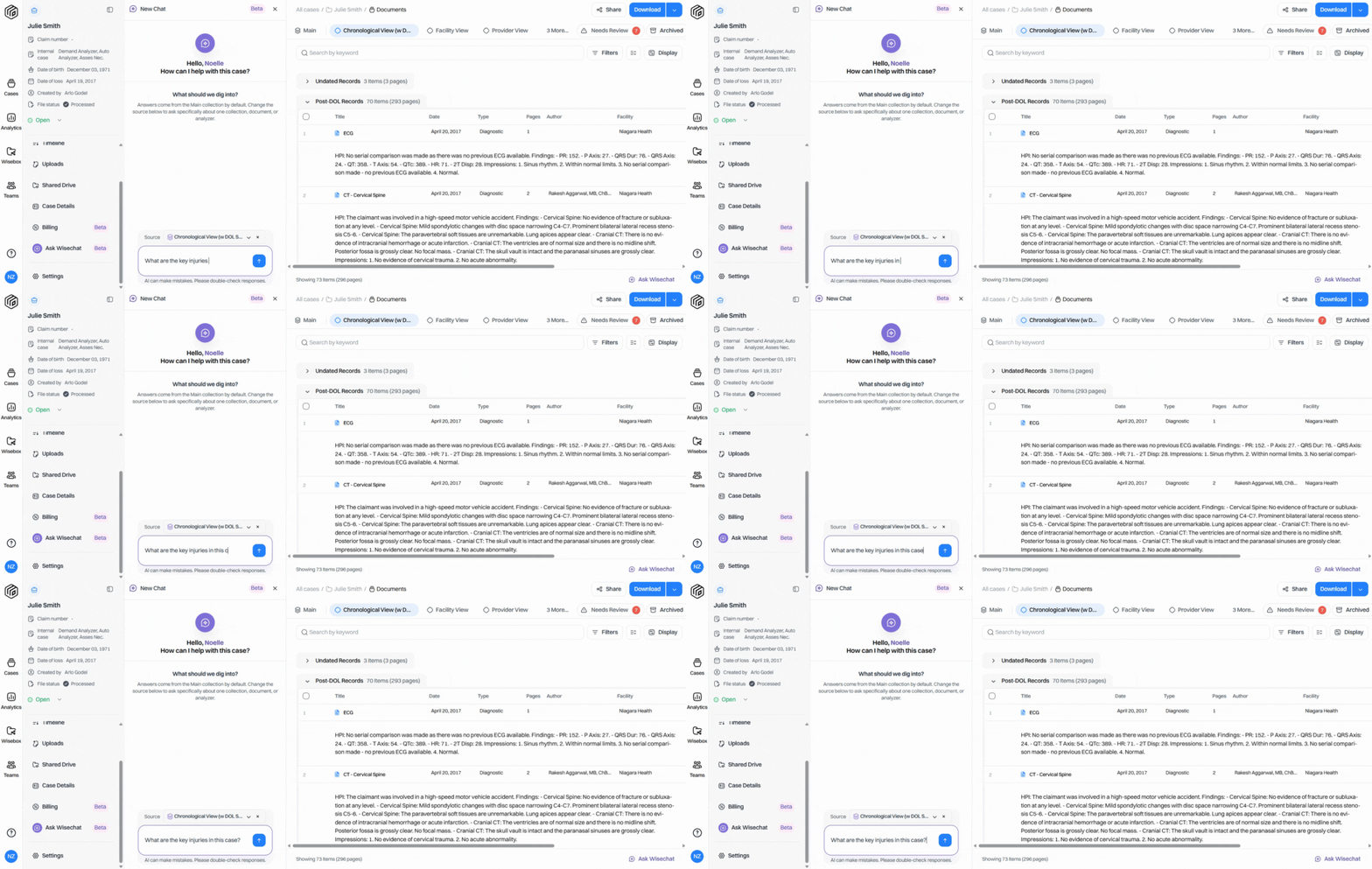
Step 5: Press Enter or click the blue arrow to submit your question.
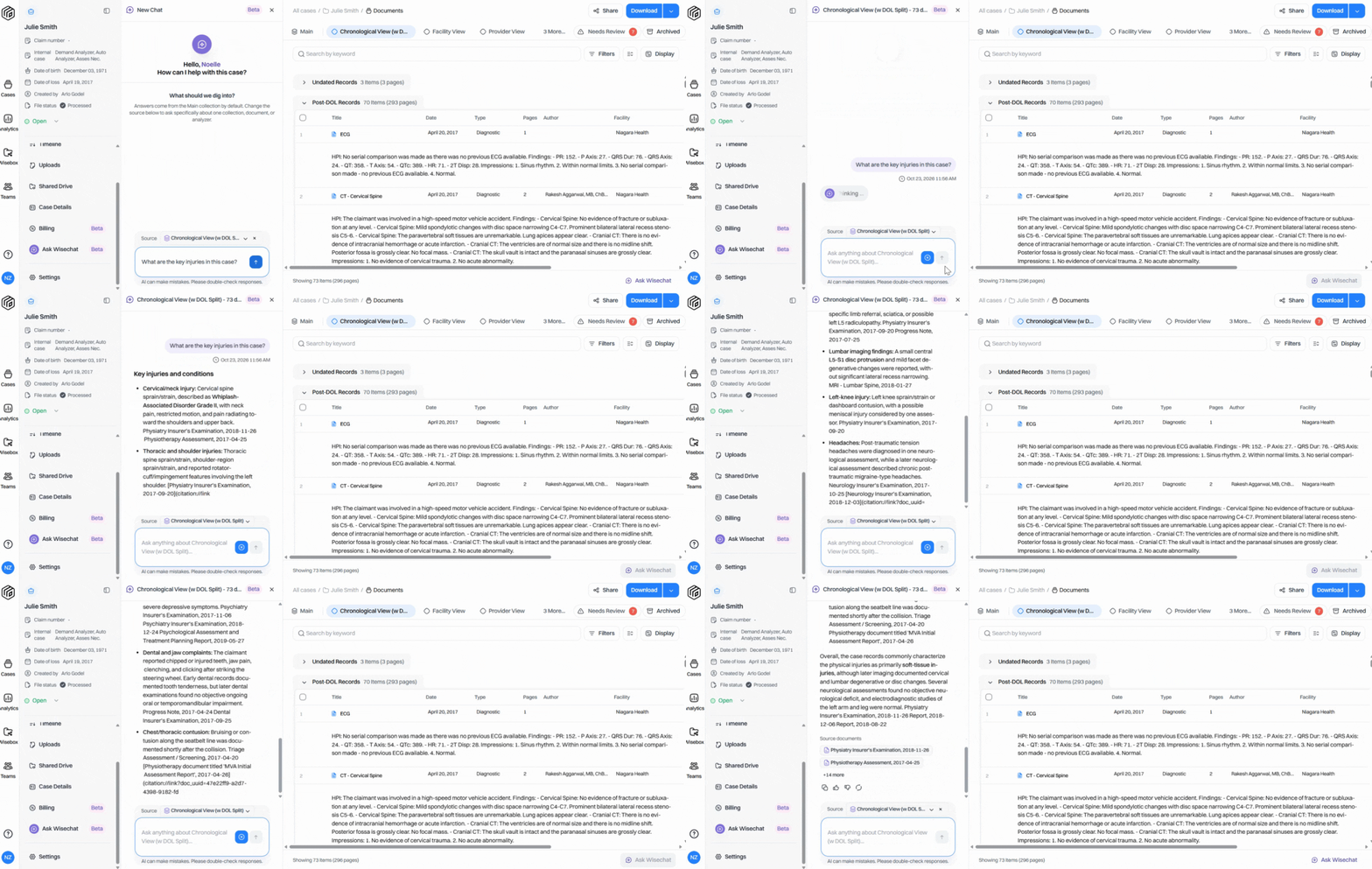
WiseChat analyzes your selected source and gives a clear, sourced answer. Answers include direct links to the original documents.
Step 6: Click any source document link to jump straight to the exact spot where that information was found.
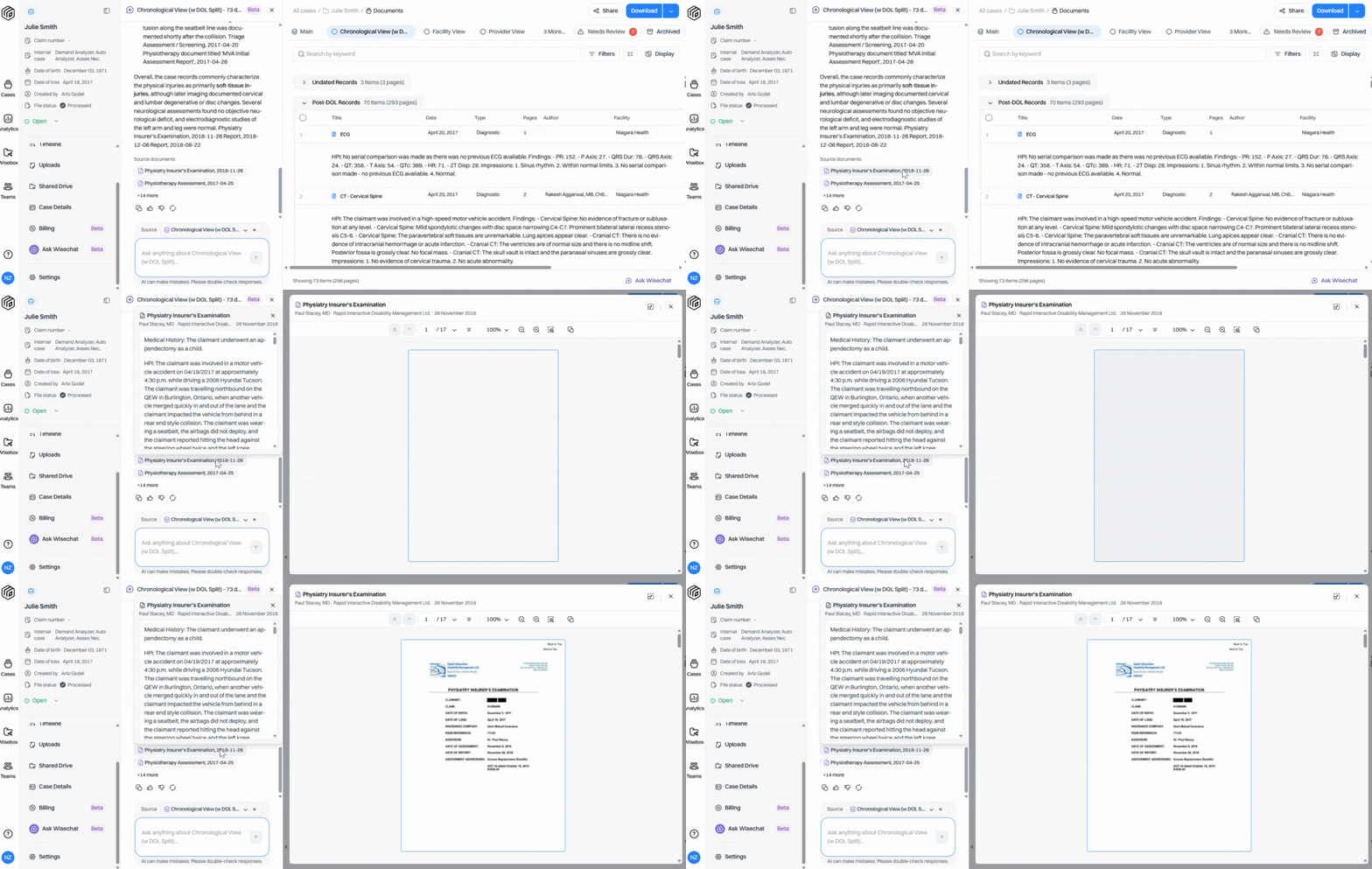
If you didn’t find the information you needed or want more details, ask follow-up questions—WiseChat retains context in each session, so you can refine your question or pivot to something new without repeating yourself.
With WiseChat, crucial information is just a question away. Save time, reduce risk, and get the details you need instantly, complete with citations—no more digging through mountains of paperwork.