
Use Bookmarks in Wisedocs to Flag and Organize Key Documents
Reviewing large sets of records can feel overwhelming. Wisedocs makes it easy to highlight the documents that matter most with the Bookmarks feature. Flag important files, filter them instantly, and stay organized during your review.
Step 1: Hover over a document. The bookmark symbol will appear for you to select. 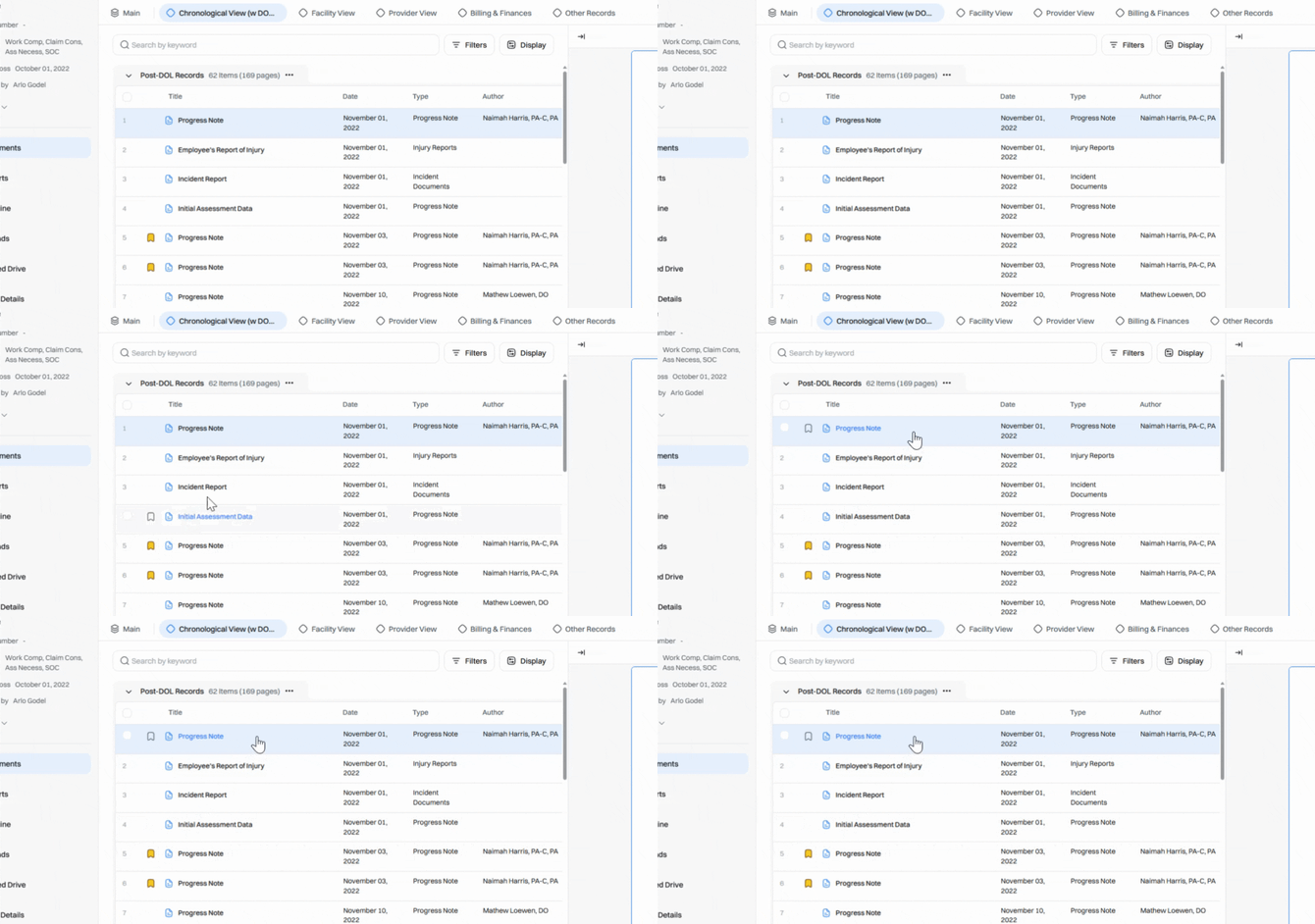
Step 2: Click the bookmark symbol. It turns yellow, confirming the document is bookmarked. 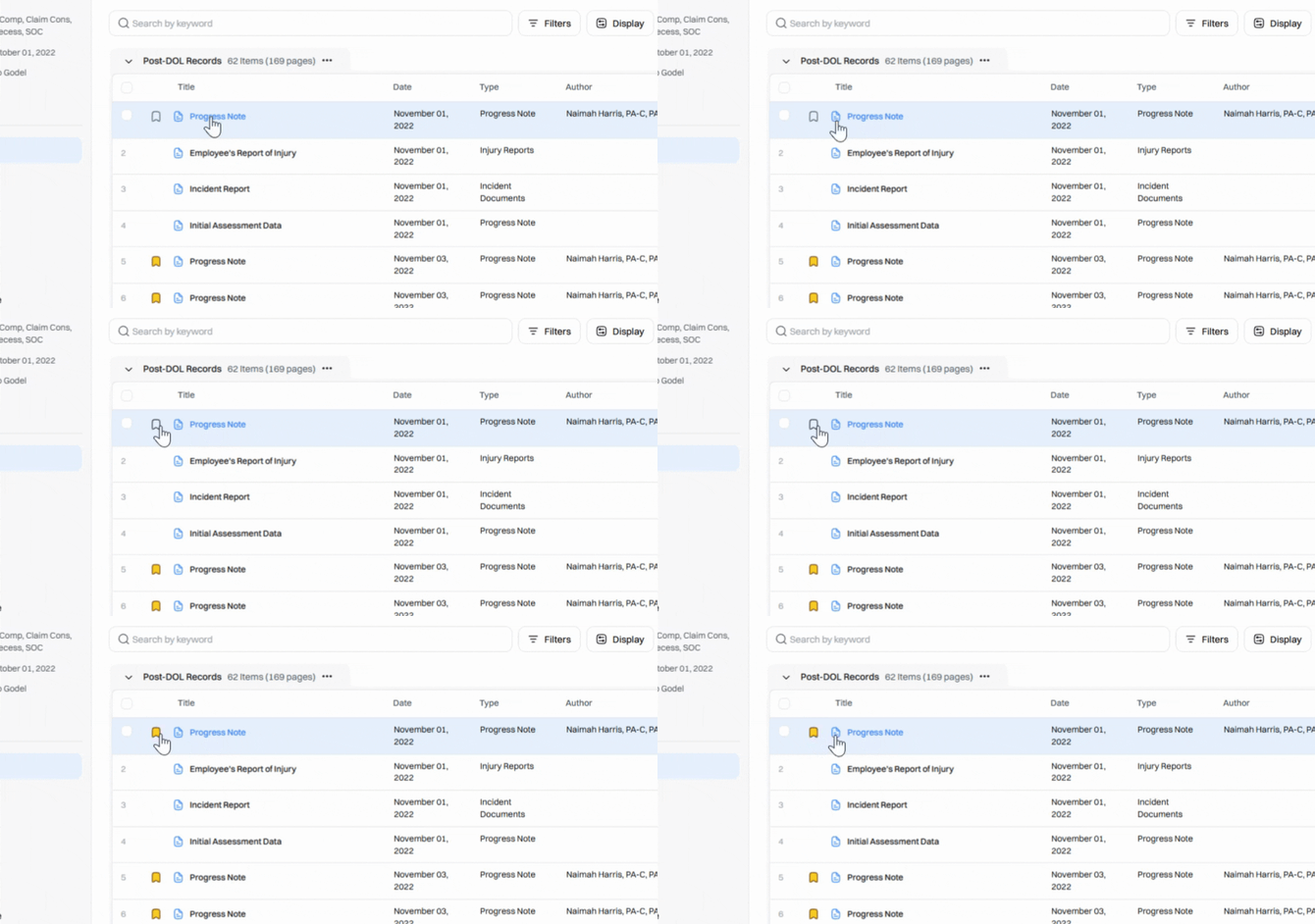
Step 3: To bookmark several documents at once, select the checkbox next to each document name. 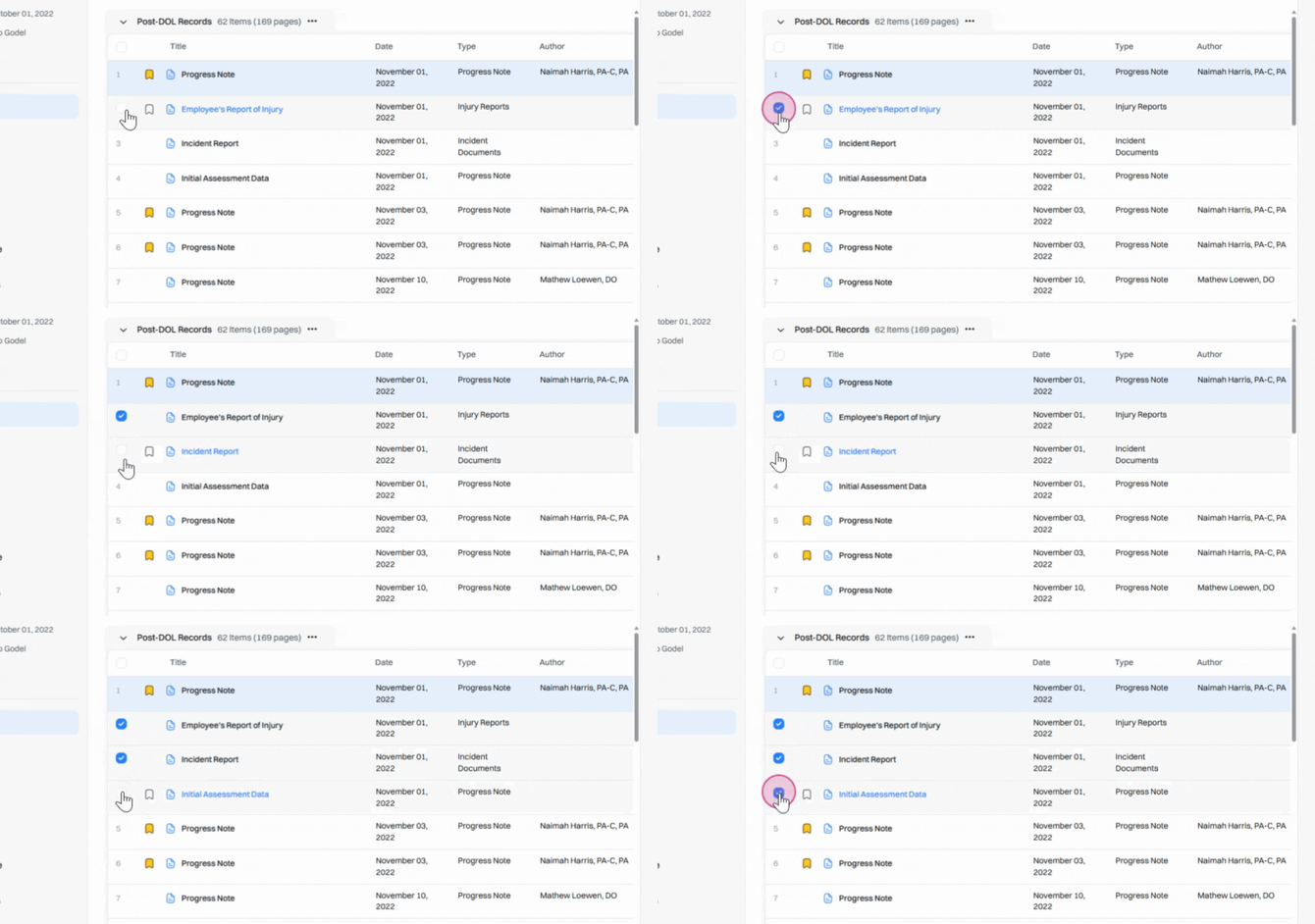
Step 4: Click Bookmarks on the toolbar that appears. 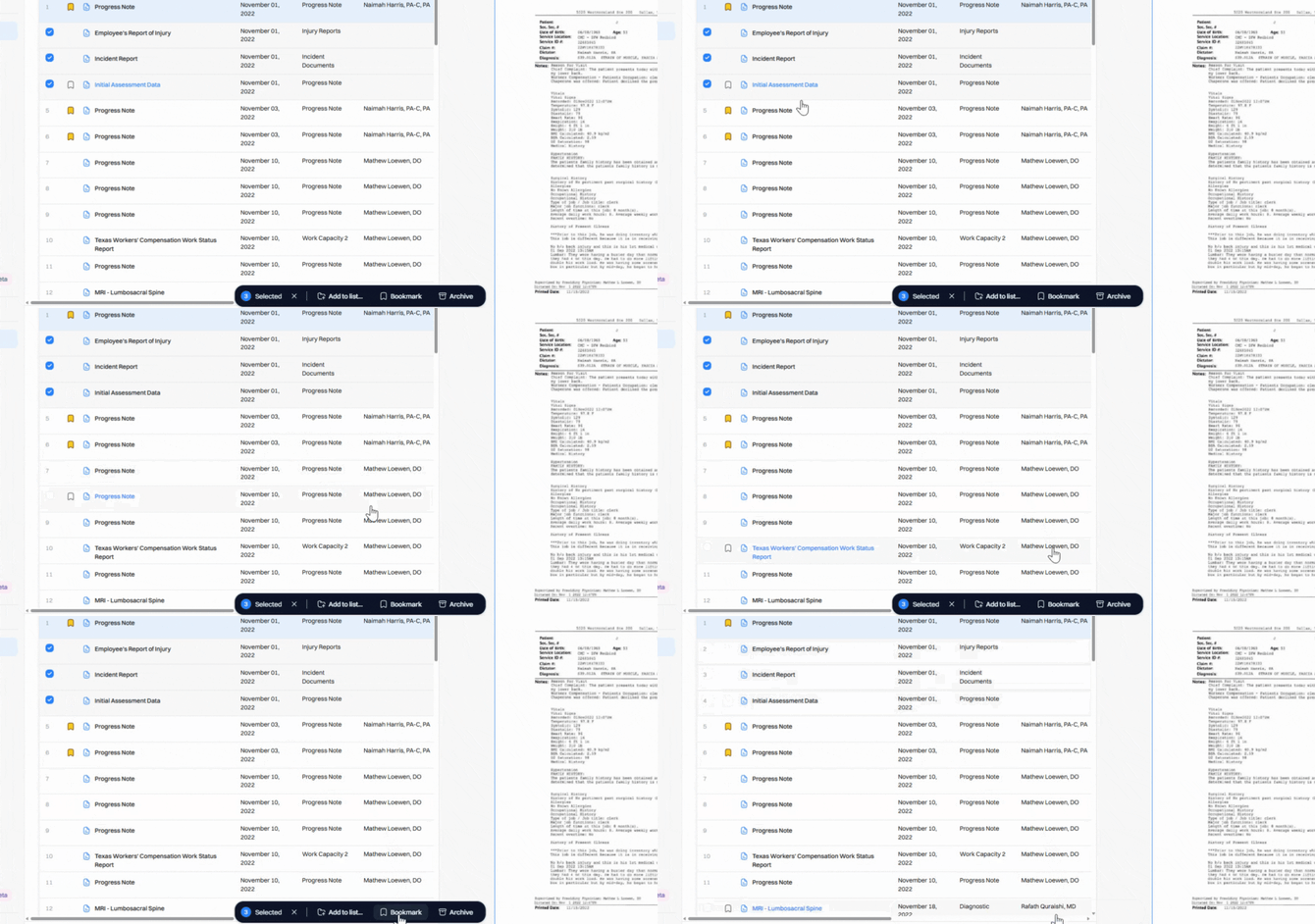
Step 5: Filter to view only bookmarked documents. This way, you can easily create and download a custom list of key files.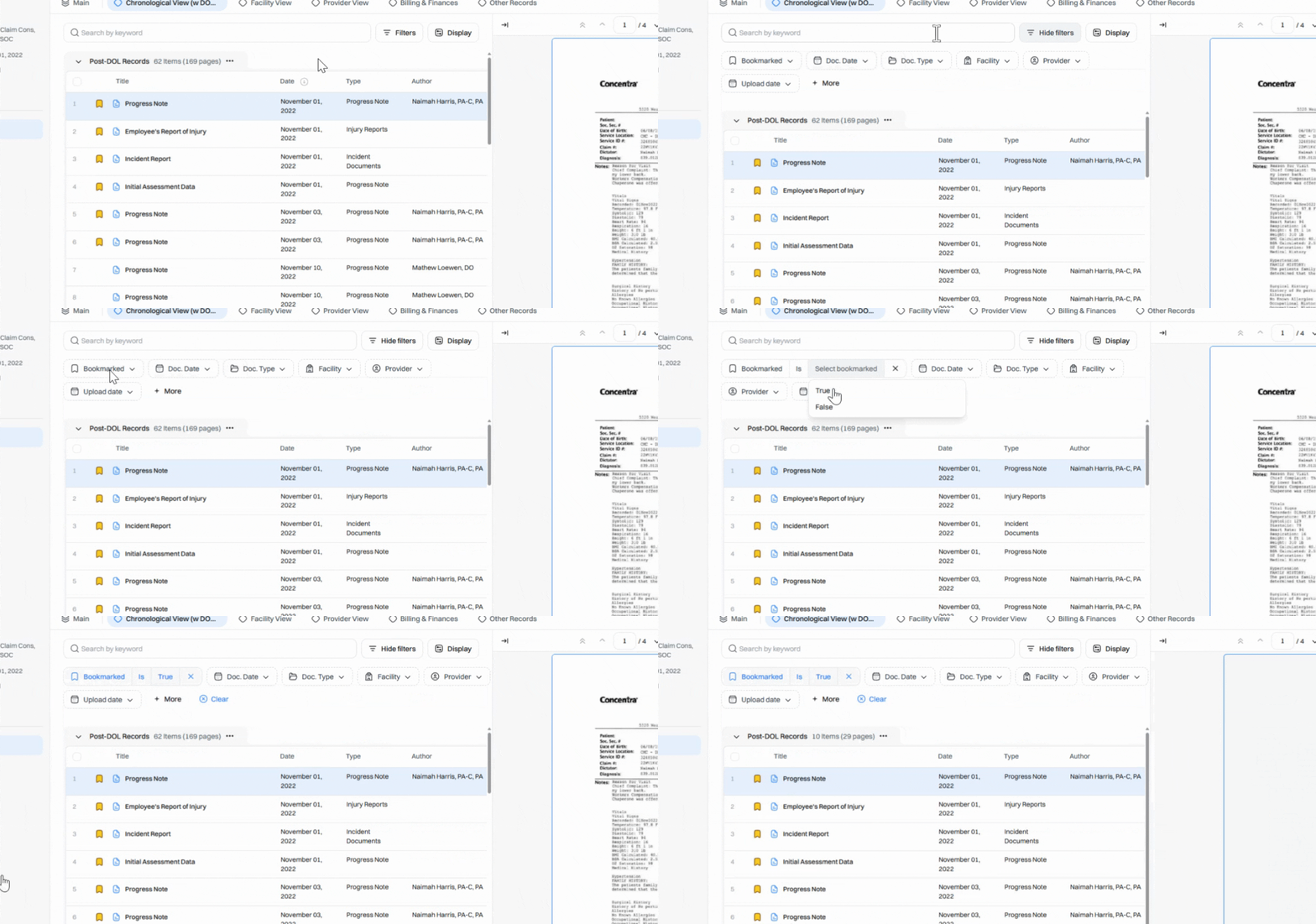
Step 6: To remove a bookmark, click the bookmark symbol again. You’ll receive a confirmation that it's been removed. 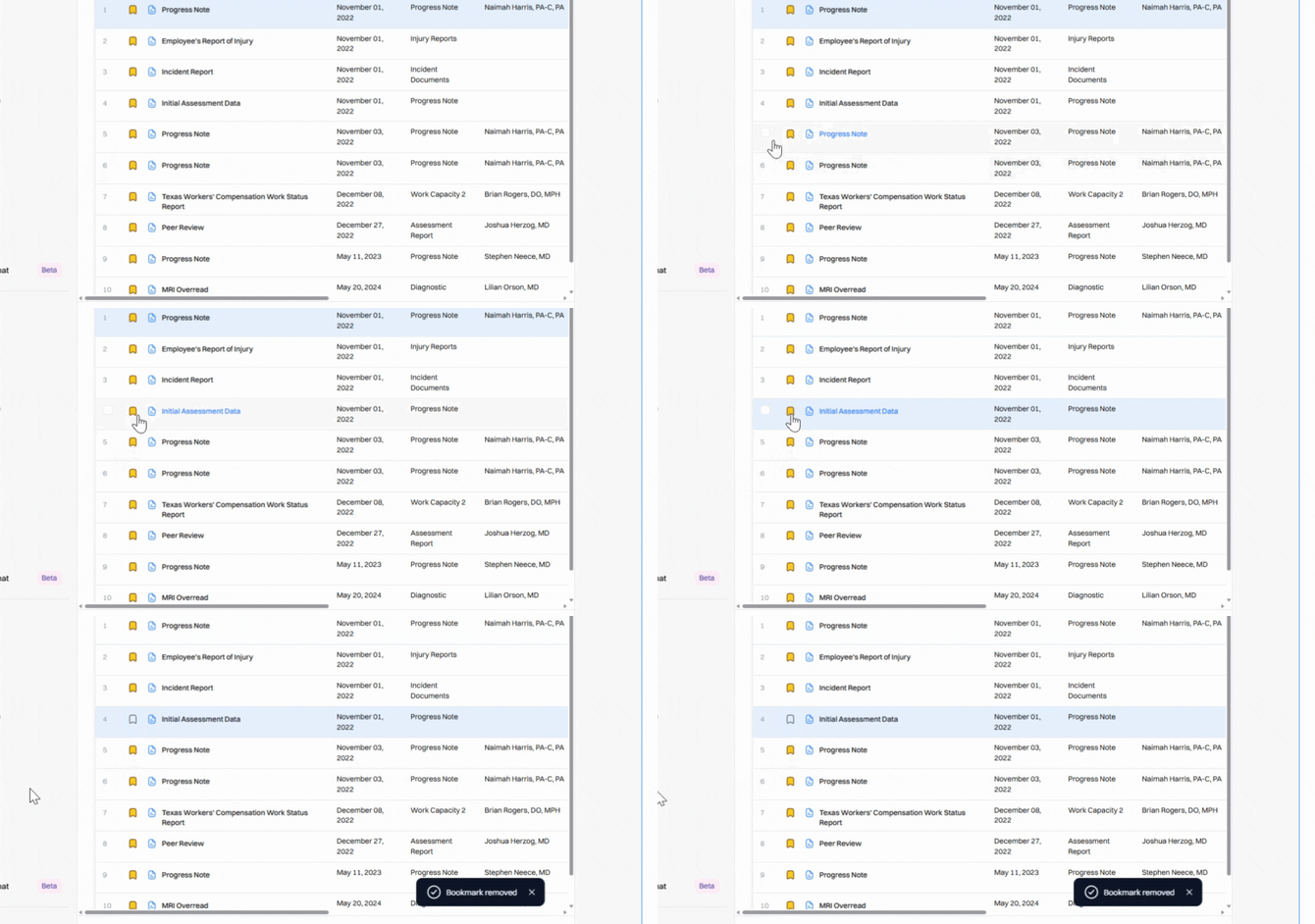
Bookmarks keep your workflow organized and ensure your most critical documents are always easy to find. Use them throughout your review to save time and focus on what matters.