
The deduplication feature is a powerful tool that helps you efficiently identify, compare, and remove duplicate documents. Follow the steps below to make the most of this feature and streamline your review process.
Overview of the Dedupe Page & New Features
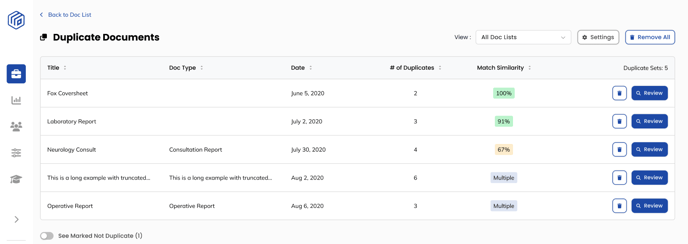
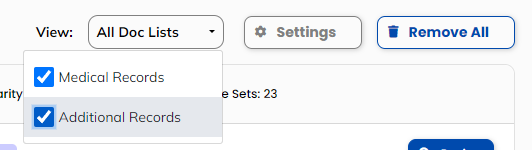
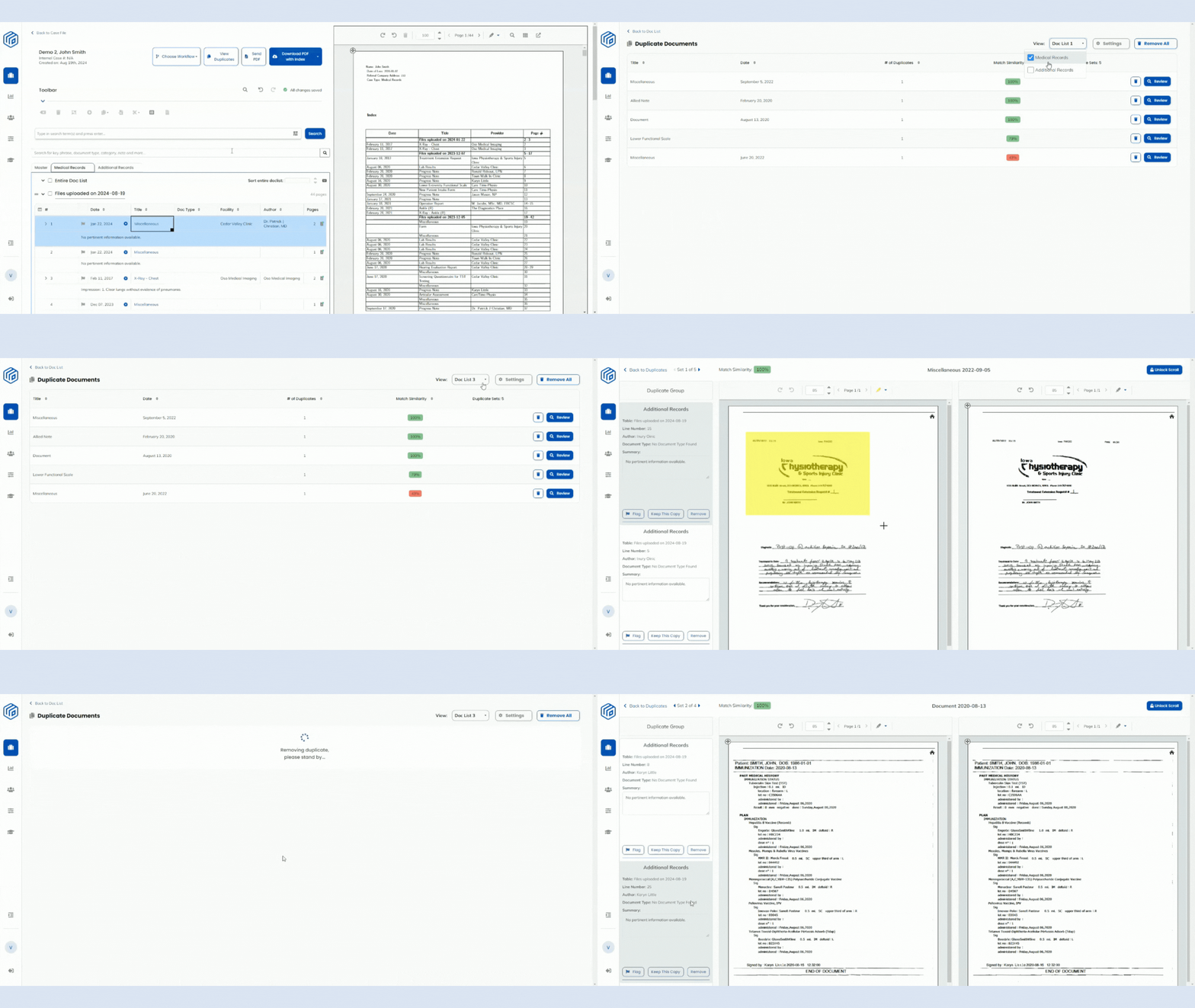
- NEW: Comparing Duplicates Across 2 Different Doclists: Using the dropdown menu, you can select two doclists you would like to compare for duplicate documents.
- Select up to 2 doclists to compare.

- Select up to 2 doclists to compare.
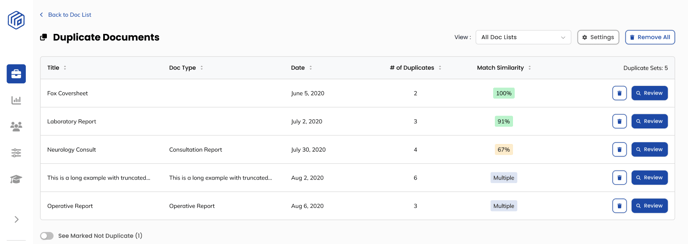
- Match Similarity Percentage: In the "Match Similarity" column, you will see a percentage indicating how similar the compared set of documents are. This metric provides a quick reference to gauge the extent of duplication between documents. If multiple documents are detected as matches, the match similarity will be displayed as ‘Multiple’.
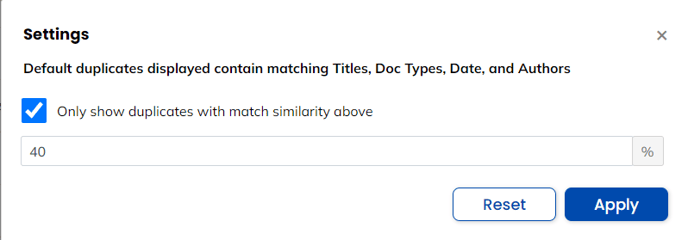
- NEW: In Settings, the Duplicates page can now be customized to show only duplicates above a set match similarity percentage.
- This percentage can be customized per case, with the default being your organization's desired match similarity percentage.
- Reviewing Sets of Duplicates: The deduplication feature groups similar documents together, allowing you to keep the desired copy and remove several duplicates with one click. This gives you a clear view of how many similar documents exist in your dataset.
Accessing the View Duplicates page
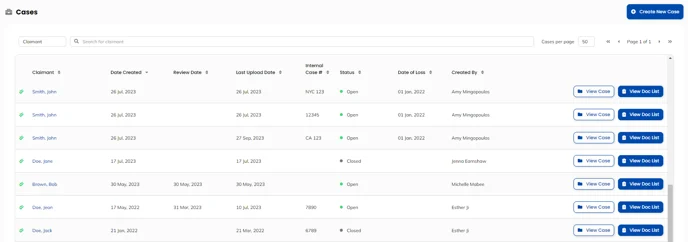
- Navigate to the "Cases" page. Select the case you would like to work on.
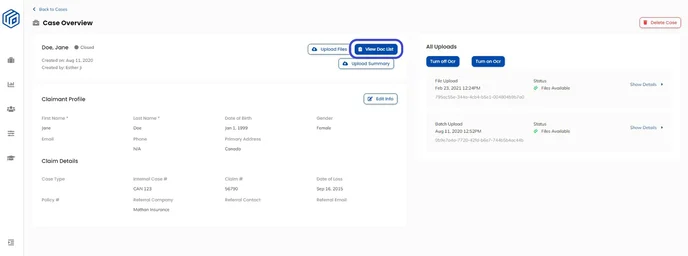
- In the "Case Overview" page, click on the "View Doc List" button to be taken to your doclist.
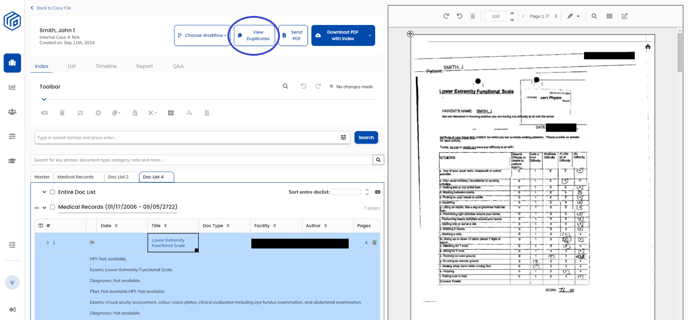
- Click “View Duplicates” button.
- All the detected duplicate documents will be listed here.
Side-by-Side Comparison
Now, let's review sets of duplicates more closely:
- On the ‘View Duplicates’ page, select the doclist(s) you want to search for duplicates in. You can select up to 2 doclists to compare.
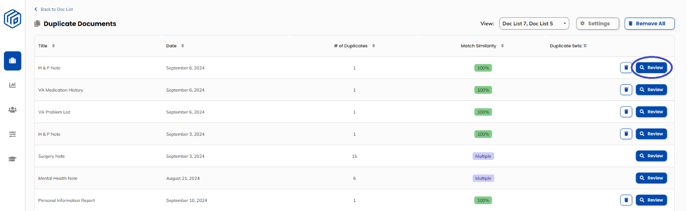
- Click on the ‘Review’ button to open a side-by-side comparison for the set of duplicates. This interface allows for a detailed comparison of each document against the duplicate, with the original documents provided for viewing purposes.
- Compare the documents. Within the comparison window, you can determine which copy of the set to keep or remove from the doclist.
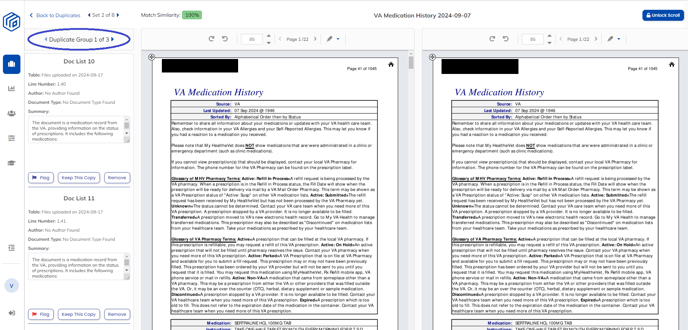
- To remove duplicates from the doclist, click Remove for the corresponding document. The top panel corresponds to the document on the left. The bottom panel corresponds to the document on the right. Click on the document in question to highlight the document information if you are unclear of which section pertains to which document.
- Continue removing documents until you have determined there are no more duplicates. Then click the arrow to move to the next set.

- If you would like to keep both copies (ie. neither documents are duplicates), you can move to the next set. Please note, duplicate sets will still appear in the "View Duplicates" page even if they have been identified as not a duplicate file since they have been flagged by our system and within the match similarity score indicated.
- If you would like to keep both copies (ie. neither documents are duplicates), you can move to the next set. Please note, duplicate sets will still appear in the "View Duplicates" page even if they have been identified as not a duplicate file since they have been flagged by our system and within the match similarity score indicated.
- Repeat until you have reviewed all detected duplicates.
Additional Features
Keep This Copy
Clicking "Keep This Copy" will automatically remove the other duplicates in the set from the doclist. The other duplicates removed will still be available in the Master doclist.
For efficiency, we recommend viewing all the duplicates in the group before deciding which copy to keep.
Flag
Flagging a document will add a red flag beside the document in the doclist
Lock and Unlock Scroll
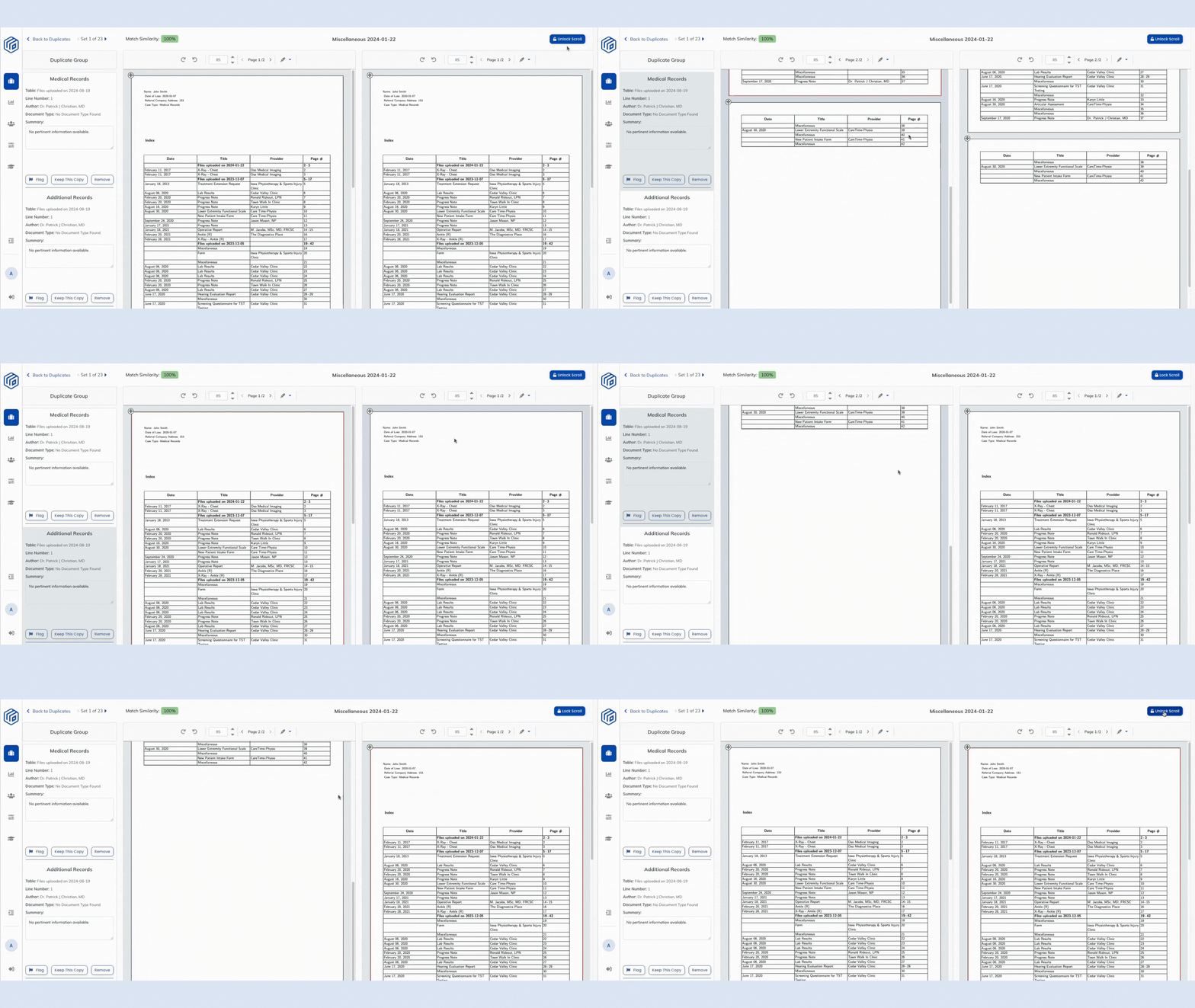
"Lock Scroll" synchronizes the scrolling of both PDFs, allowing you to focus on the differences between the documents.
"Unlock Scroll" will allow you to scroll PDFs separately. This feature is particularly useful when you want to focus on different sections of each document without losing your place in either document.
Match Similarity 
Match Similarity is a percentage of how similar the documents are, as determined by our proprietary AI. A lower match similarity suggests that the documents may contain similar content, but may not necessarily be duplicates.
The AI algorithm evaluates several factors to determine document similarity, including the OCR text present on the page, formatting styles, and visual elements such as fax strips and letterheads.
This Match Similarity percentage can be customized per case, with the default percentage being your organization's desired indication. Changing this percentage will not change the percentage among your entire organization.
OCF-18 (Treatment and Assessment Plan) HCAI Numbers
The deduplication algorithm now considers the HCAI number on the Ontario Claim Form 18. OCF-18 forms sharing the same date and healthcare provider, but differing in HCAI numbers, will not be flagged as duplicates.
Remove and Remove All
On the View Duplicates page, clicking the ‘Trash’ button will remove a duplicate from the doclist. If the identified duplicates have different page counts, the copy with the newest or oldest upload date will be kept in the doclist, based on your organization's preferences, and the other documents in the set will be removed. The removed documents will still be available in the Master doclist.
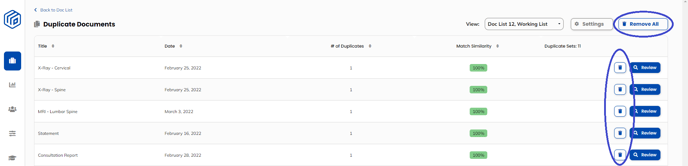
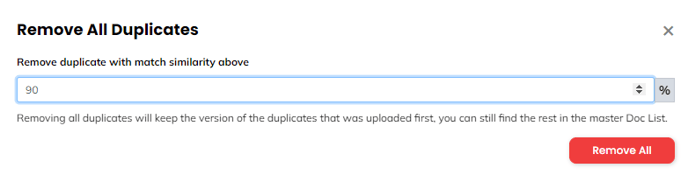
Clicking Remove All allows you to remove all duplicates of above a customizable threshold.
 Comparison Page Editing
Within the comparison page, users are able to edit the summary of each duplicate document directly beside the source document. Any edits made in this field will automatically be saved and reflected in the doclist as well.
See a quick demo of some of these features below:
See a walkthrough video of how to use deduplication:
We are confident that these new and enhanced features will streamline your document organization process with Wisedocs.
Happy deduplicating!