
How to Navigate Documents with the Wisedocs PDF Viewer
The Wisedocs PDF Viewer is more than just a way to read files—it’s a specialized tool that helps you rapidly move through records, find key information, and focus on your case review.
Please Note: This video is recorded using a demo account, so some aspects of the account may look different than yours based on your account setup and the features you have access to.
Step 1: Adjust the PDF viewer size using the divider line. Just drag the divider to set your preferred view. 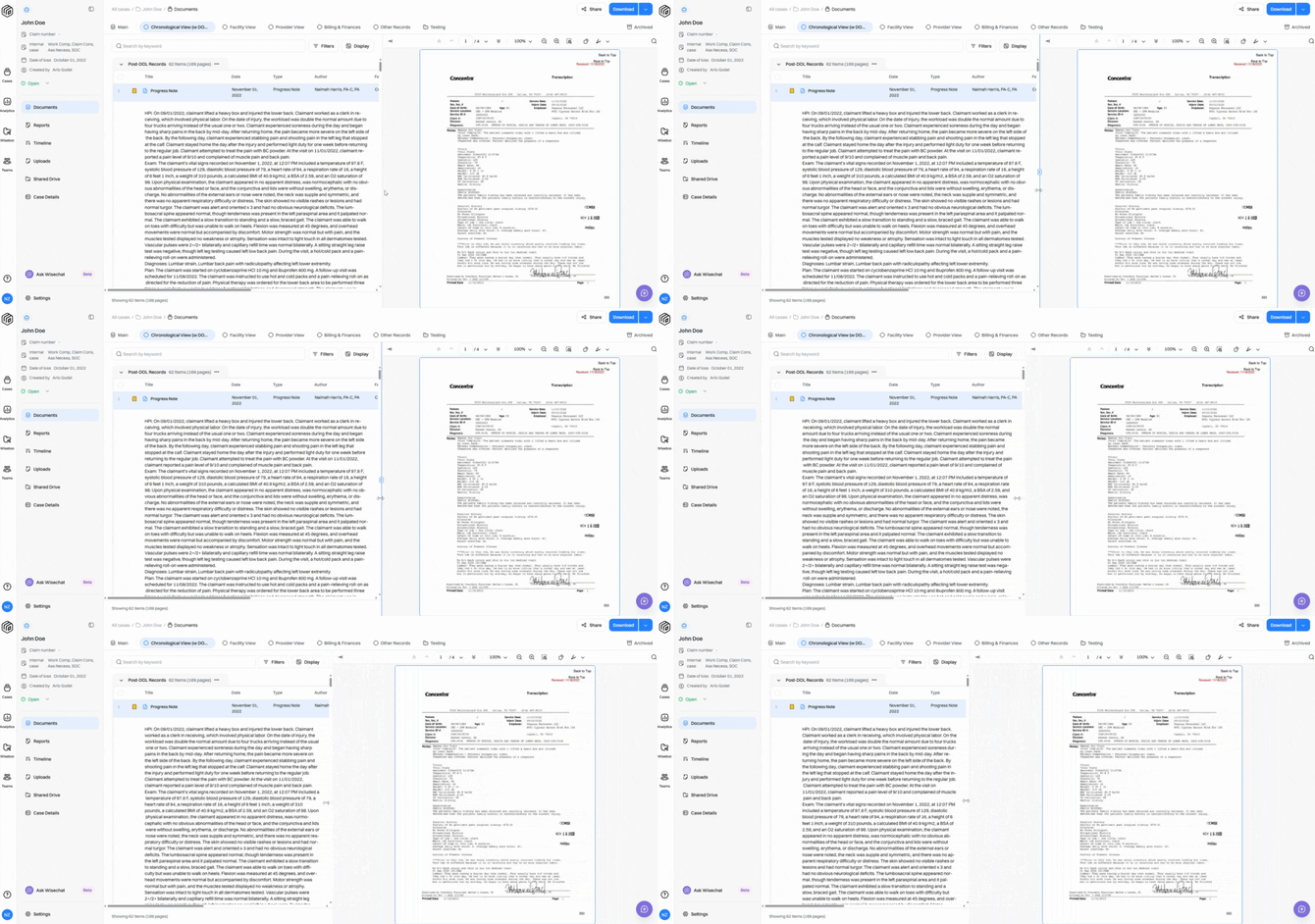
Step 2: To fully collapse the PDF viewer, click the collapse icon at the top left. 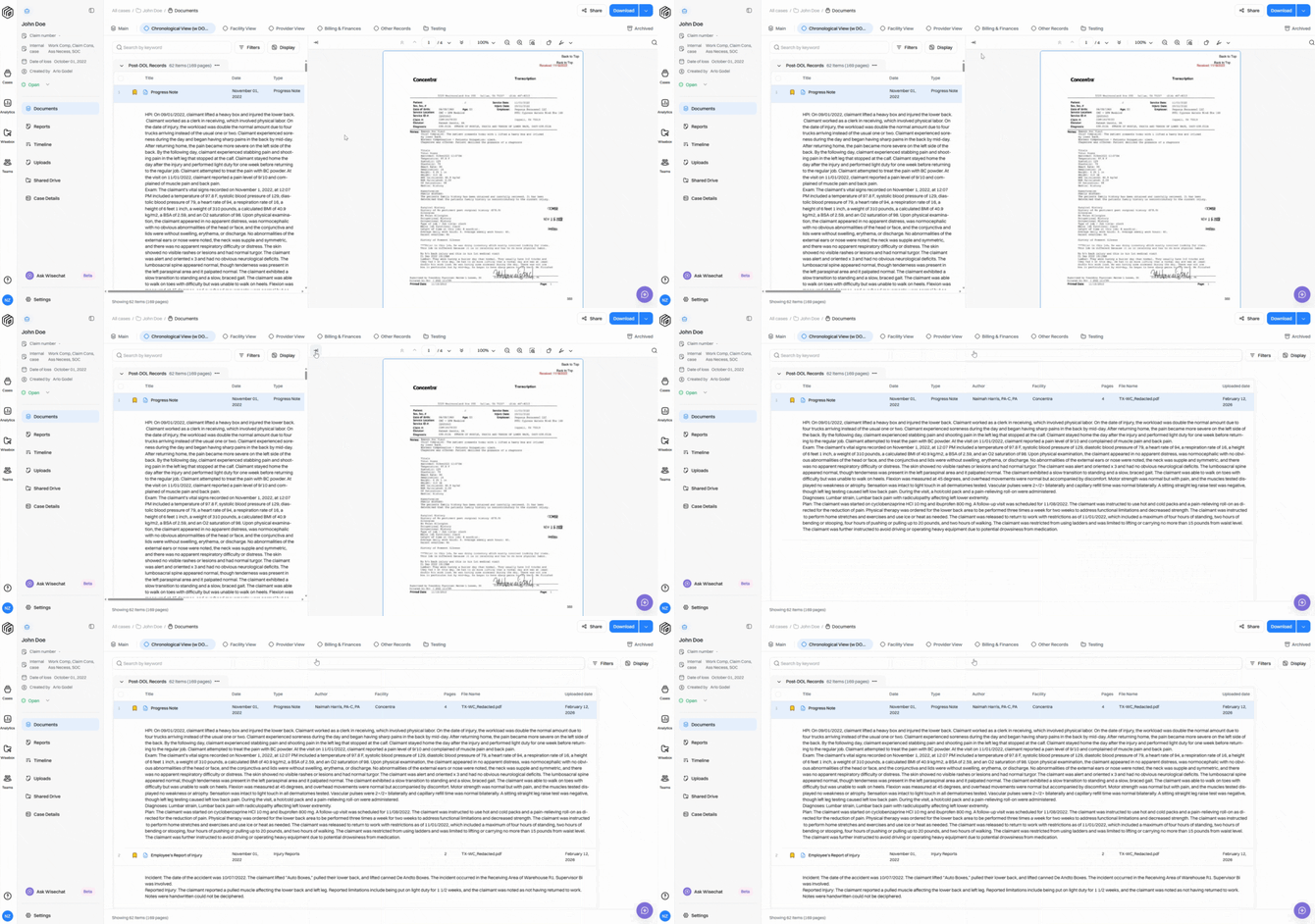
Bring it back by selecting any document again.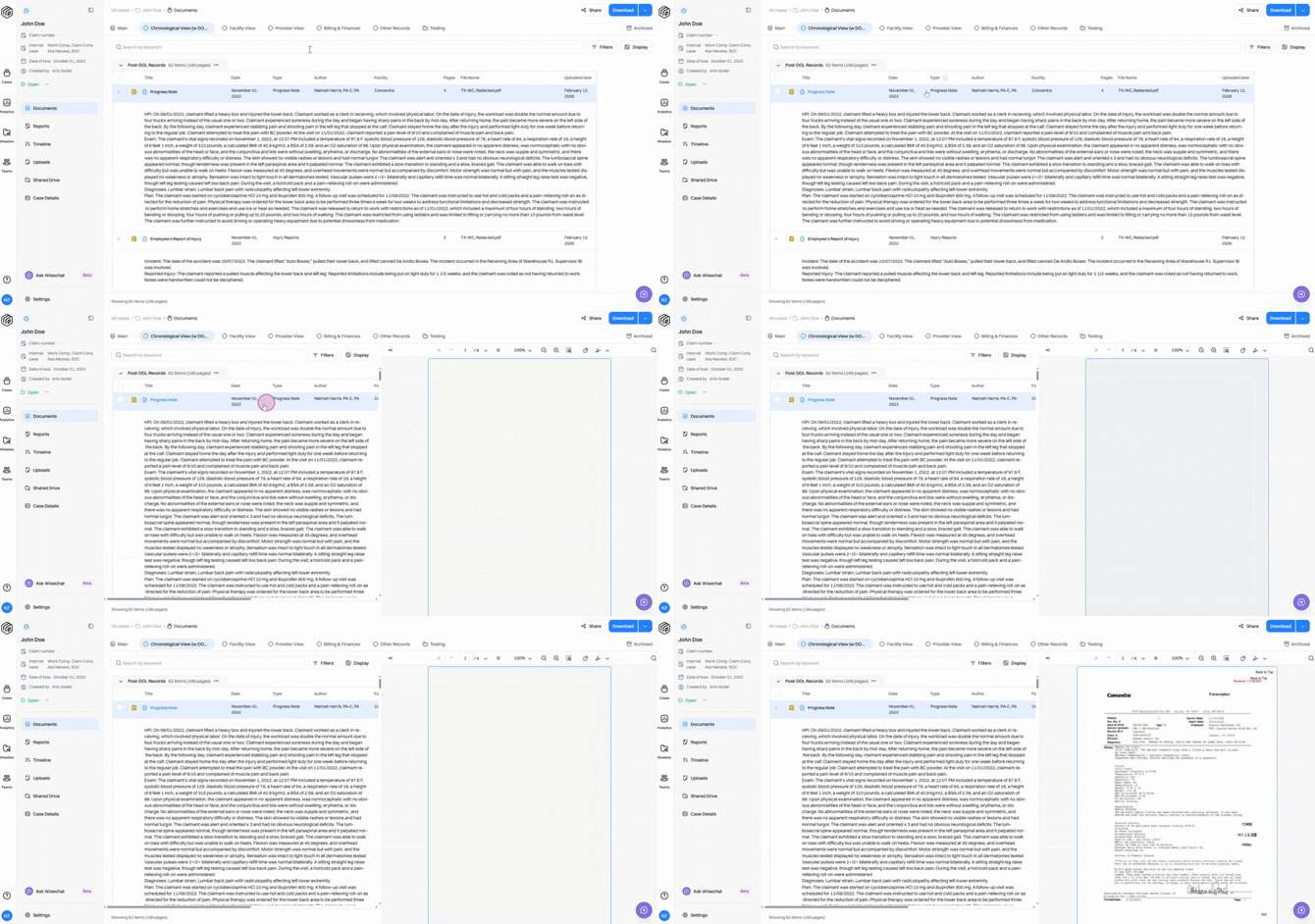
Step 3: To open the PDF viewer in a new window, use the Zoom percentage drop-down and select Open in New Tab. 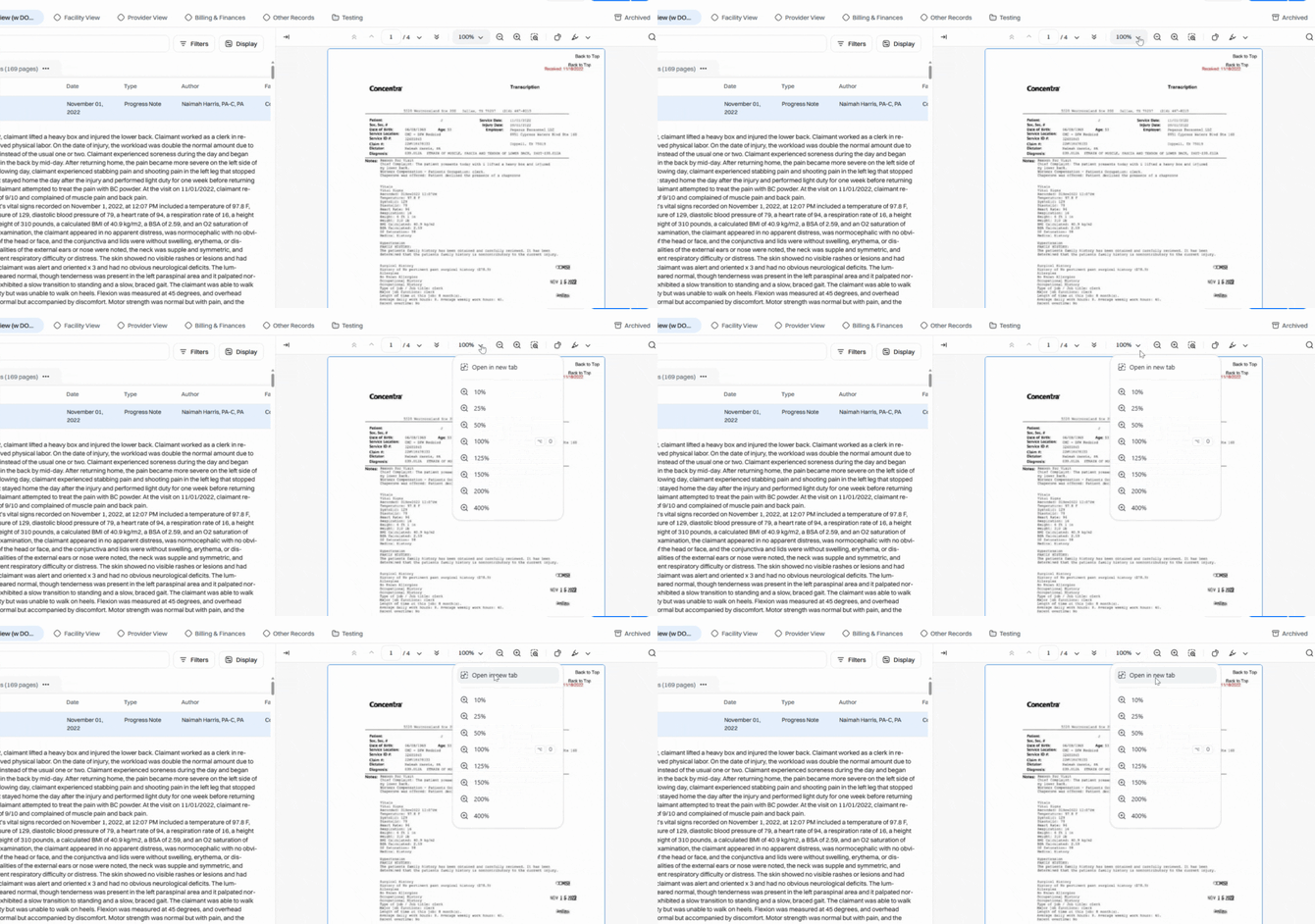
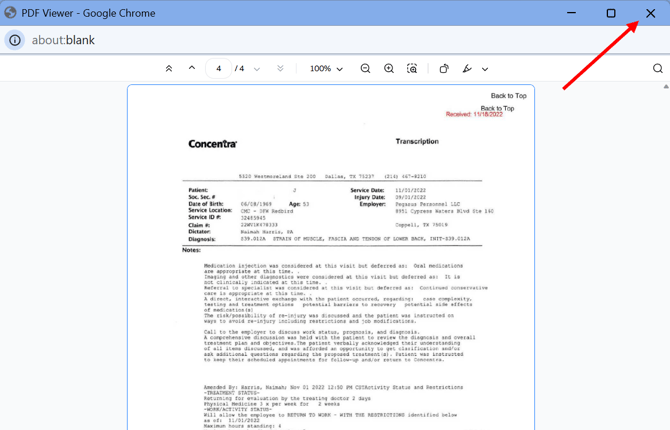
Step 4: Exit the new window to return the viewer to the main case view.
Step 5: Use the toolbar to see the page count and move between pages. Single arrows move one page at a time, and double arrows jump to the first or last page. To move between documents, use your mouse scroll wheel to navigate up or down.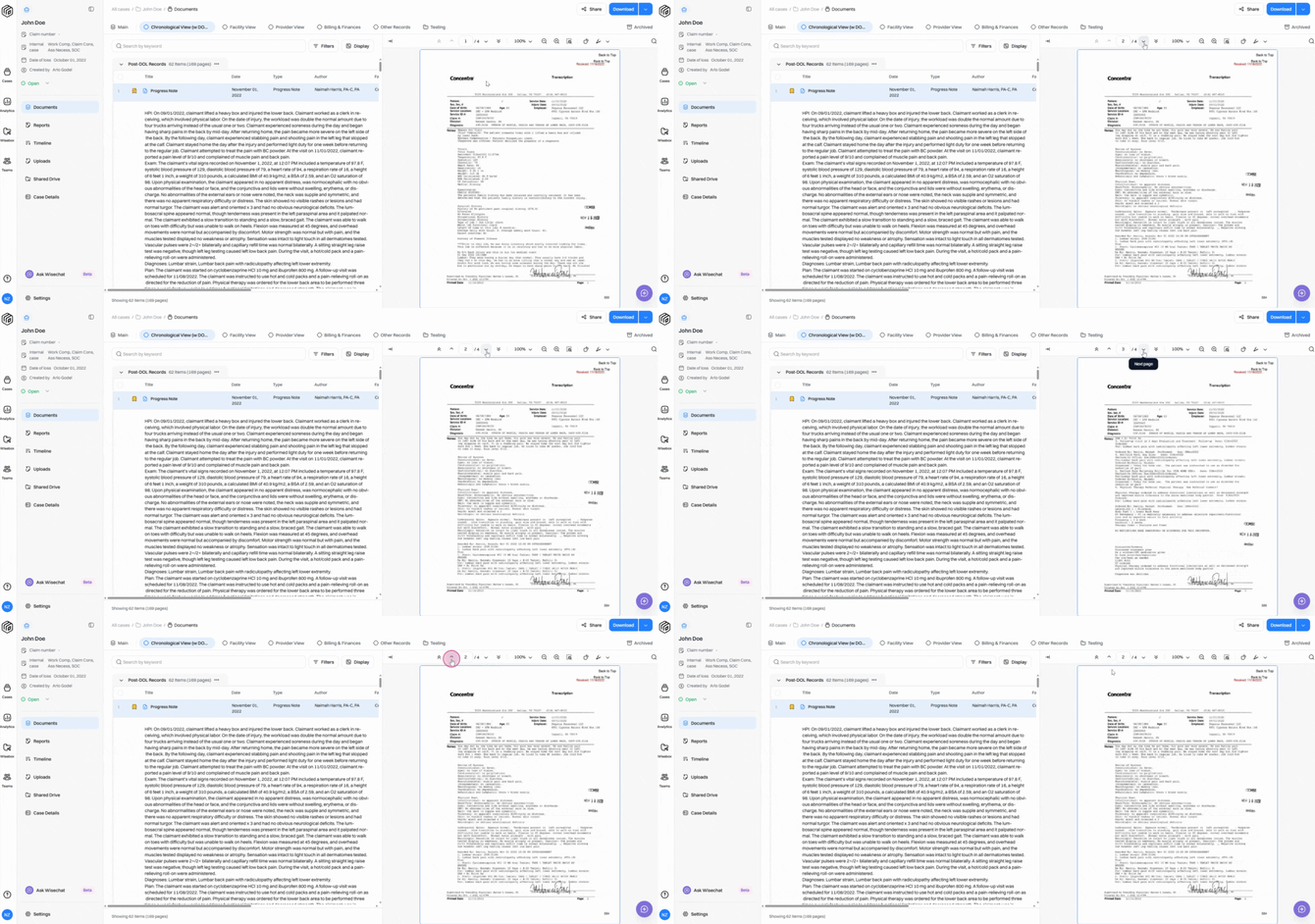
Step 6: Change zoom levels using the percentage drop-down or the magnifying glass icons to zoom in or out. 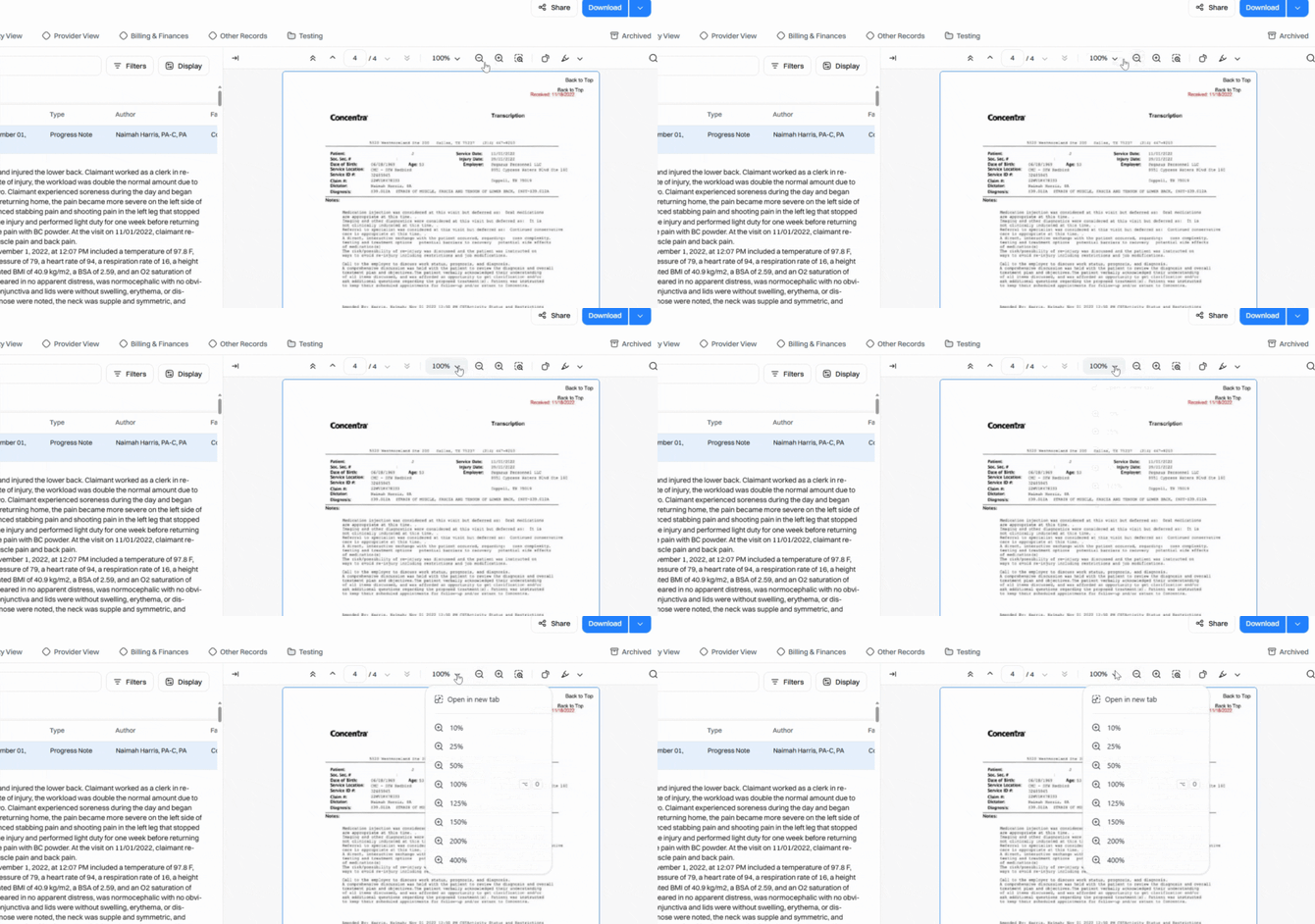
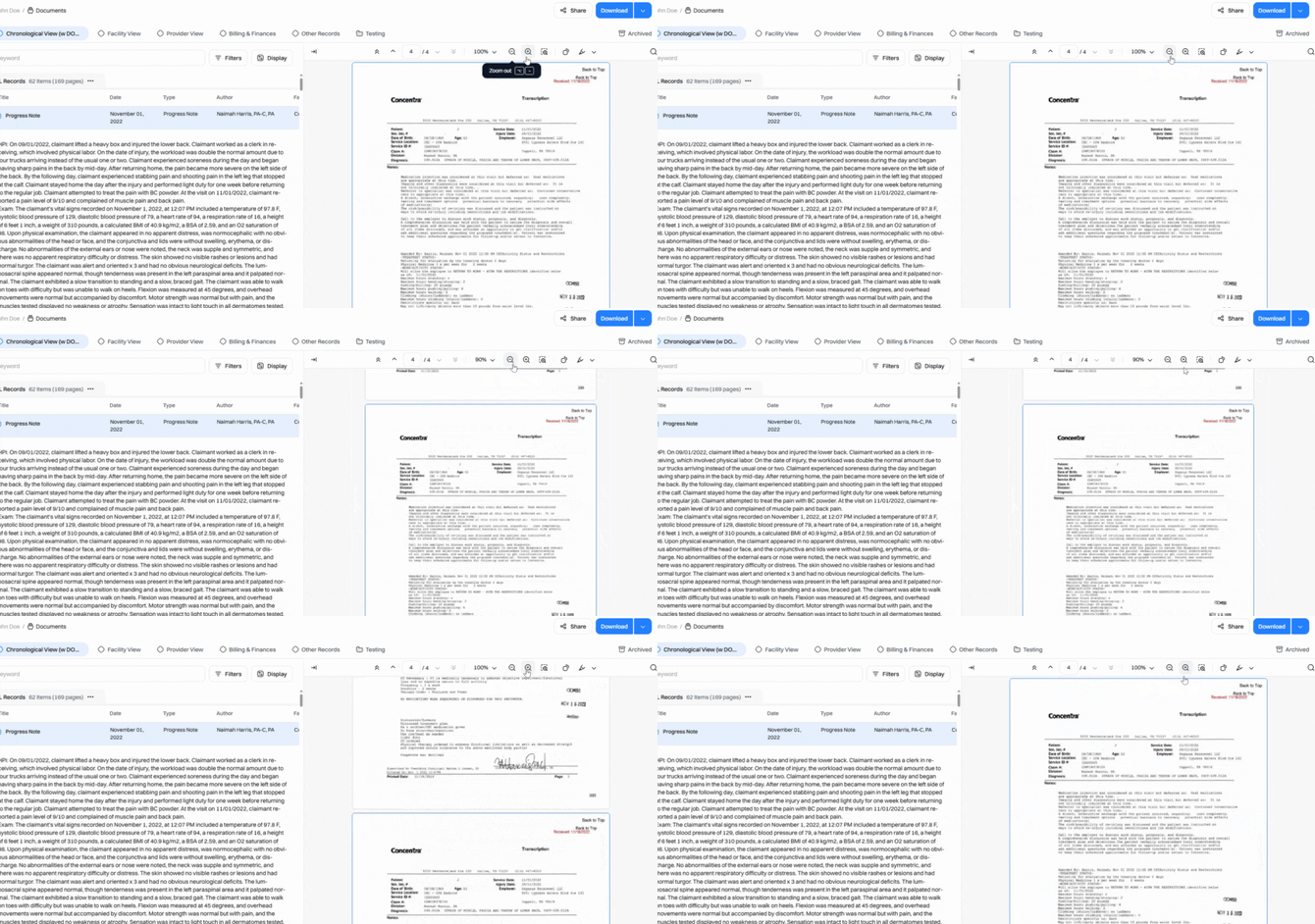
Step 7: For a closer look, open the magnifier and hover over the PDF to view sections under a zoomed lens. 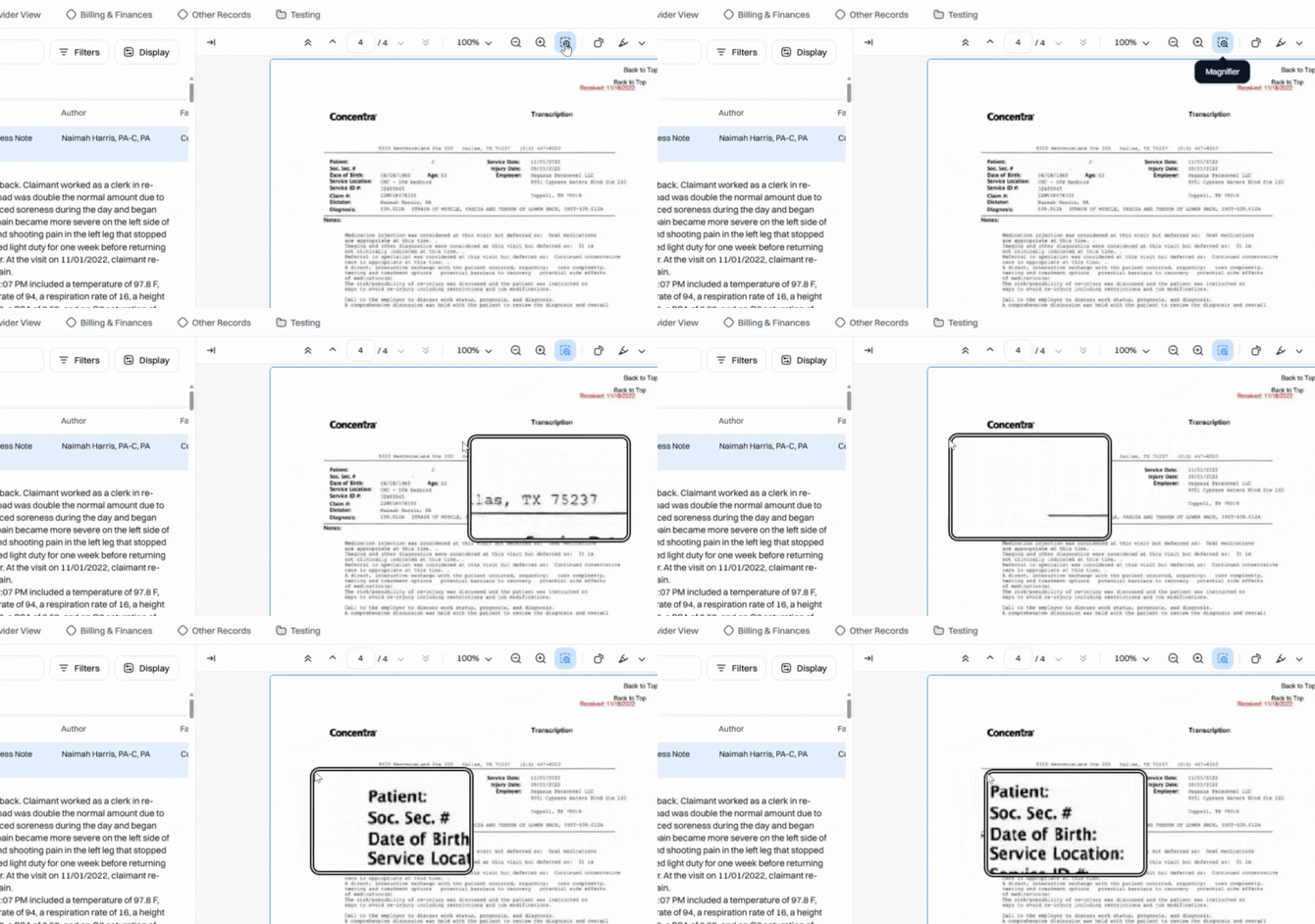
Step 8: Rotate the page orientation anytime using the rotate option. 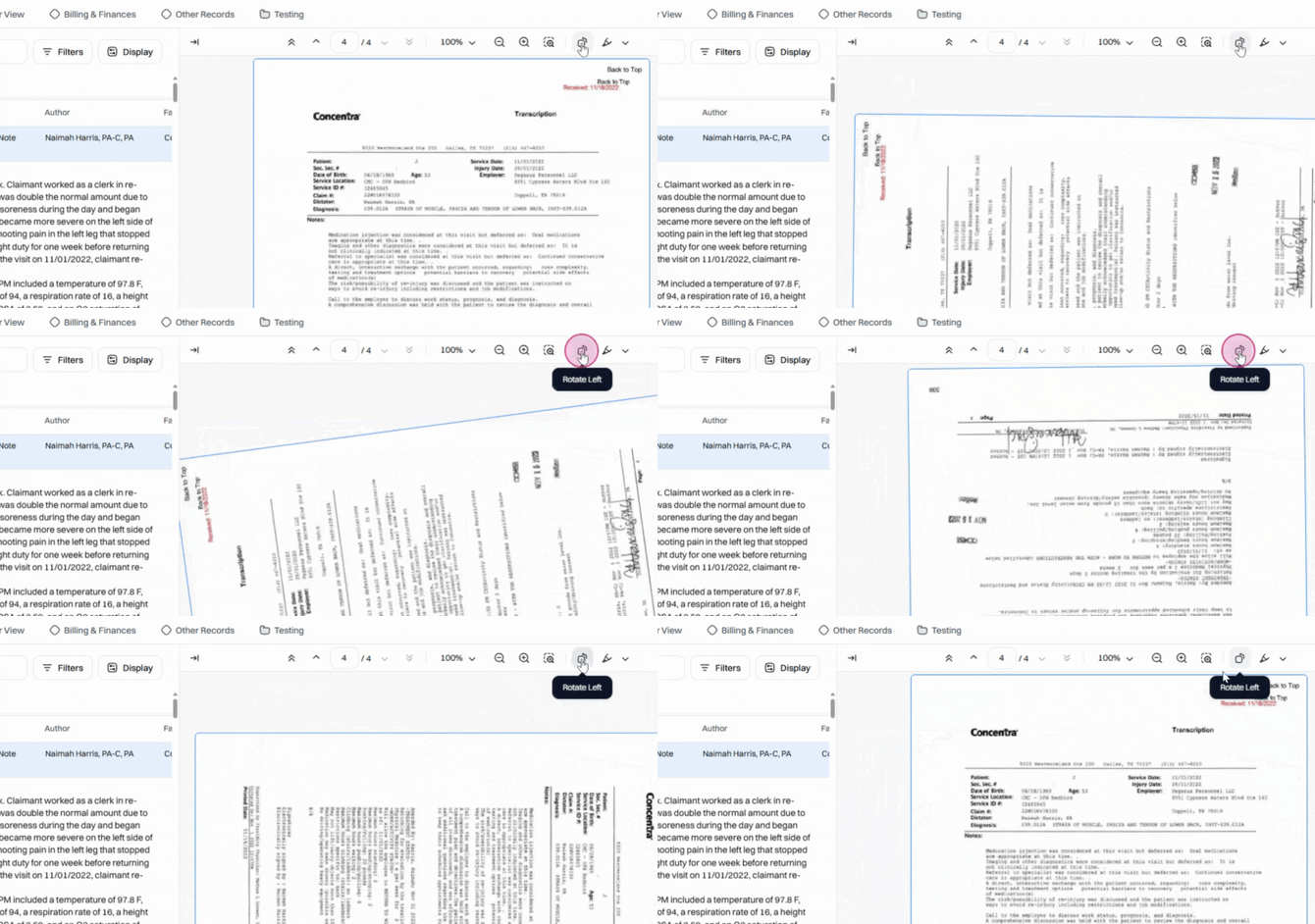
Step 9: Highlight or redact text directly in the document. After selecting highlight, drag over text to mark it. 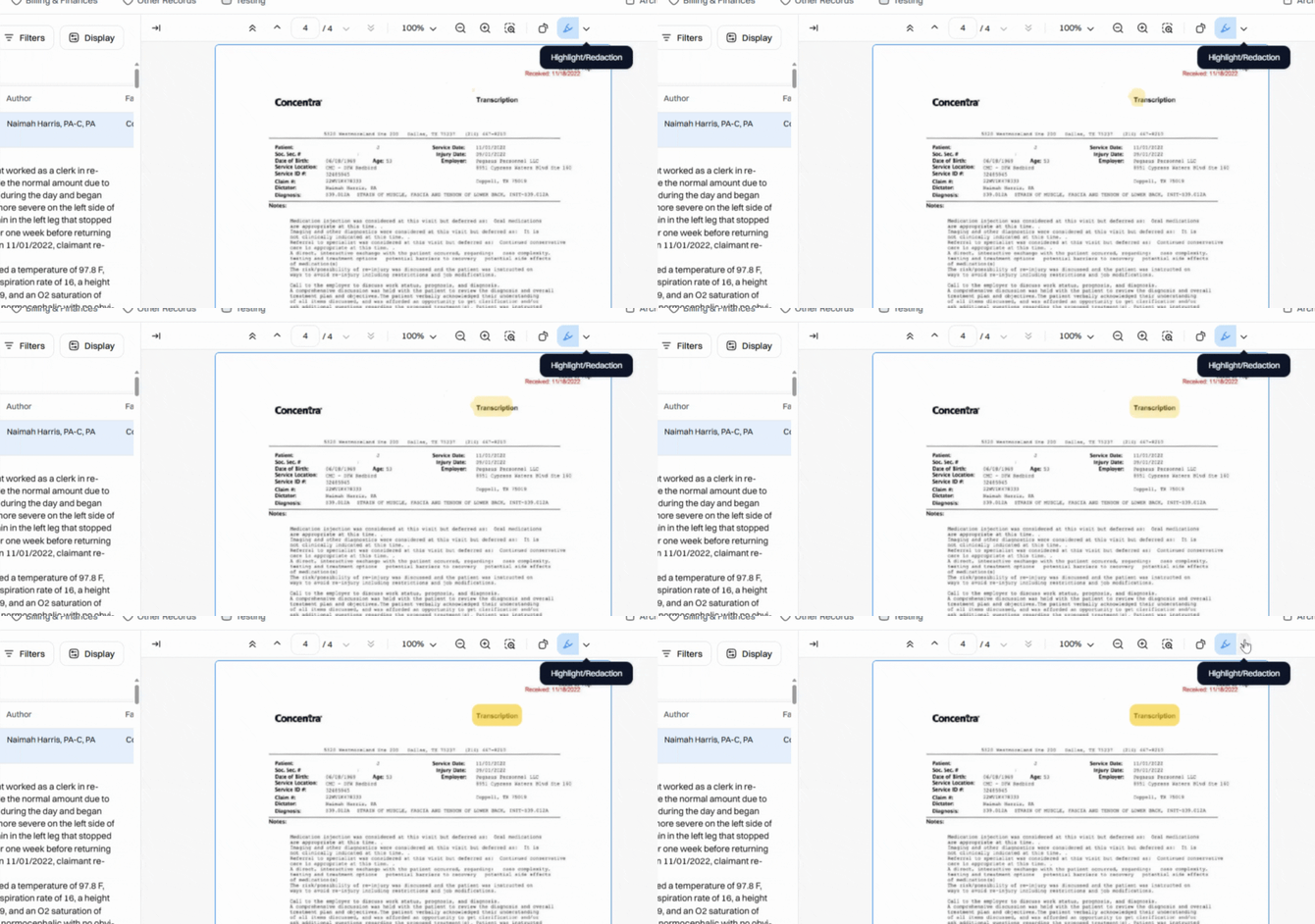
For redaction, select the redact tool and mark the area to hide sensitive information. 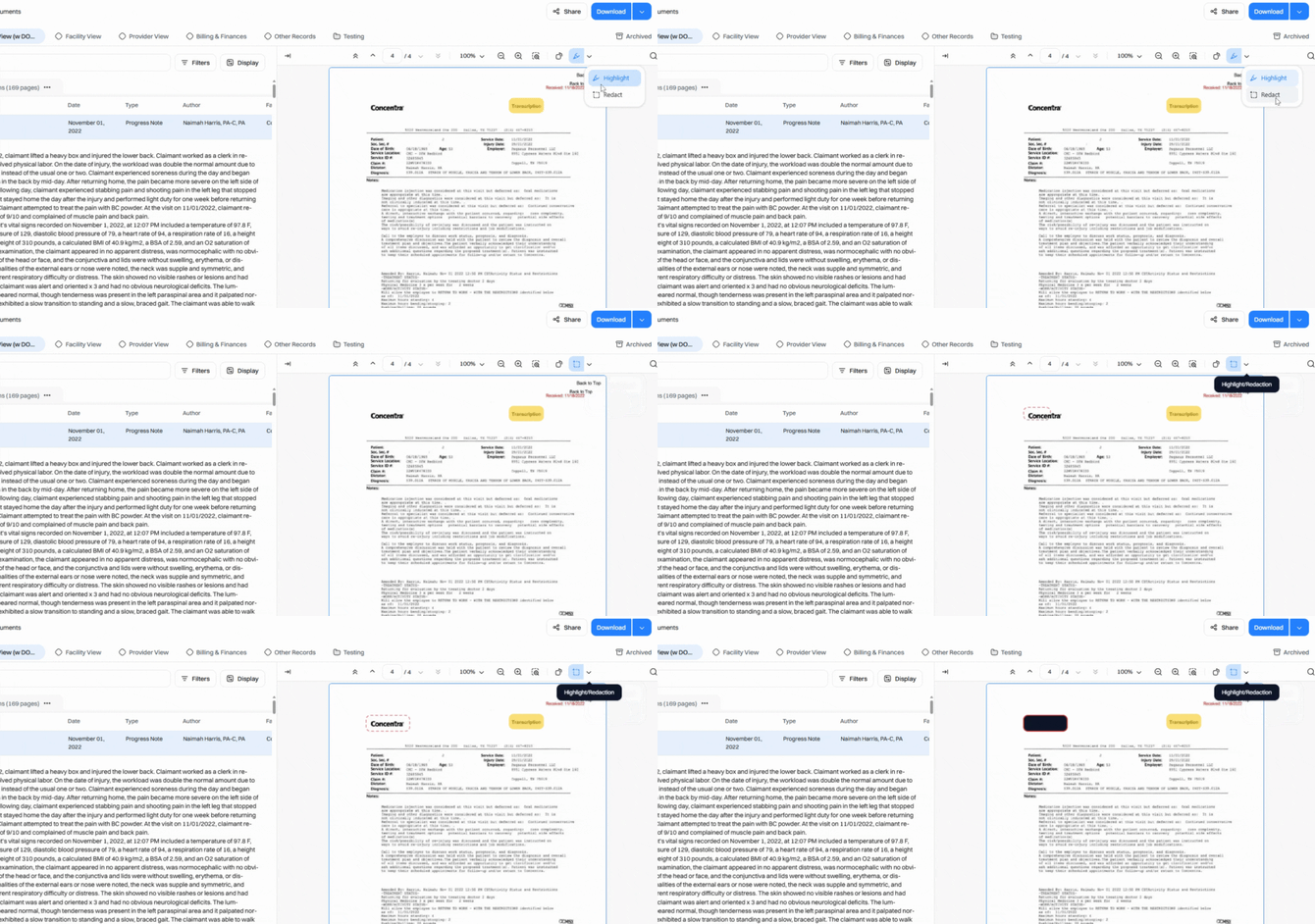
Step 10: To remove highlights or redactions, click on the edit, then click the garbage can icon that appears. 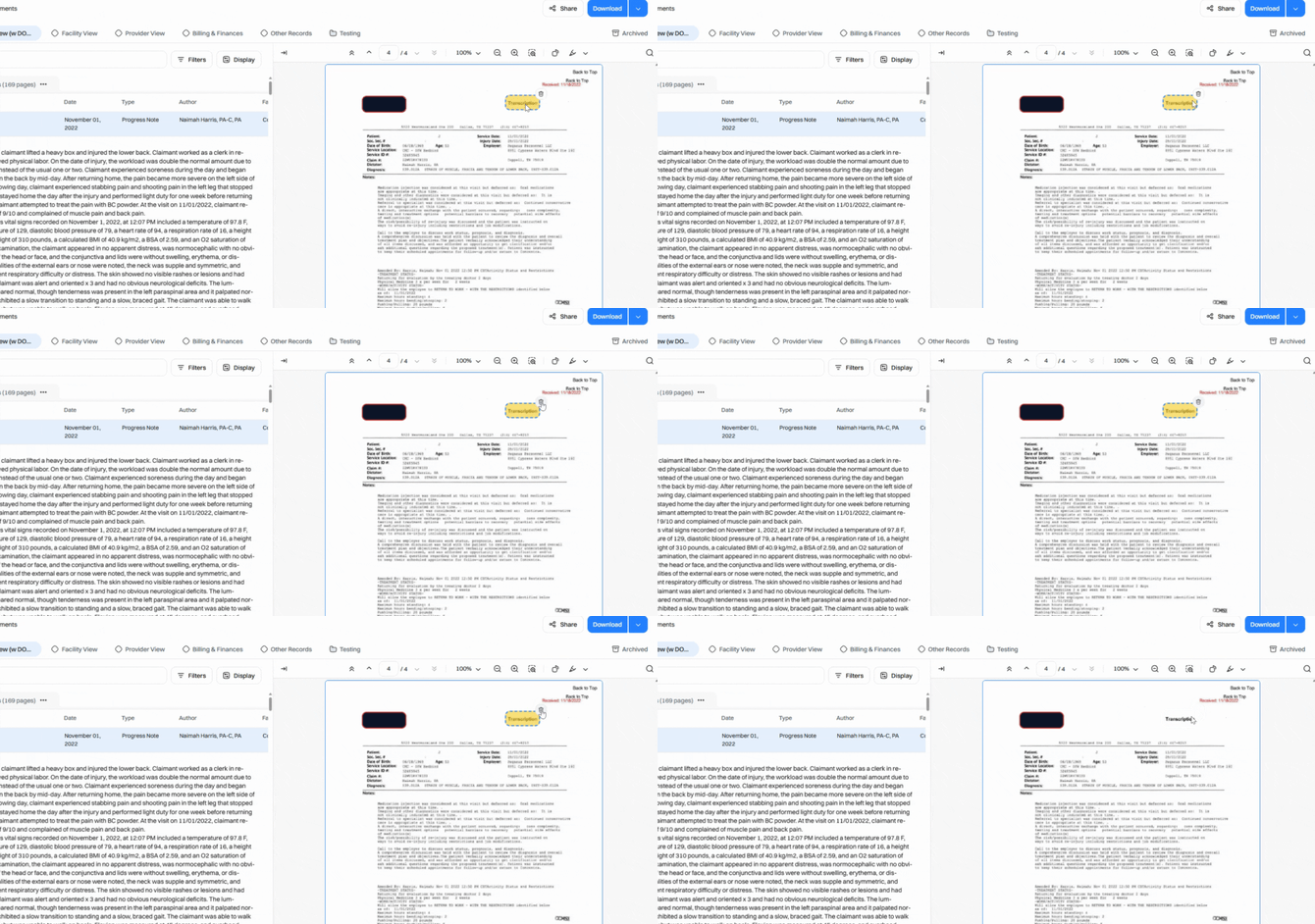
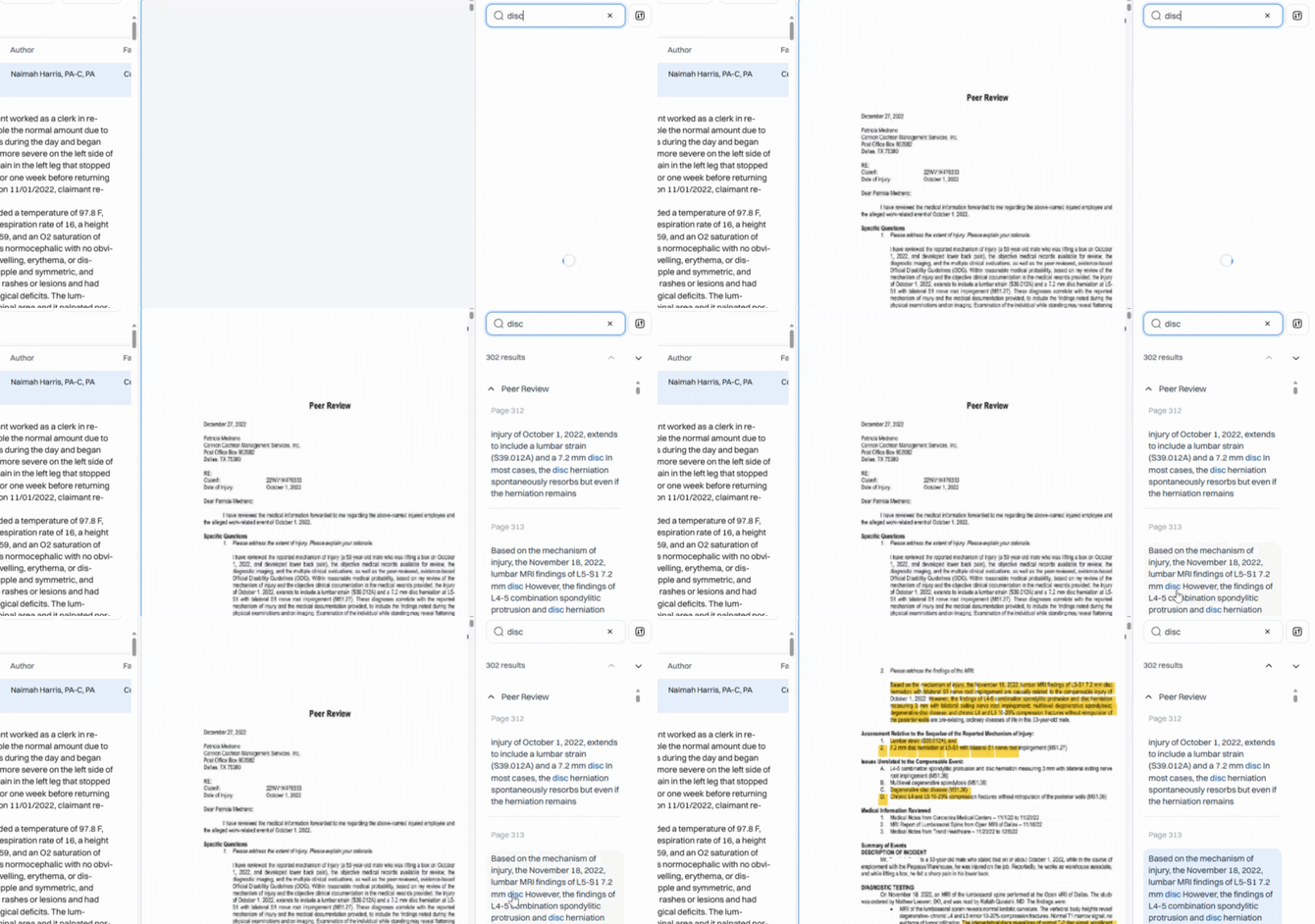
Step 11: To find keywords, click the search icon at the top right. Search results are hyperlinked—click any result to jump directly to the word in context. 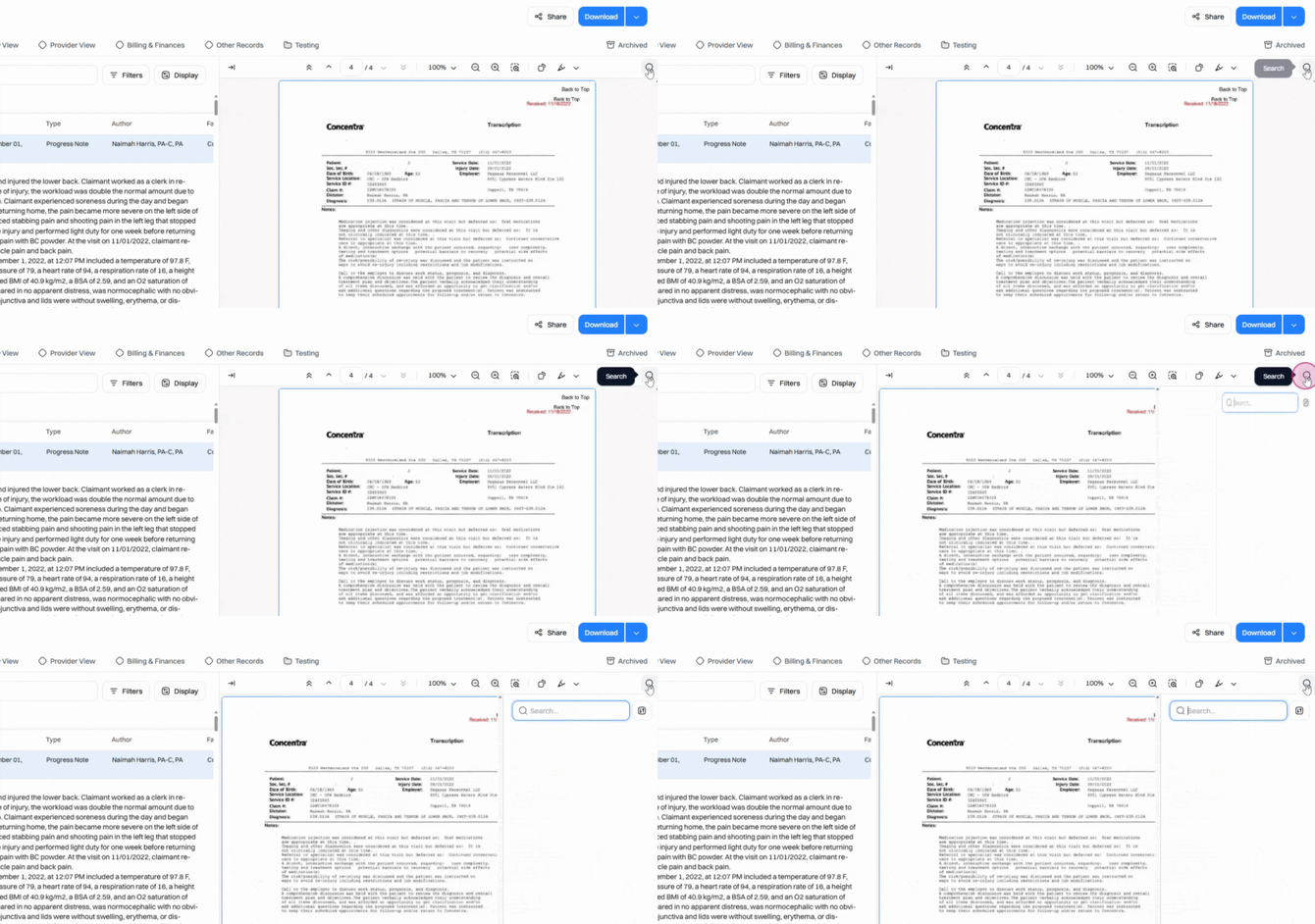
The Wisedocs PDF Viewer centralizes all the tools you need—so you can spend less time searching and more time focusing on what matters. Use it to streamline your document review and maintain full control of your workflow.