
Downloading Documents in Wisedocs
After you’ve organized your documents in Wisedocs, exporting them is quick and customizable. The Download feature gives you full control over what you export and how it’s formatted. Here’s how to customize your downloads so they fit your exact needs.
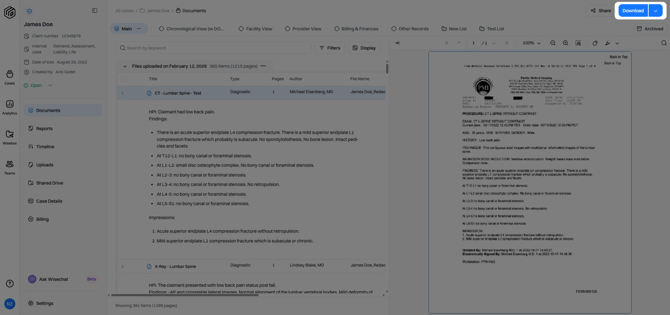
Step 1: Click the Download button in the top right corner of the screen.
Step 2: Filter your collection to display only the documents you want to export. For example, you can filter to show just your bookmarked documents in the Facility View collection.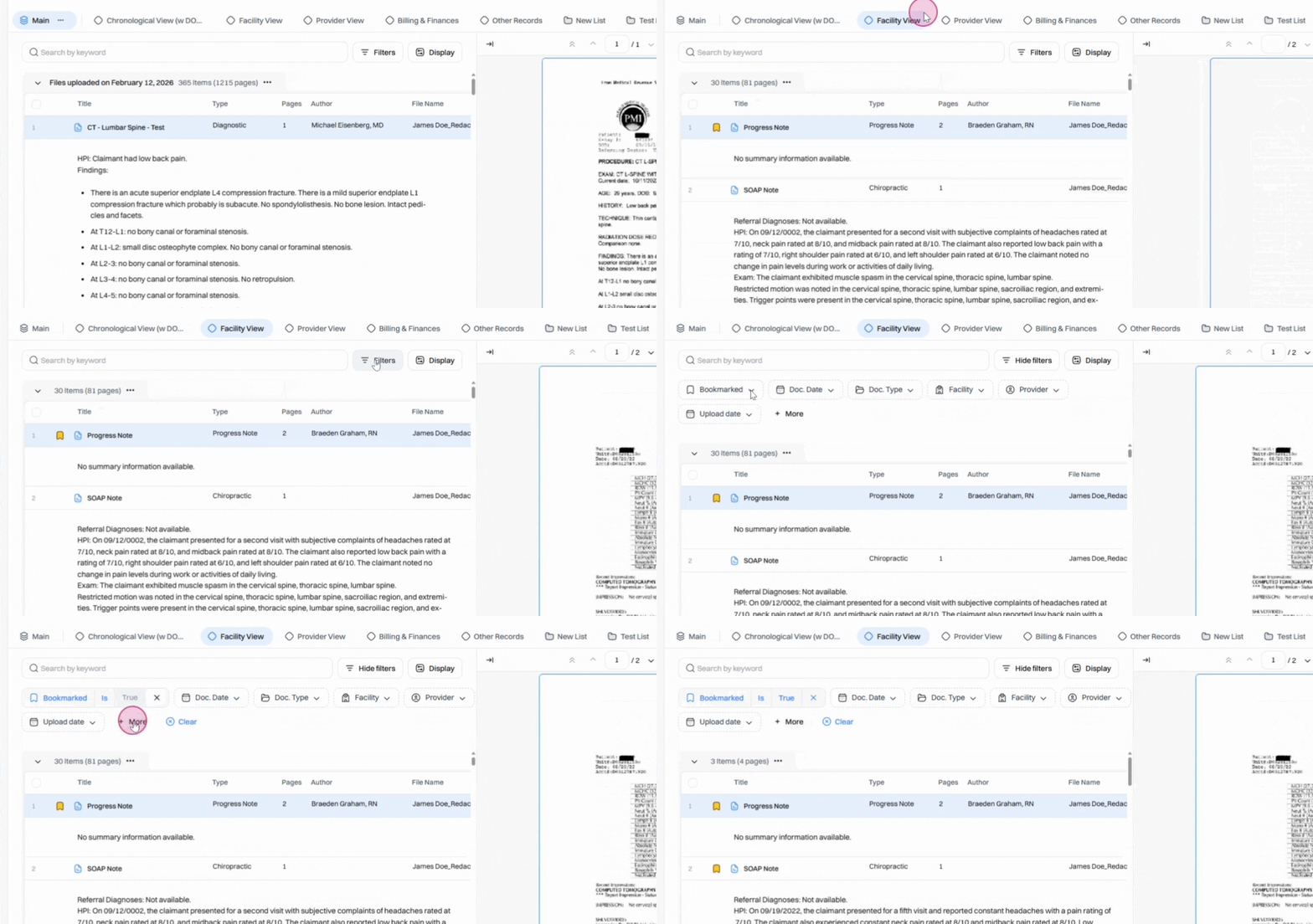
When you download, you’ll export only what you see in your view.
Step 3: Click the downward arrow next to Download to access more customization options.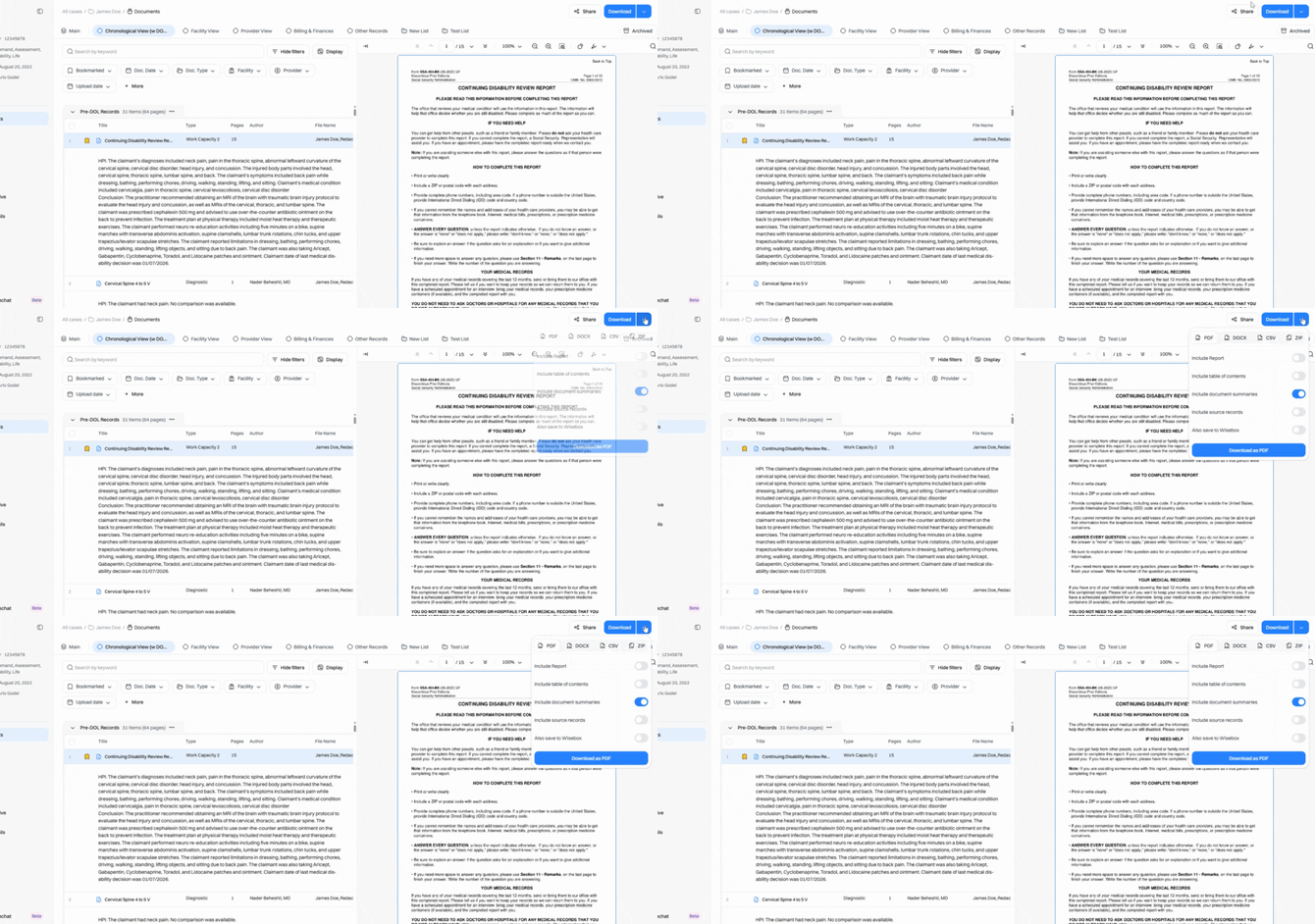
Step 4: Choose your preferred download format: PDF, Docx, CSV, or zip.
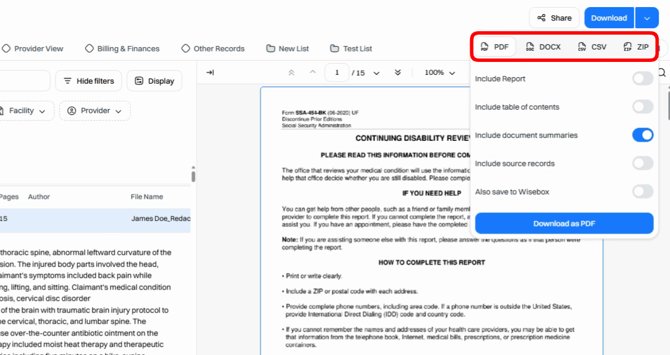
Step 5: Select if you want to include a report generated on a collection. If you choose to include a report, select the specific report from the dropdown menu.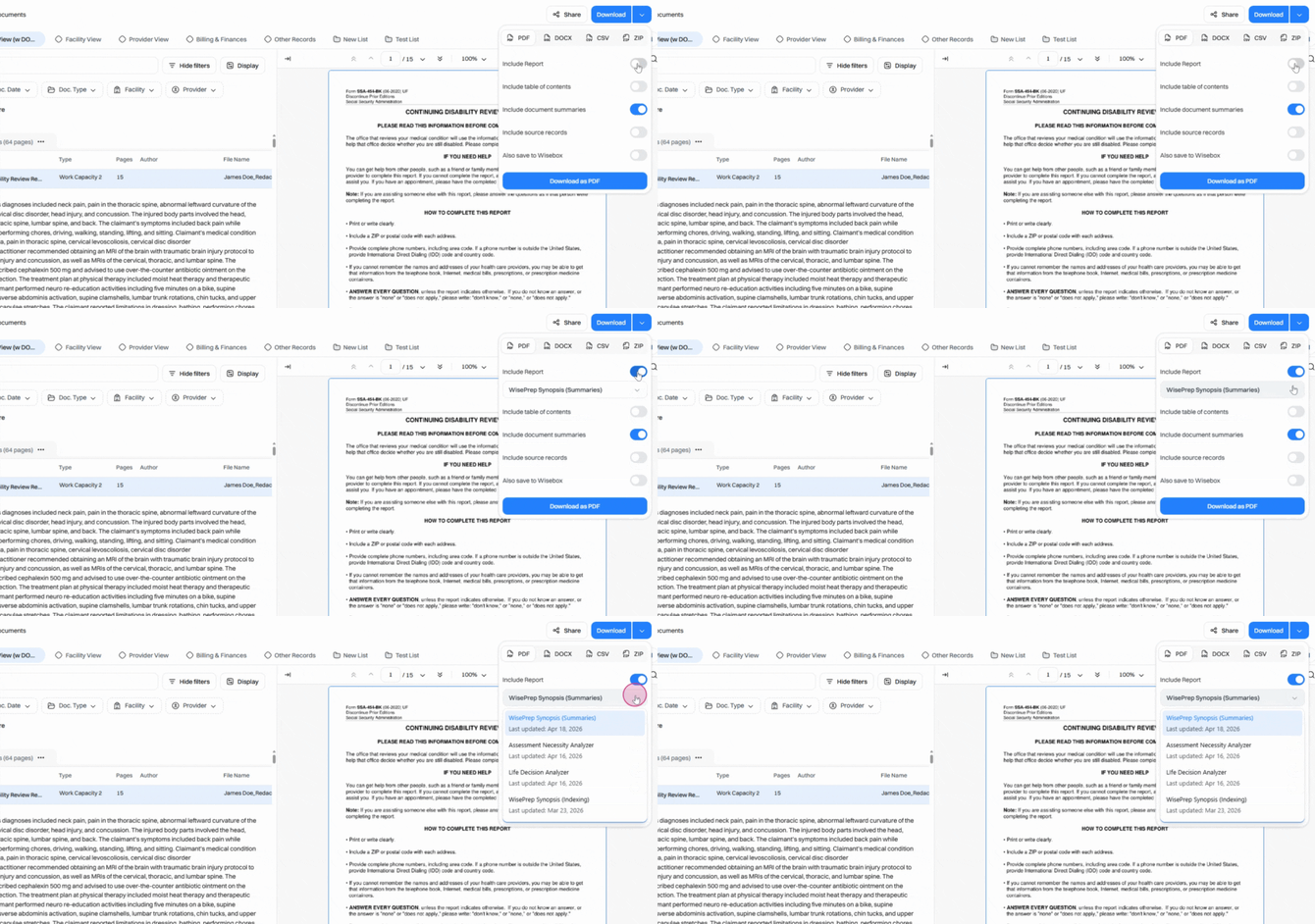
Step 6: Select if you want to include a table of contents in your download. If you choose to include a table of contents, select its format—either a table (structured rows/columns) or narrative (written like a story).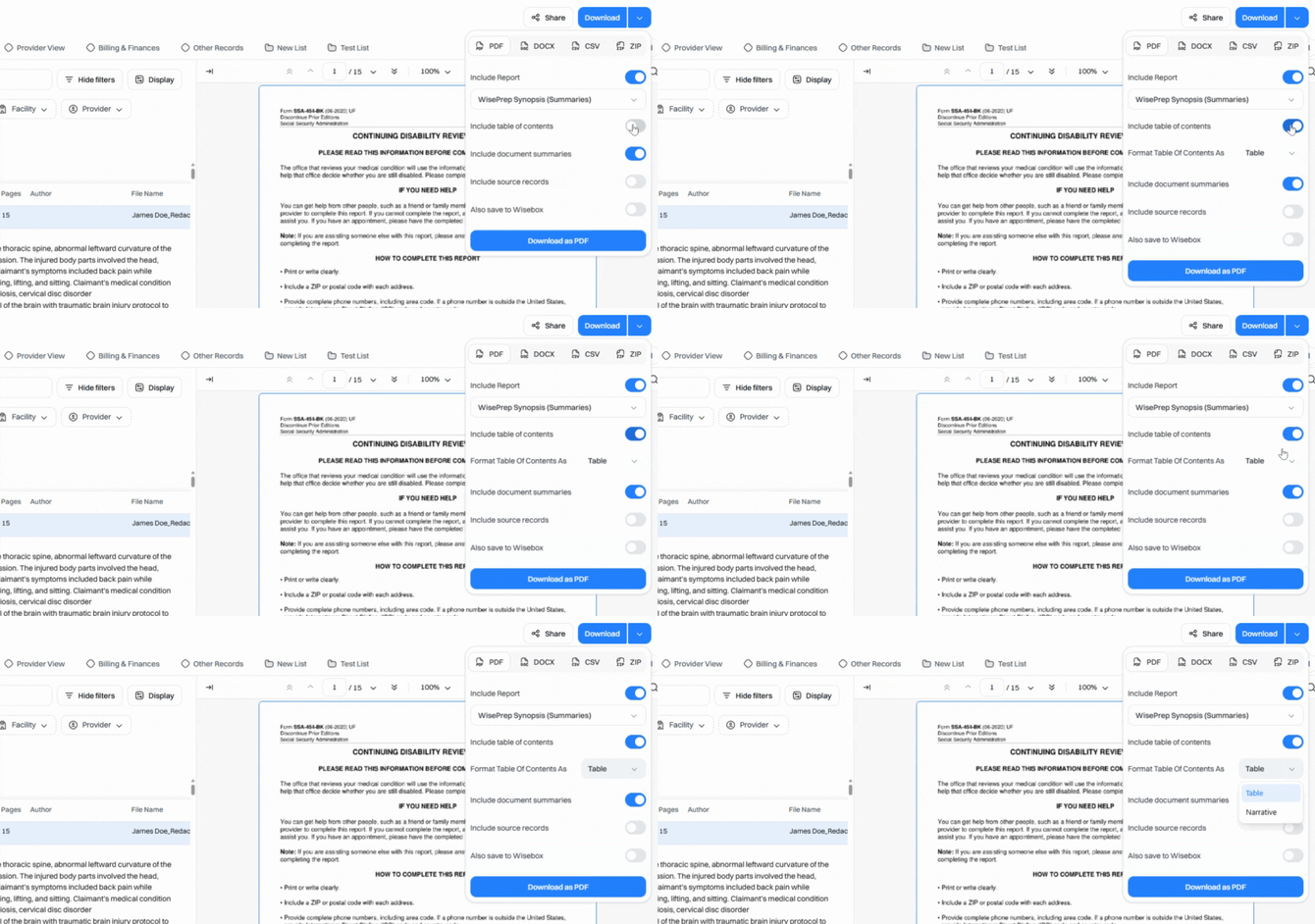
Step 7: Decide whether to include or exclude summaries and source records in your download.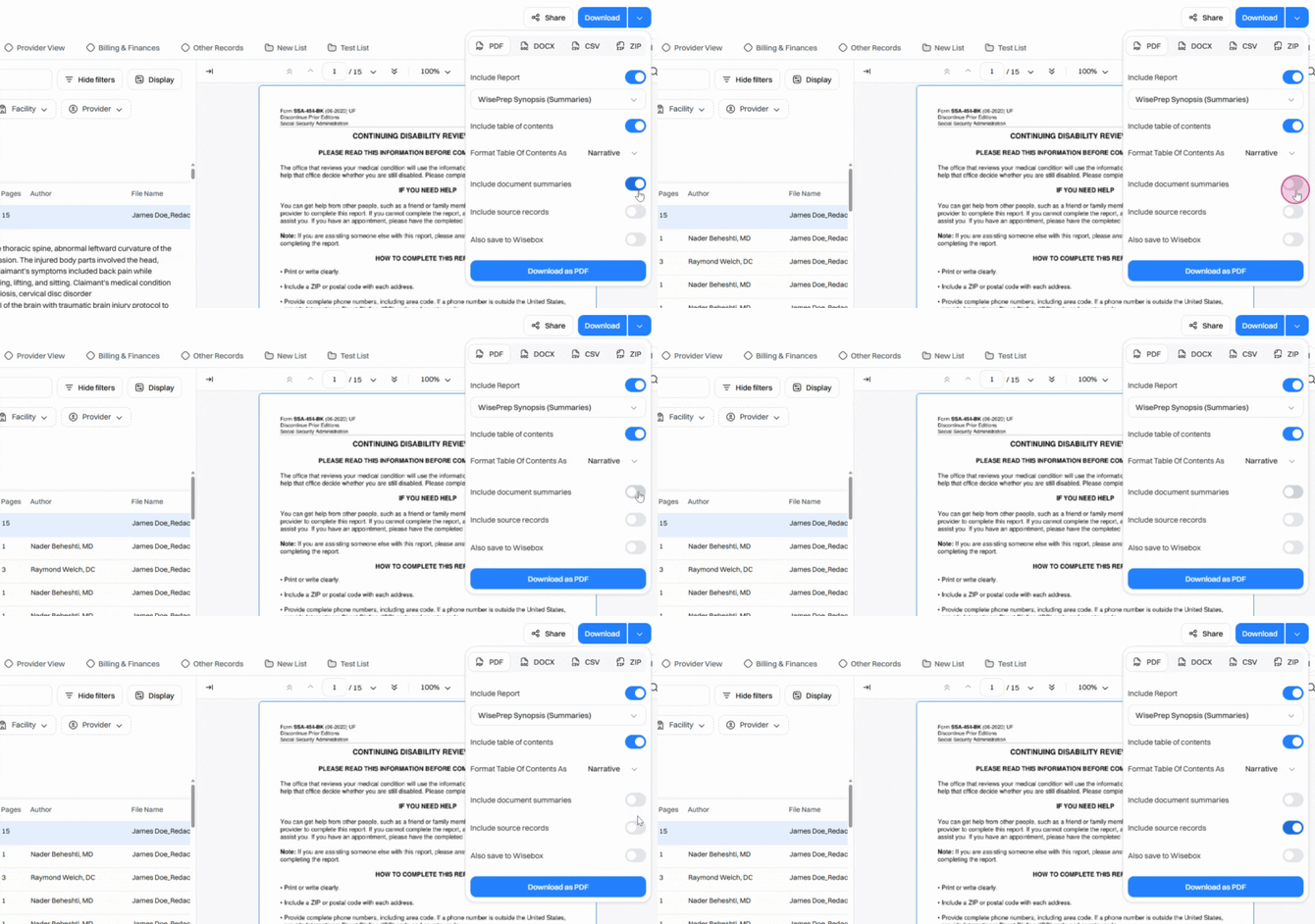
Note: Source records are available only for PDF downloads. Including source records adds original PDF pages to your download, which is helpful for reviewers.
Step 8: After customizing, click Download to start your export.
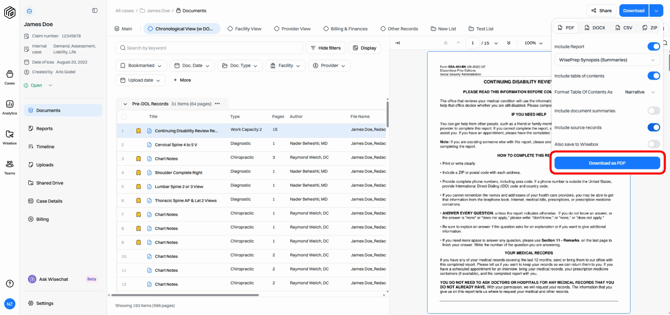
Your export settings are saved automatically, so the next time you download, your preferences are ready.
Customizing your downloads ensures stakeholders receive only relevant, clear documents—helping everyone make faster, smarter decisions. Use these options to keep your exports professional and perfectly tailored to your needs.