
Mastering Filter and Search in Wisedocs for Faster Case Review
When you’re handling cases with hundreds or even thousands of records, Wisedocs’ filter and search tools help you find the documents that matter—fast. Learn how to use these features to streamline your review process, focus on key information, and work smarter.
Step 1: Enter a case.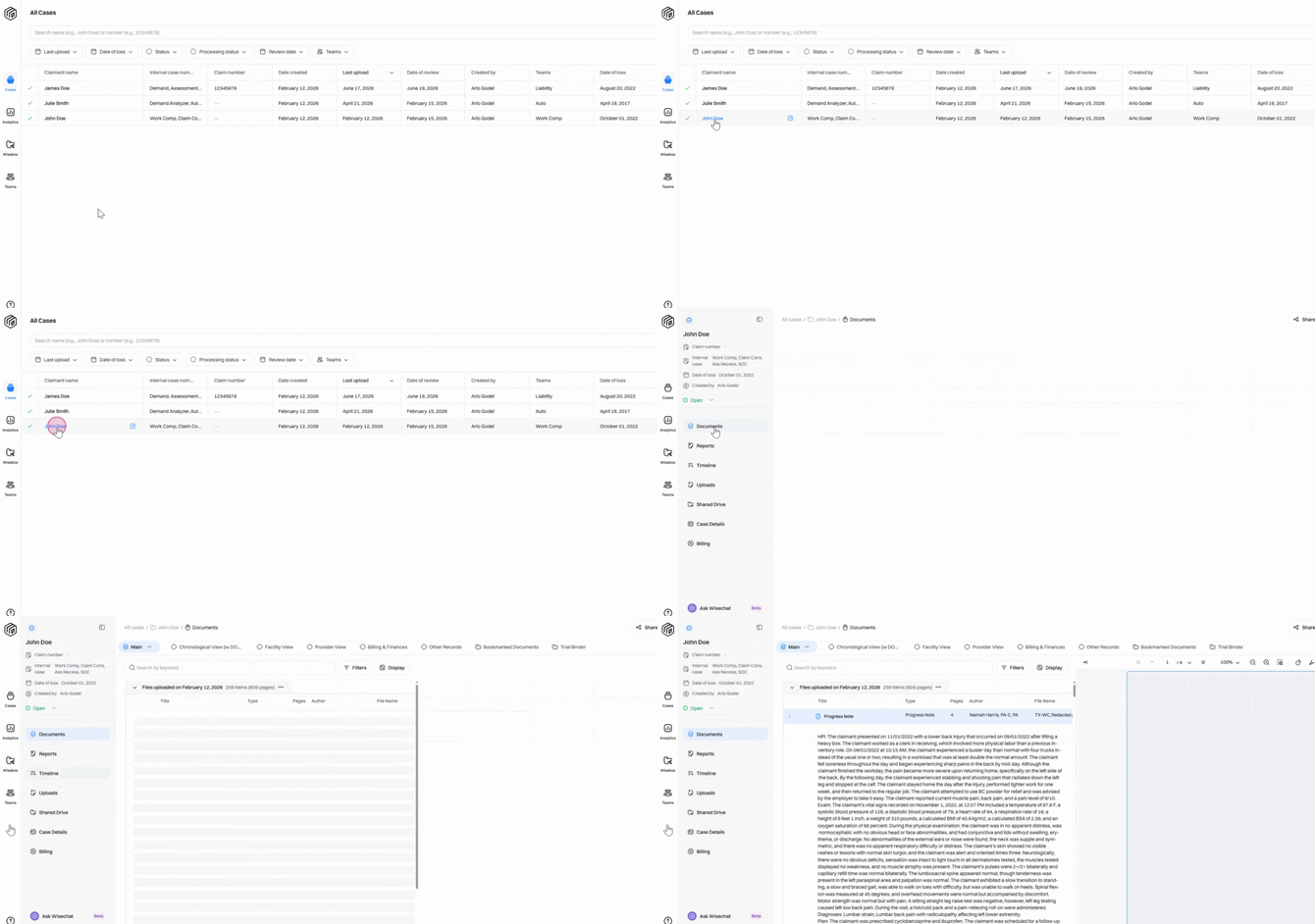
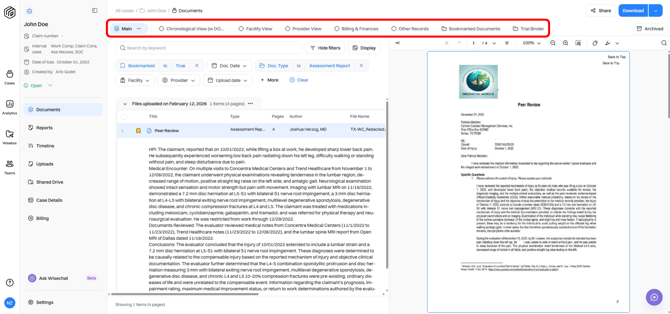
Step 2: Search and filters apply only to the collection you’re viewing, such as the Main Collection or Other Records.
Step 3: Type a word in the keyword search bar to see only documents containing that word. Matching words will be highlighted in the document summaries.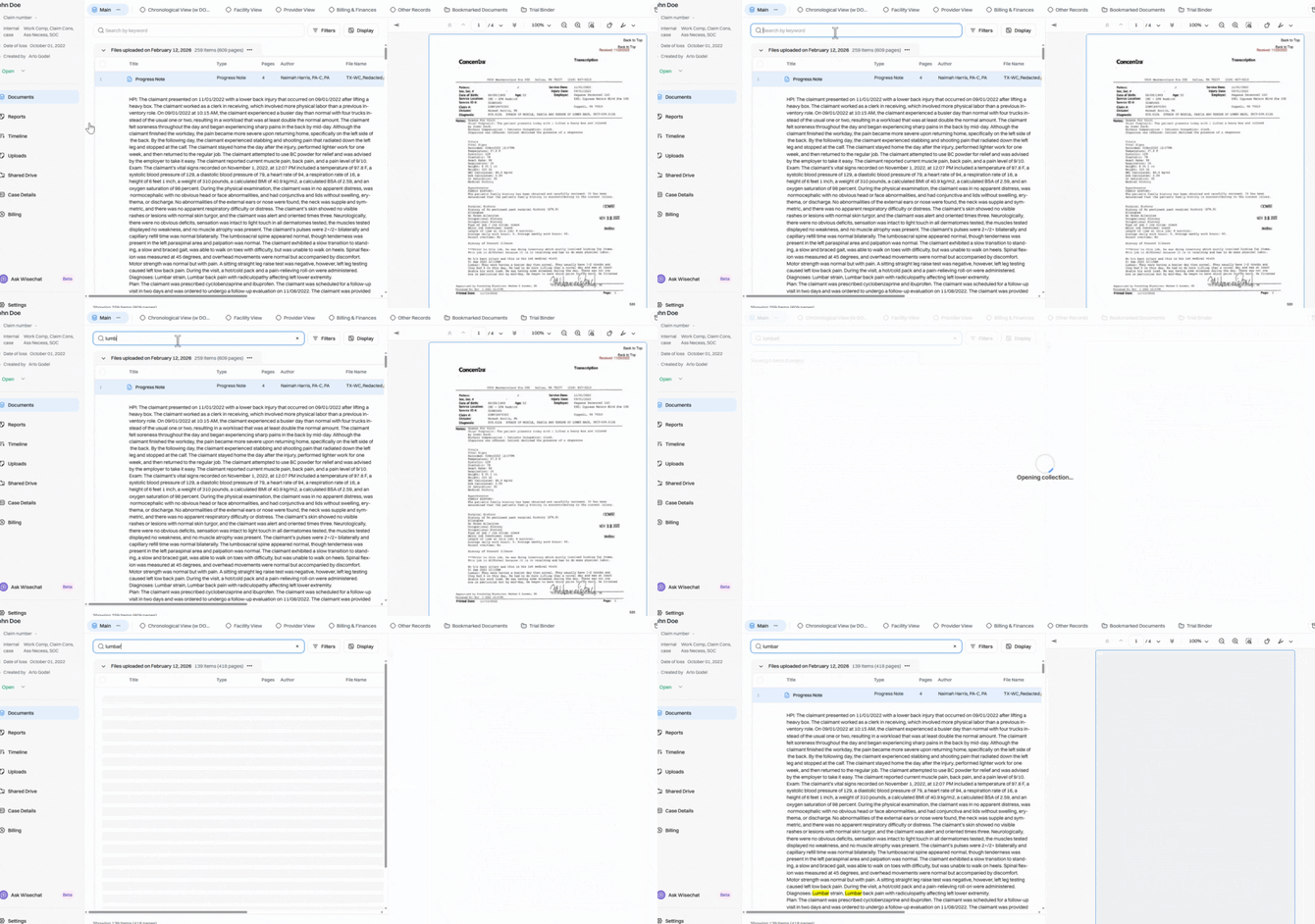
Step 4: Search for multiple words as a phrase, like “lumbar spine”, to get exact matches. 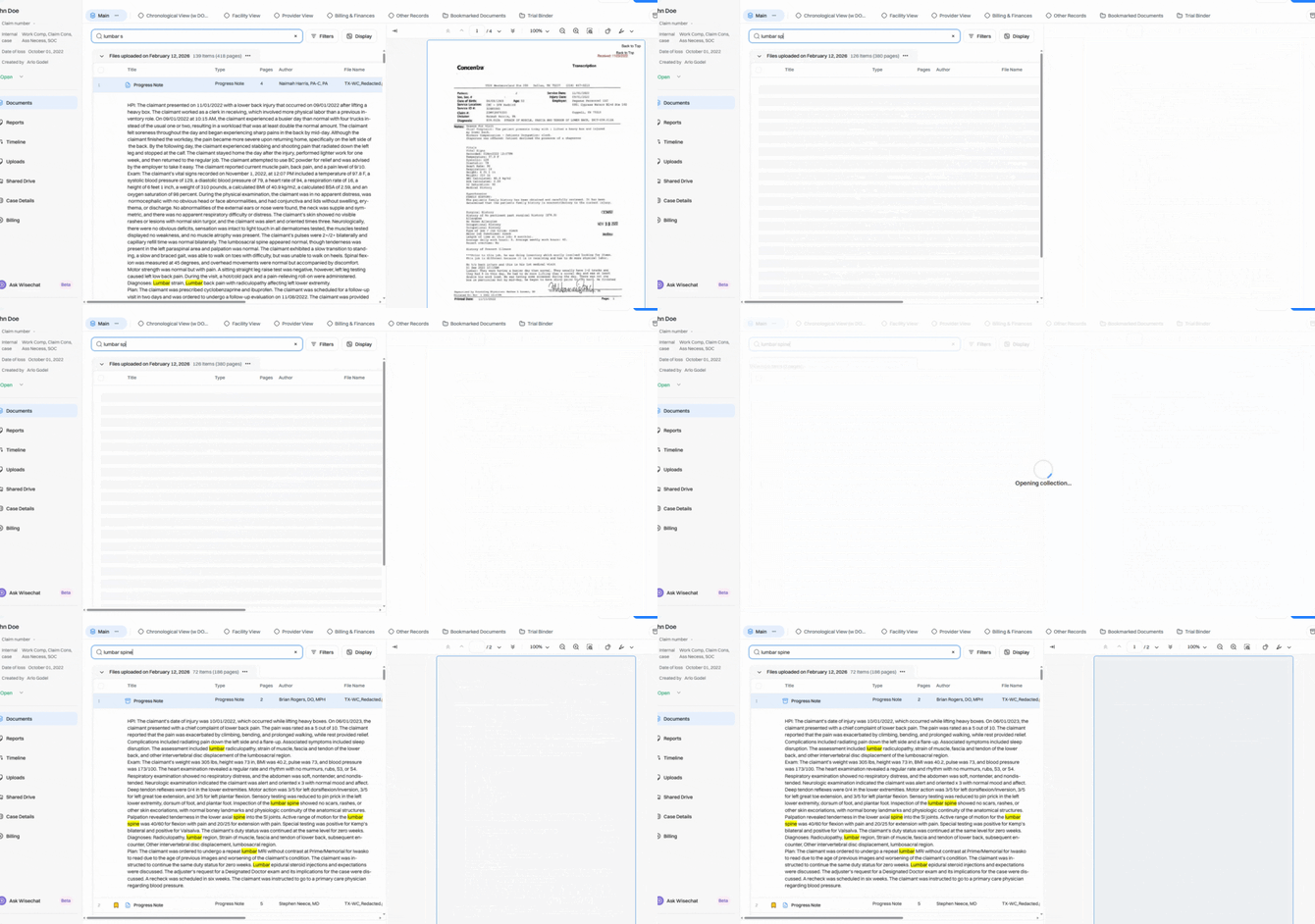
Step 5: Enter part of a word, such as “low back”, to see related records (e.g., “lower”, “slow”).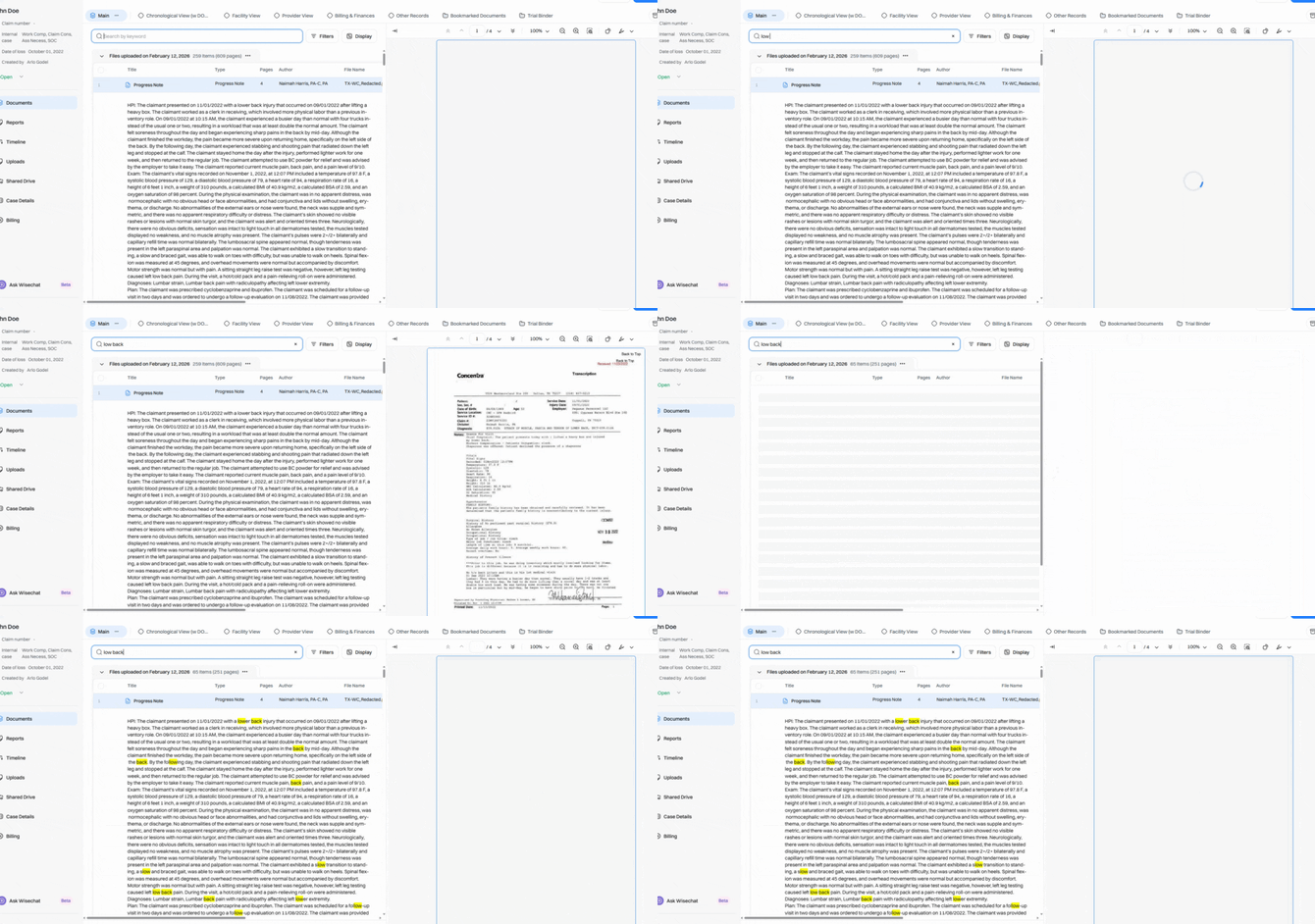
Step 6: Separate each word with a comma (e.g., “lumbar, spine”) to see results for any of those terms. Please note: this is an “or” search. Boolean operators (AND, OR, NOT) aren’t supported.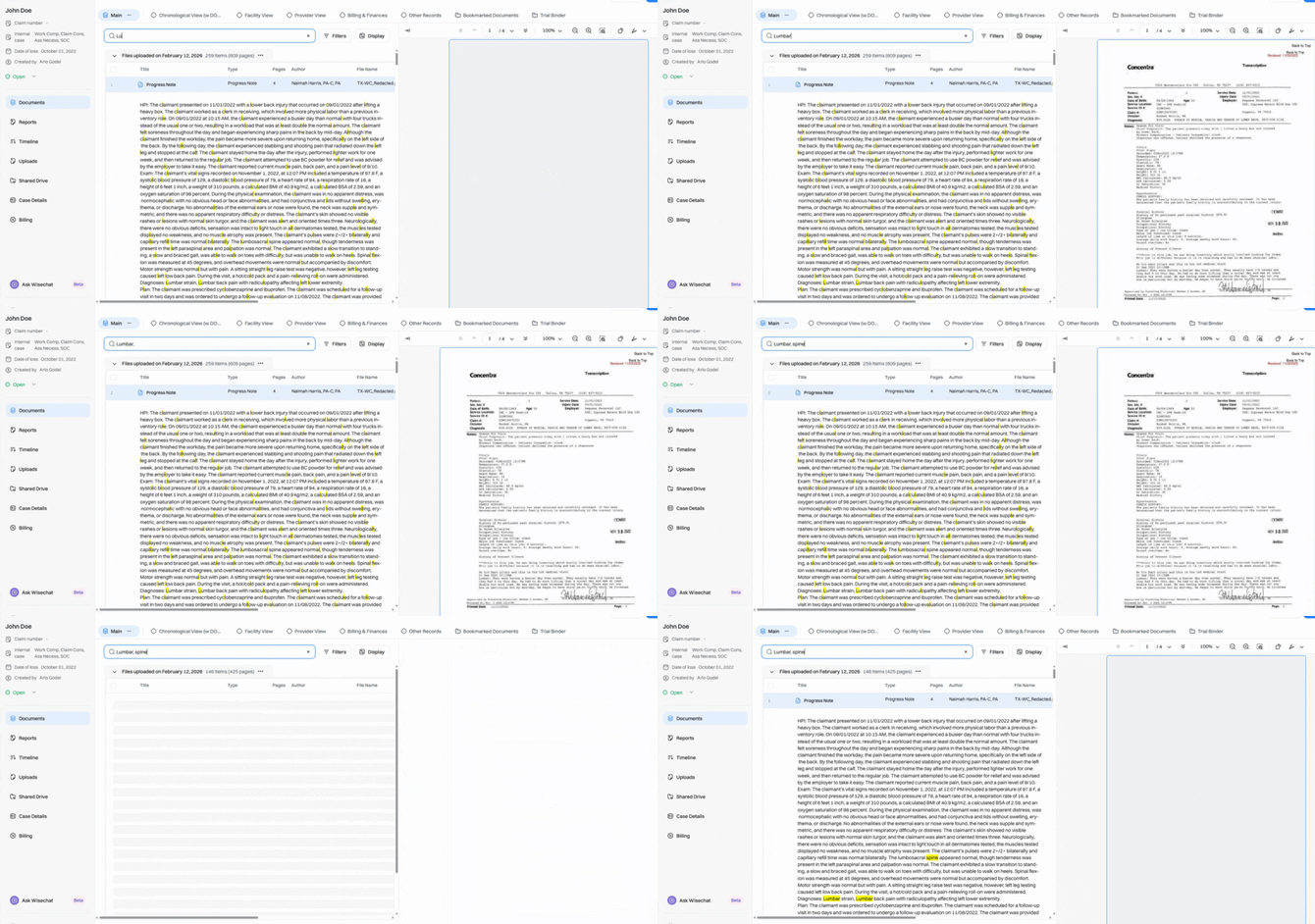
Step 7: Click Filters to open the panel with all filter options.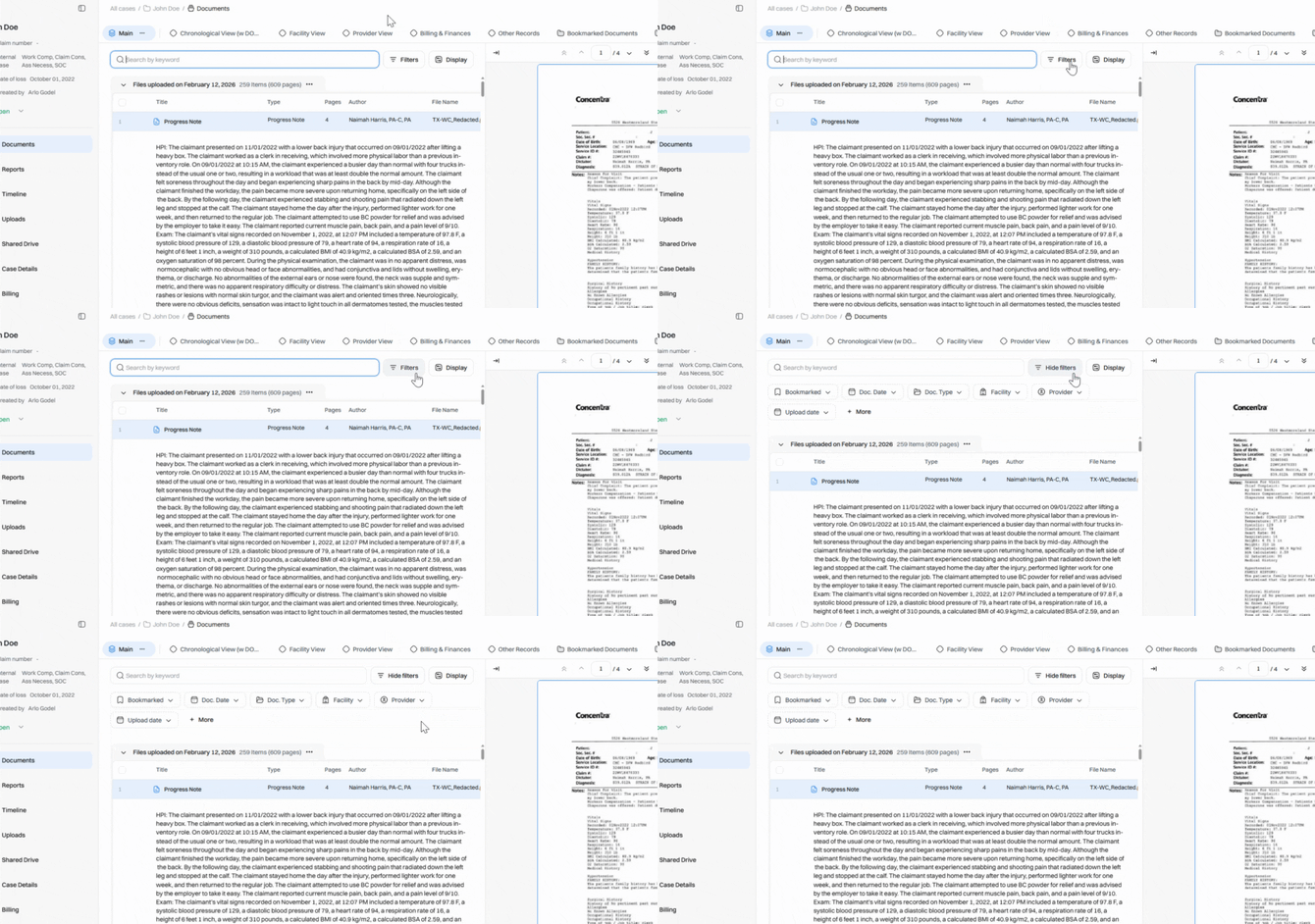
Step 8: Bookmark key documents as you review by clicking the bookmark icon.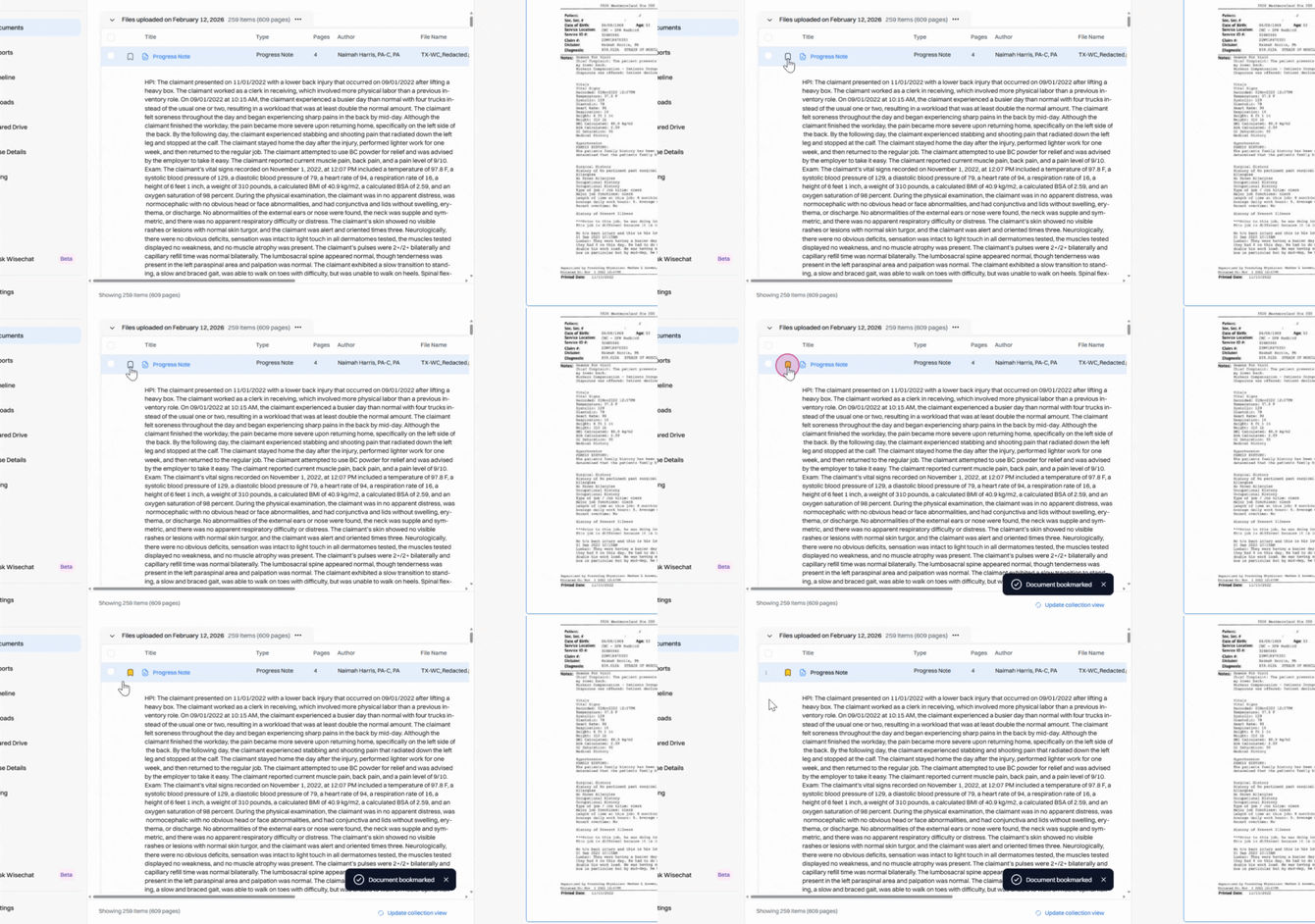
Filter to see only bookmarked items by enabling the Bookmark filter and selecting True.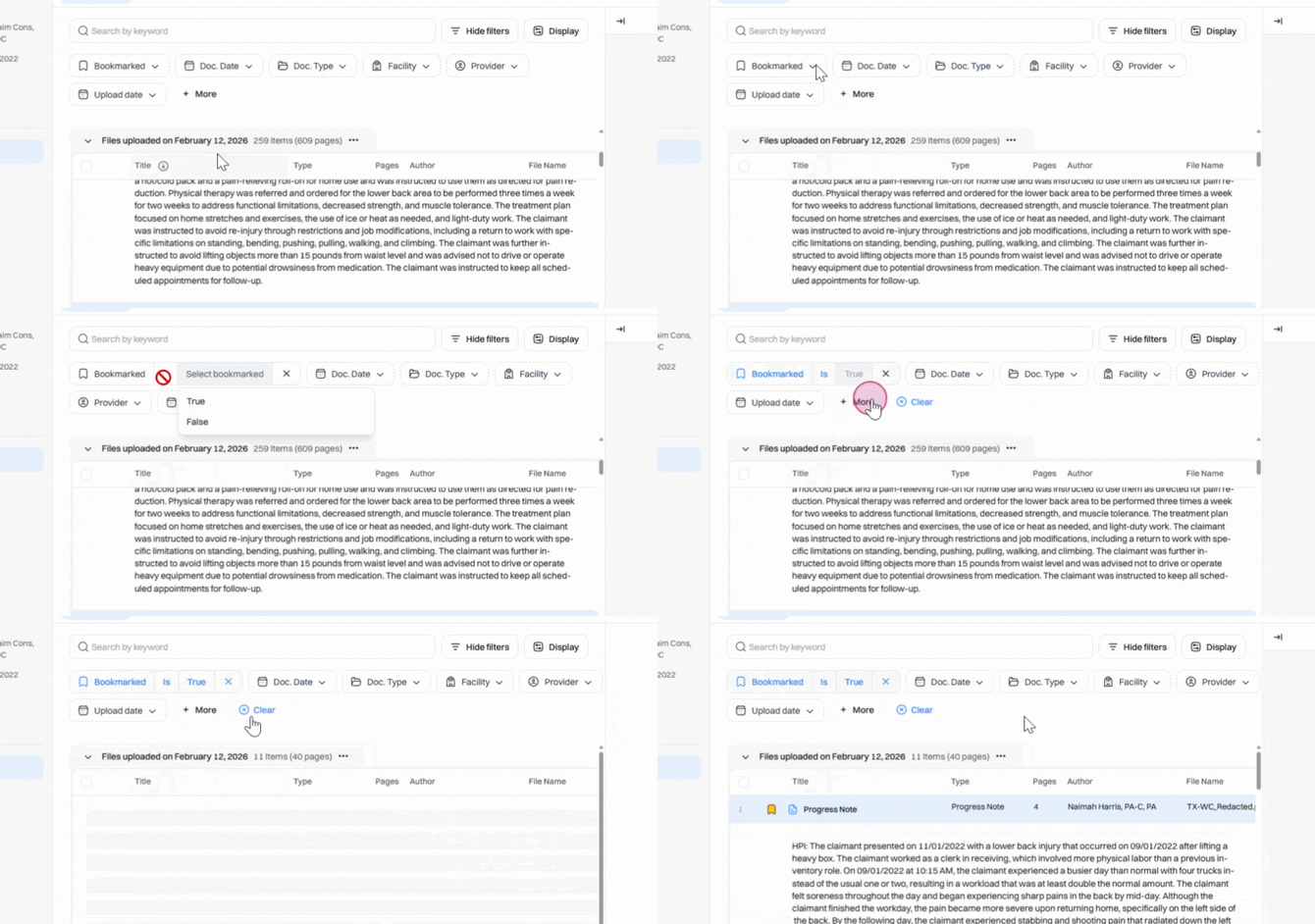
Step 9: Add as many filters as needed. Your view will update to show only records matching all active filters.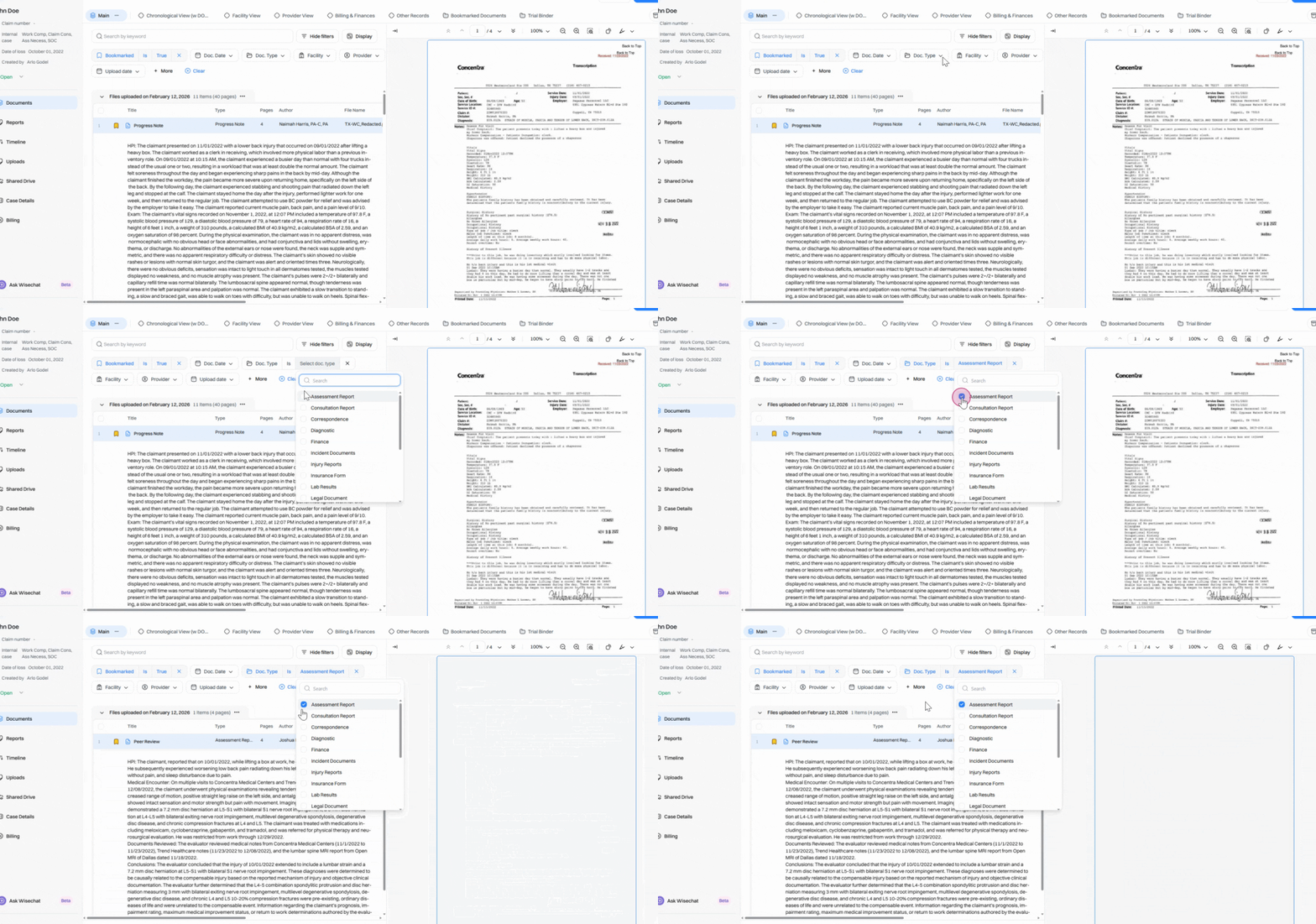
Click Clear to remove filters at any time.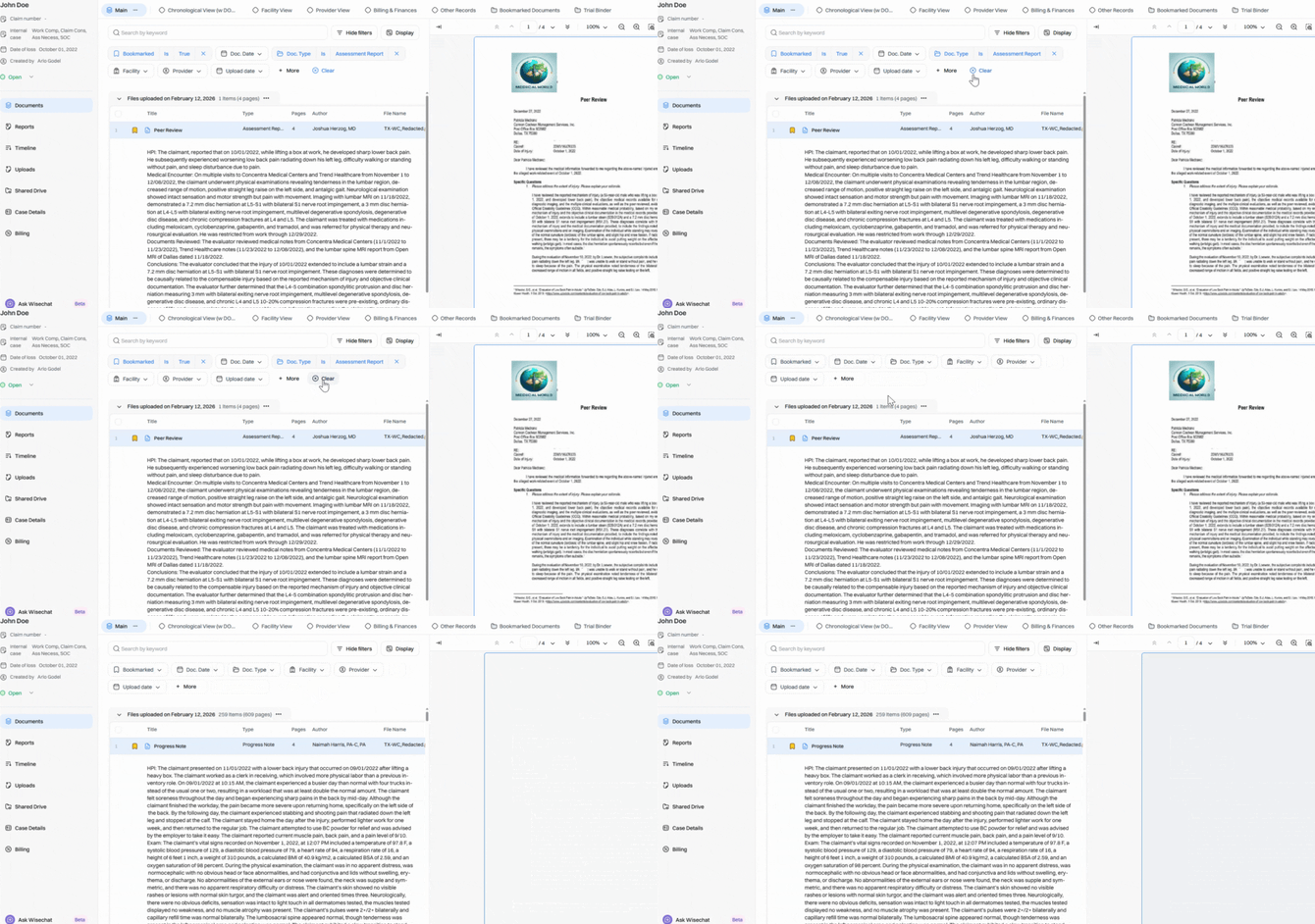
Step 10: Filter records by a specific date, a date range, before/after date of loss, or show undated files. 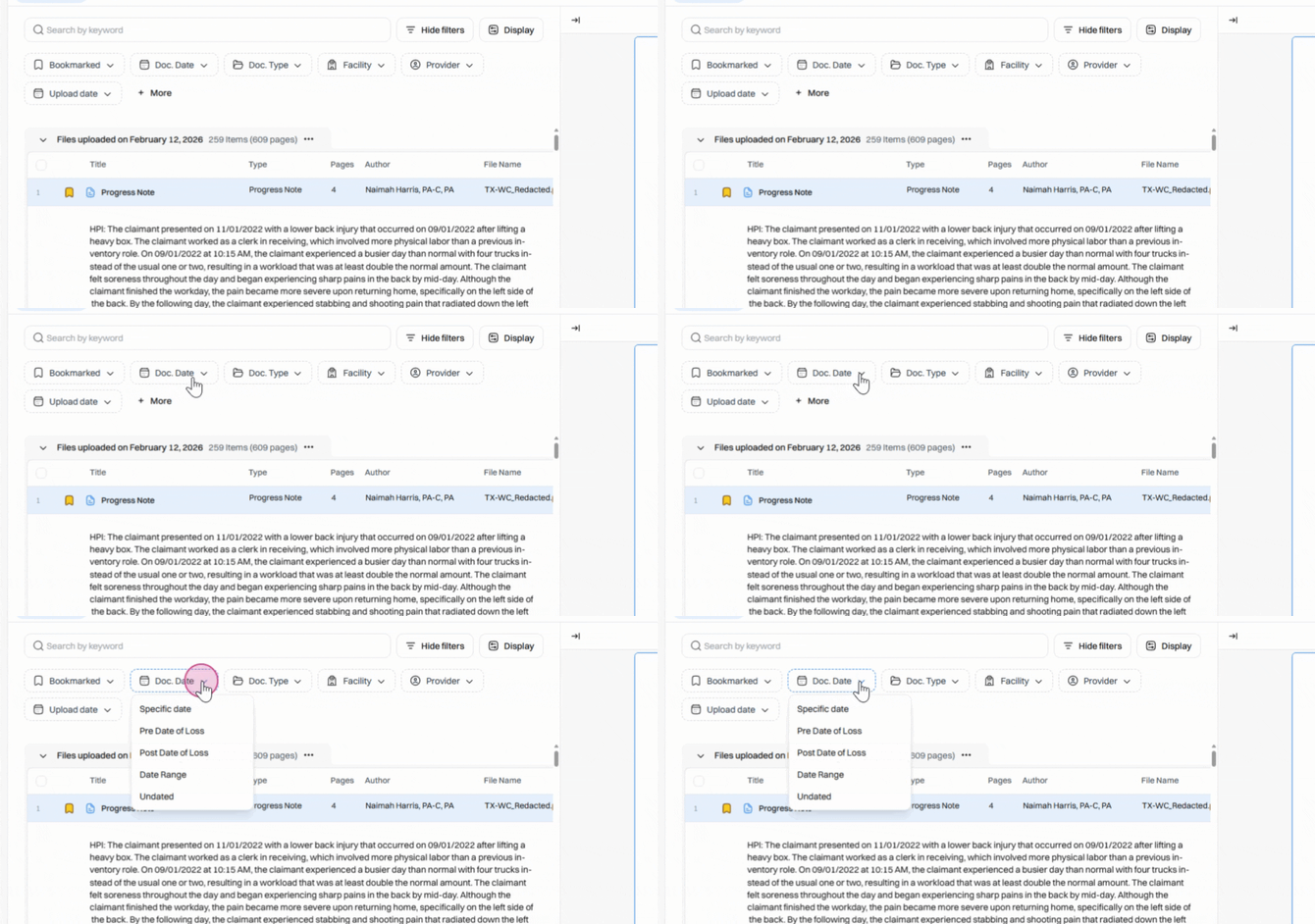
Step 11: Filter by document type, facility, or provider. Choose one or more doctypes, facilities, or providers from lists populated only with items present in your case. Instantly see which entities are involved in the case.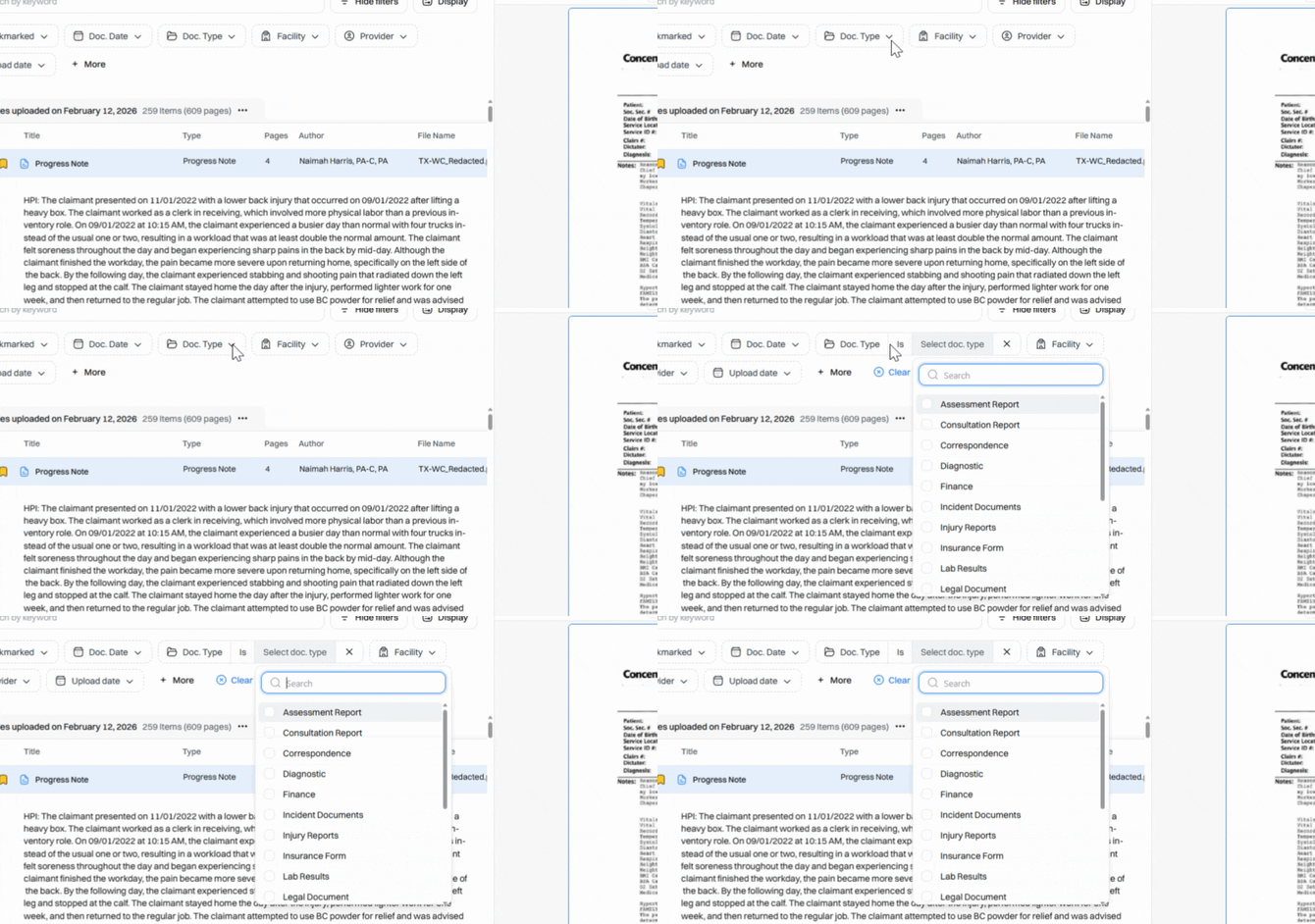
Step 12: Filter by the date or specific batch when documents were uploaded—ideal for reviewing new records.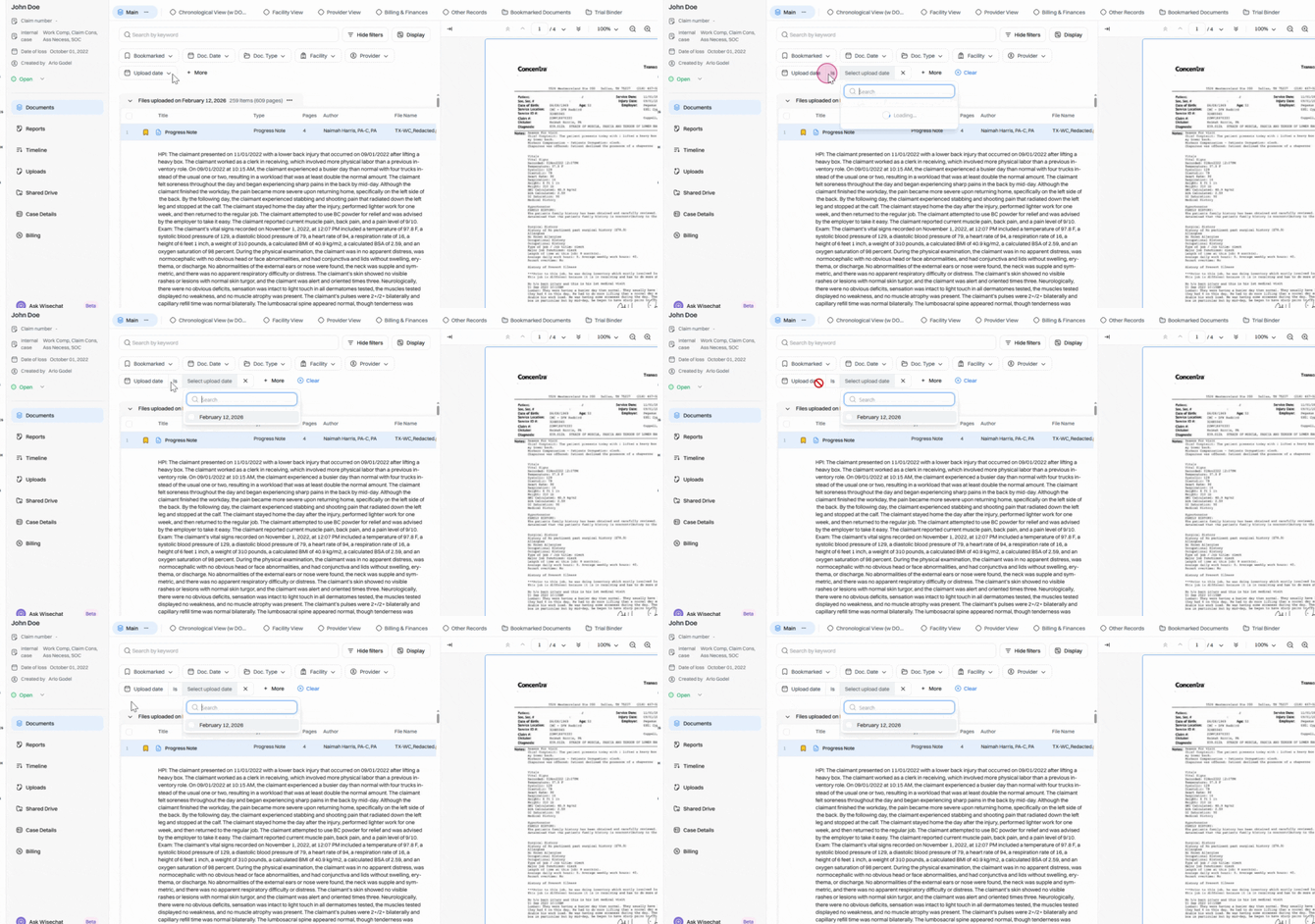
Step 13: Click More to filter by document Title or Summary. The Summary filter limits results only to summary content—perfect for pinpointing specific findings. Use Source File to filter records from a specific upload batch. Use Source if your team tags uploads during import, restricting results to those labels only. 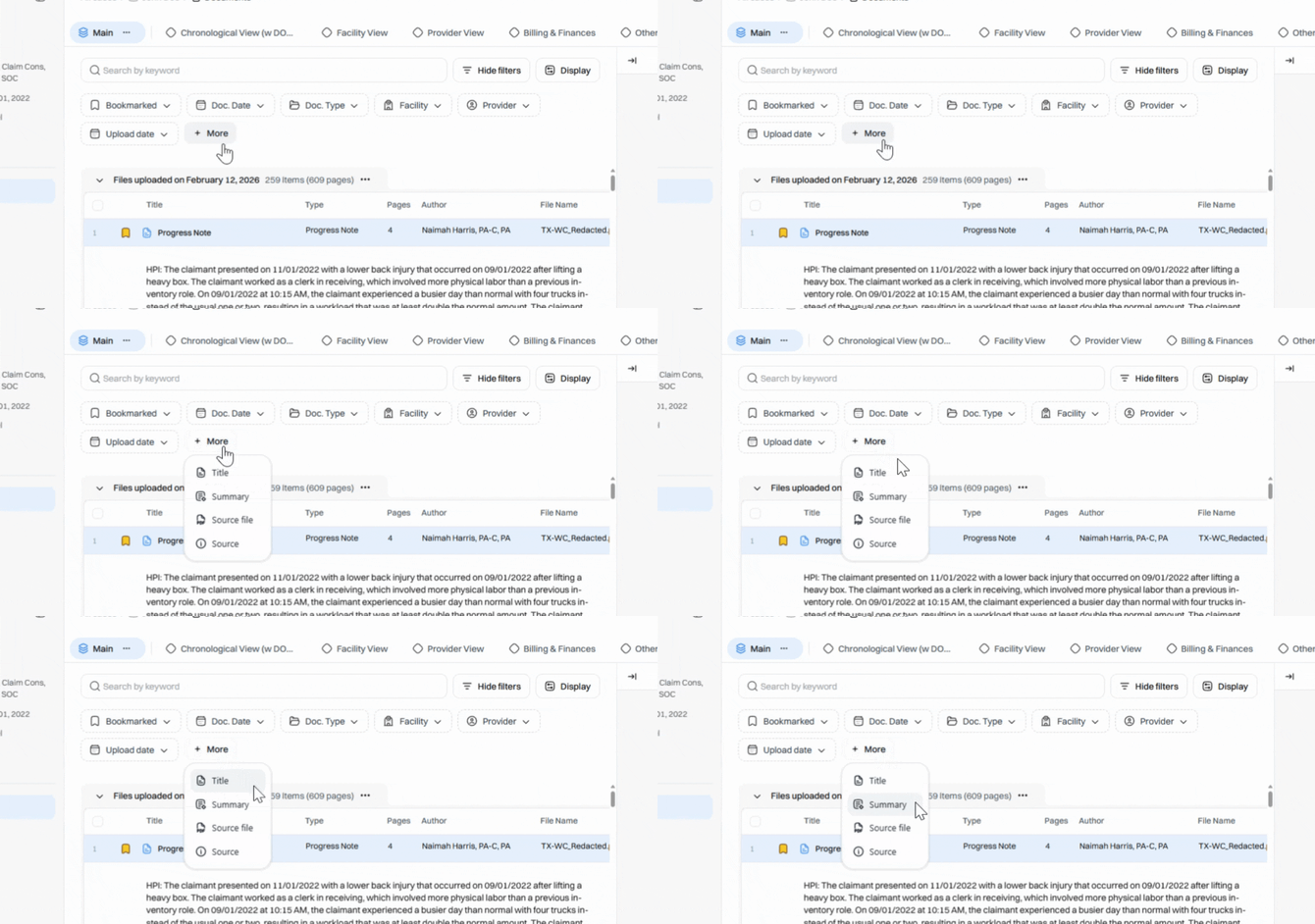
Step 14: Click Hide Filters for more screen space. 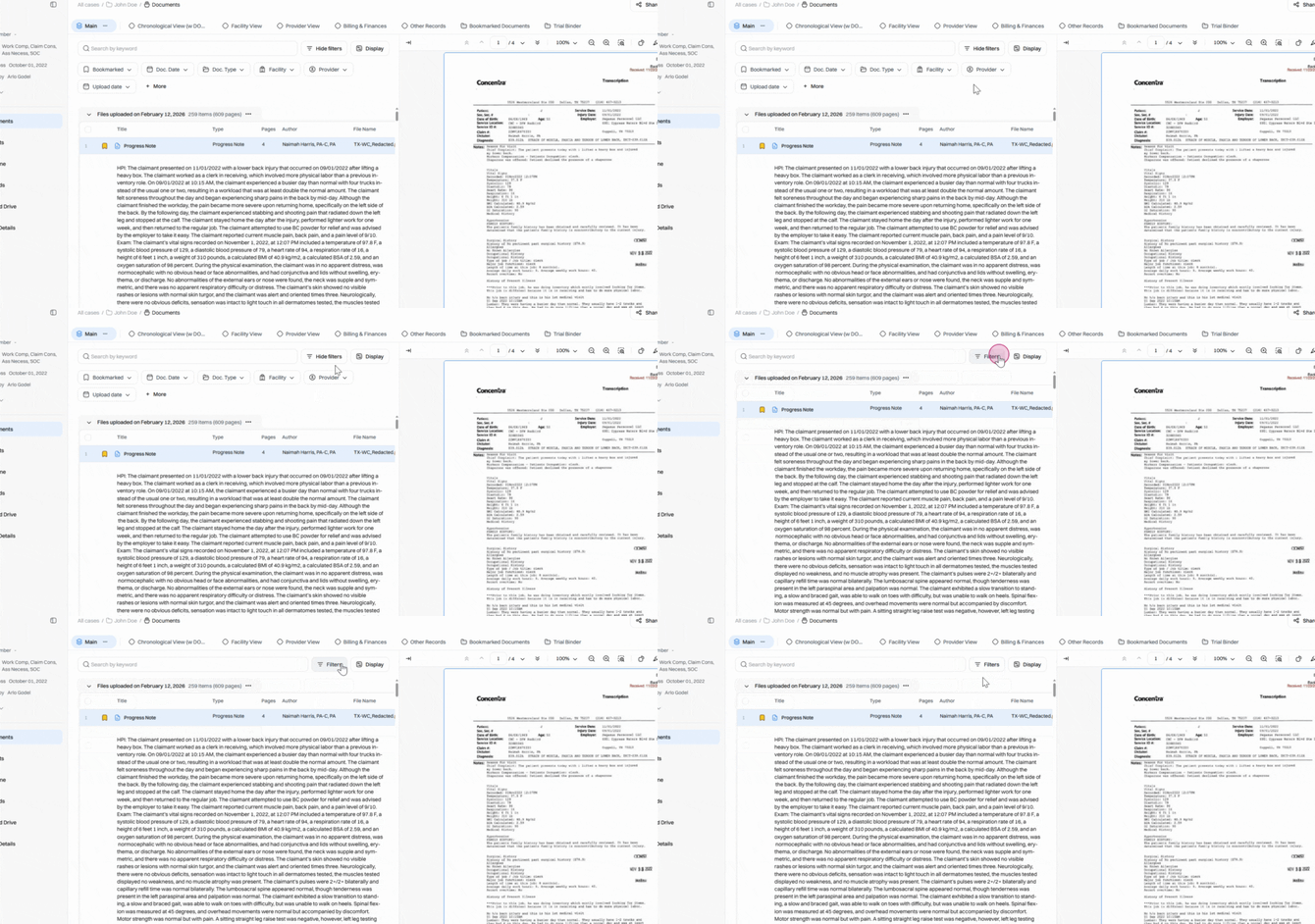
Searching and filtering aren’t just for navigation—they cut through the noise so you focus on what’s relevant. Every Wisedocs filter is built to make your review process faster and more confident.