
You can add or delete users on the Wisedocs system through the Team tab.
Adding & removing users
Note: Only users with Supervisor level permissions can access this page.
Adding new users
To add new users:
- Click on the Team icon in the sidebar.

- On the 'Team Members' page, click on ‘Add User’.

- Fill out the corresponding form that appears on screen and click 'Add User' once complete.
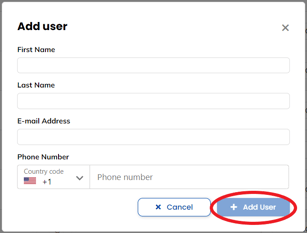
- A confirmation email will be sent to the user informing them that an account has been created.
Note: All new users have Coordinator permissions by default.
Removing users
To remove any users:
- Click on the Team icon in the sidebar.
- Click on the Remove User button next to the user’s name.

- A confirmation message will pop up. To confirm, click ‘Remove User’ on the pop-up.
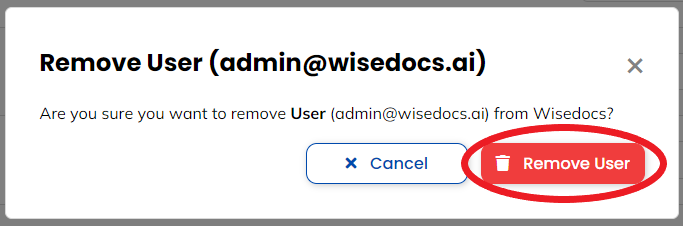
- This user will no longer have access to the system.