
Make edits on a custom Doc List. There are two ways to create a custom Doc List: editing the Master Doc List, and using the ‘Create New’ button.
Creating a custom Doc List
What is a custom Doc List?
Custom Doc Lists are additional versions of the original Doc List (Master Doc List) that allow you to make edits. Using the Master Doc List as your base, you can create customized Doc Lists that cater to different needs. This keeps the original unchanged, so that you will always have it to come back to as a reference.
All custom Doc Lists are given a default, editable title based on the number of Doc Lists created. You can download these custom Doc Lists independently of each other.
How do I create custom Doc Lists?
There are way ways to create a custom Doc List:
Editing the Master Doc List
Making an edit on the Master Doc List will automatically create a new Doc List.
Demonstration:
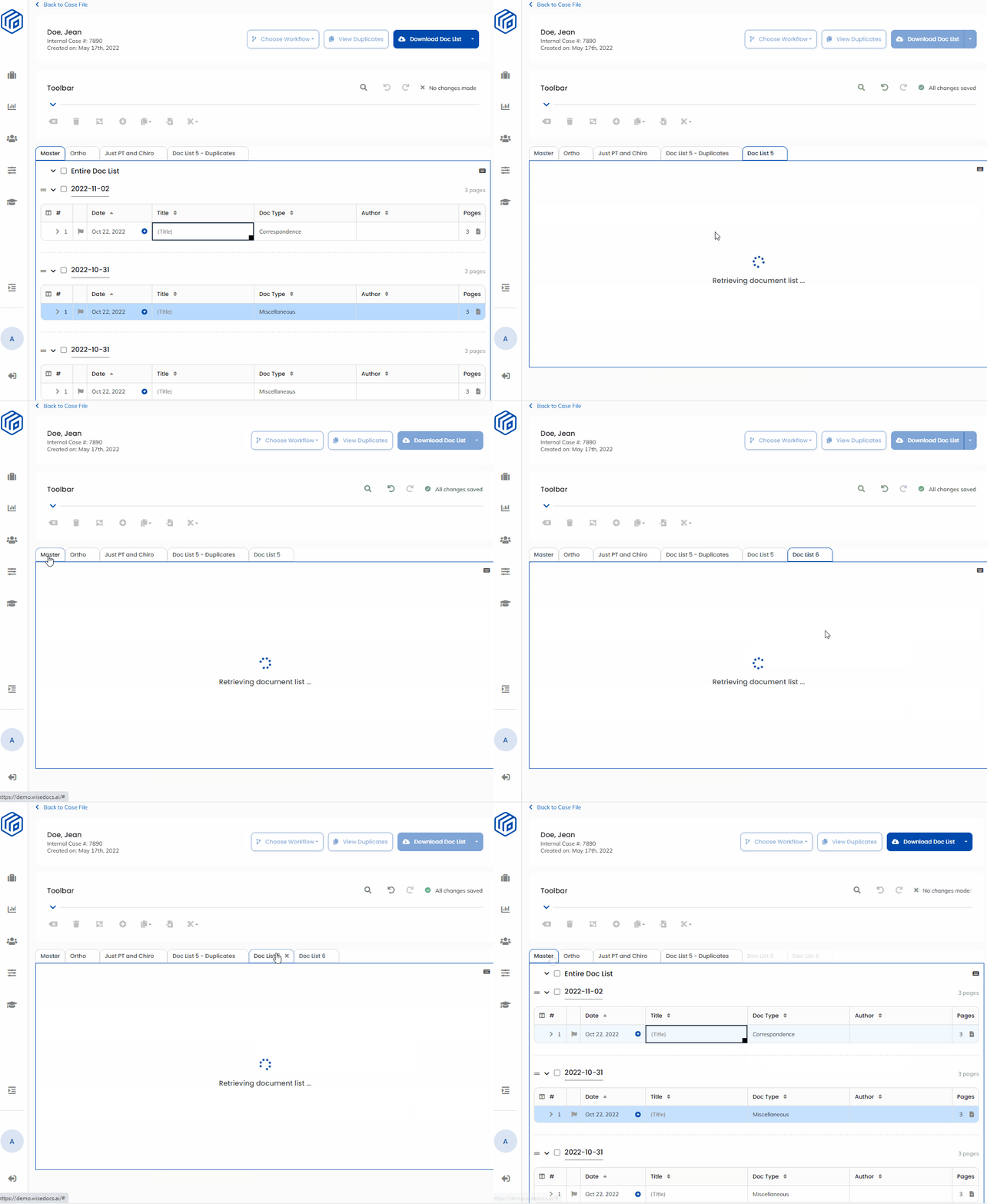
Tip: To keep all the edits on the same custom Doc List, make edits on the preferred custom Doc List directly. Each new edit on the Master Doc List will automatically create a new Doc List.
Creating a custom Doc List using ‘Create New’
Use the ‘Create New’ button to manually create a new Doc List by selecting lines and/or tables.
The custom Doc List will appear alongside the Master Doc List in the tab strip.
To create your custom Doc List:
- Select lines by clicking on the line number and using ‘Shift + Click’ to select consecutive lines, or ‘Ctrl + Click’ to select individual lines.
- Select the entire Doc List or entire table(s) by clicking the square on the left side of each table
- Click the ‘Create New Doc List’ button
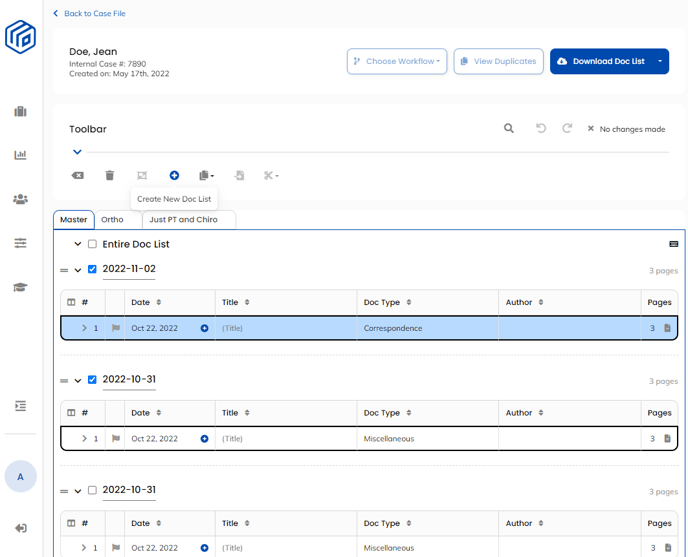
Note: Selecting a multi-page line will automatically select all associate sub-lines.
Tip: Selecting Level 2 and Level 3 Lines - without selecting its corresponding Level 1 line - to create a new Doc List will automatically transform them into Level 1 lines.
How do I edit the custom Doc List titles?
The newly created Doc Lists will have a default title based on the number of the custom Doc Lists created. However, you have the option to edit these titles.
To add a custom Doc List title:
- Double-click on the Doc List title
- Type in your new title and press 'Enter’
- Check to see that your edits have saved
To remove a custom Doc List title:
- Double-click on the Doc List title
- Select all text and press 'Backspace’ or ‘Delete’
- Press ‘Enter’
Demonstration:
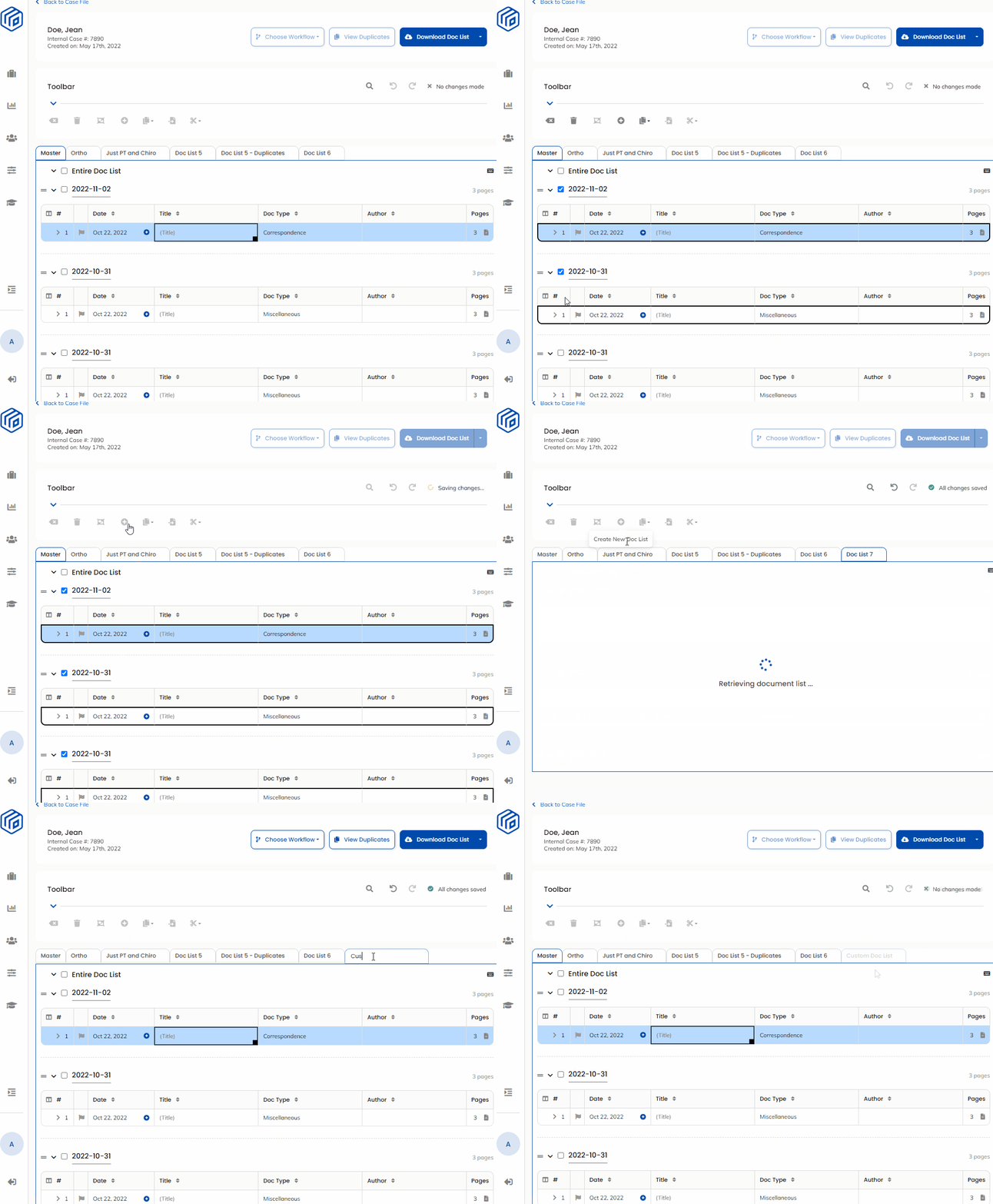
Note: Removing a custom Doc List title will revert the title back to the default.