
Download the Doc List output by clicking the Download Doc List button.
Downloading the Doc List
Where is the Download Doc List button located?
The Download Doc List button is located on the Case in the top banner.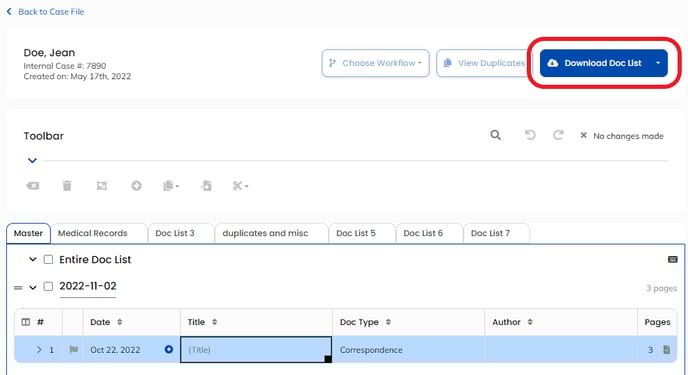
Caution: All Doc Lists are independent of each other. To download a specific Doc List, make sure you are on the correct Doc List Tab.
How do I download the Doc List?
There are two options to download the Doc List output:
Clicking the Download Doc List Button

Clicking on the Download Doc List button will download a completed Doc List in PDF format with a hyperlinked table of contents. This is the default download format.
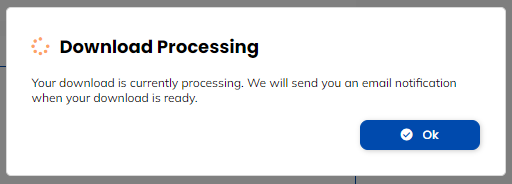
The download will begin immediately after clicking the Download Doc List button. If the download takes longer than usual, a link to the completed output will be sent to your Wisedocs email. You will see the following pop-up on the window:
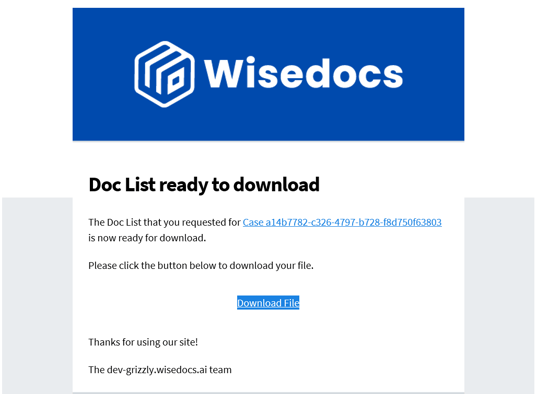
Click on the 'Download File' link in the email to download your file.
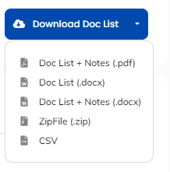
Selecting options from the drop-down list
There are multiple output options from the drop-down list for you to choose from. Click on the downward arrow to open the drop-down list and choose from the available formats. 
The available formats for download:
- Completed Doc List (.pdf) with Hyperlinks (default)
- Doc List + Notes (.pdf)
- Doc List (.docx)
- Doc List + Notes (.docx)
- ZipFile (.zip)
- CSV (Spreadsheet)