
Wisedocs allows users to rearrange Doc Lists when conducting record reviews to customize the final output specific to their needs. Let's dive into how to rearrange tables.
How to Rearrange Tables
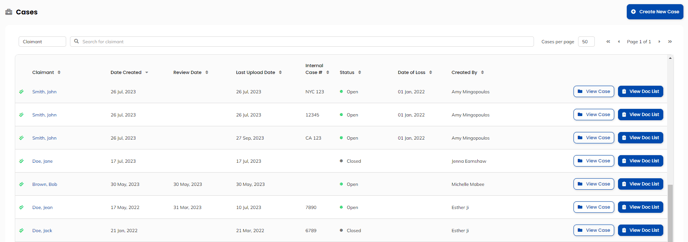
- Navigate to the "Cases" page, and select the case you would like to work on.
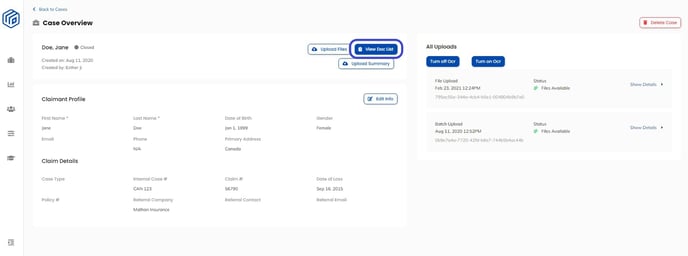
- In the "Case Overview" page, click on the "View Doc List" button to be taken to your doclist.

- Choose the doclist with the tables you would like to edit.

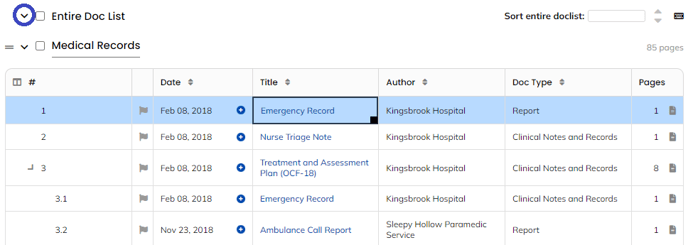
- Collapse all the tables within the Doc List by clicking the arrow beside "Entire Doc List" to see a view of all the tables within the Doc List.
Here, you can see all the collapsed tables listed.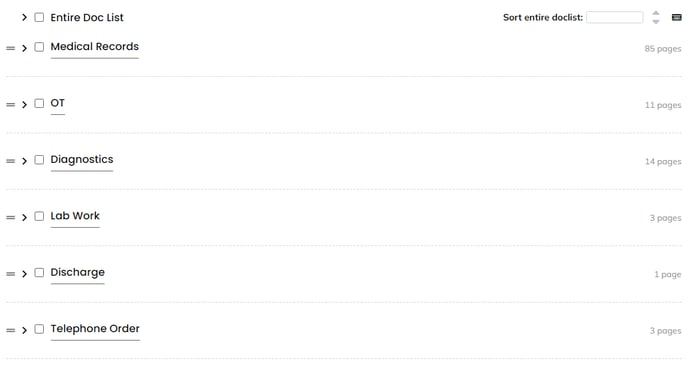
- Select the table you want to move by clicking the
 symbol to the left of the table title. Drag the table up or down to its destination.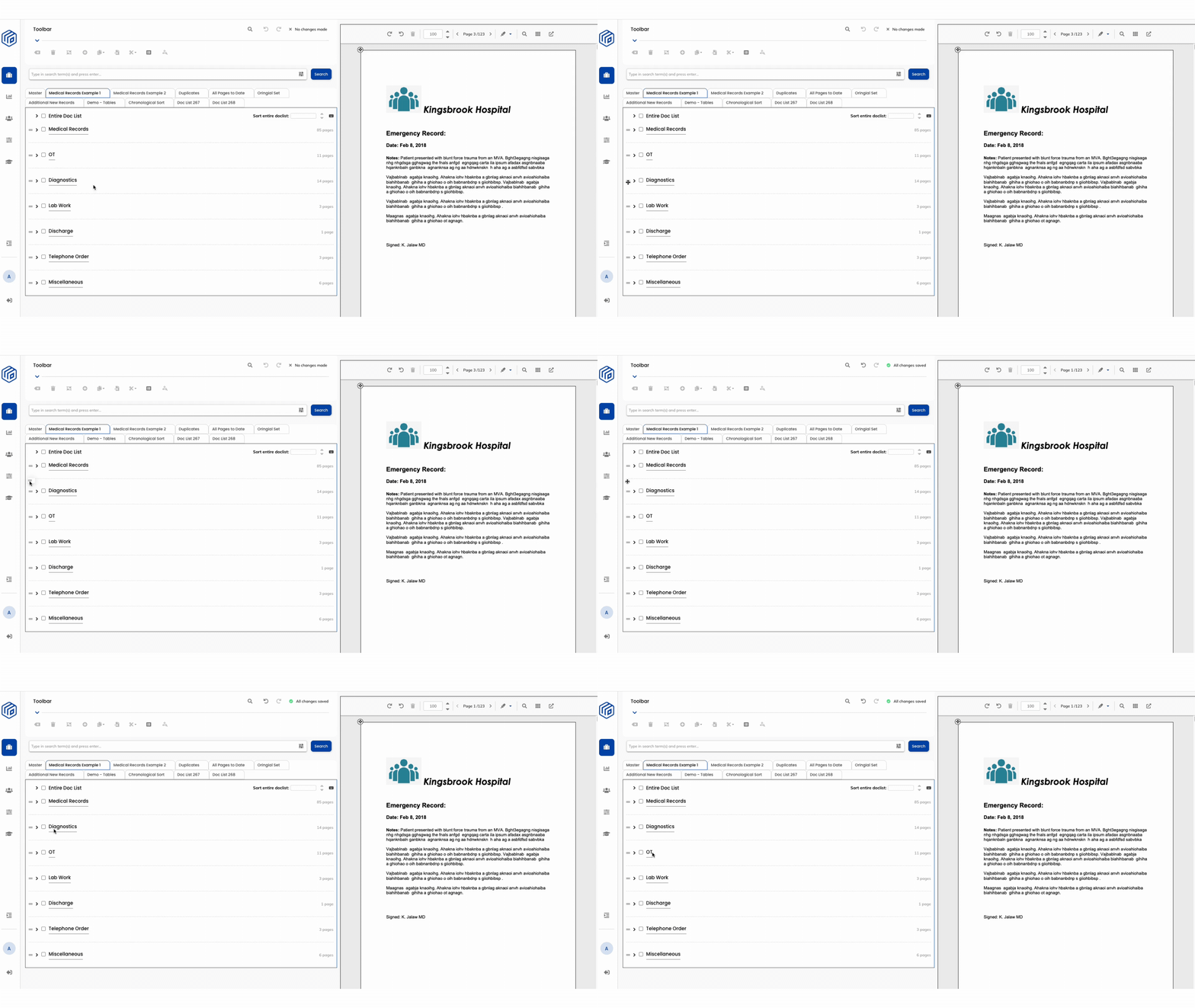
Now, you have successfully rearranged your doclist.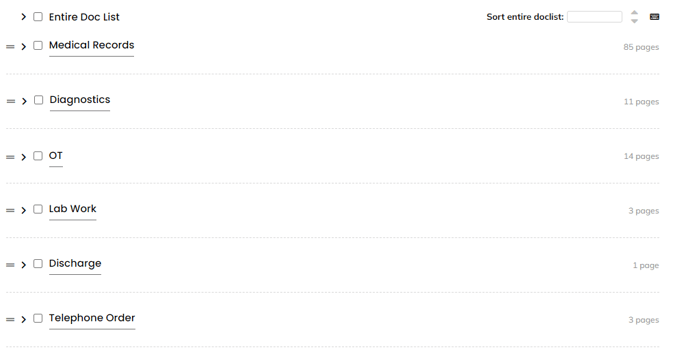
Pro Feature:
To minimize the need for manually ordering tables and documents, consider upgrading to our Pro-feature Automated Workflows to streamline your process. With automatic workflows, you can efficiently manage repetitive tasks, organize documents with tables, and produce an organized record.
If you'd like to upgrade to Automated Workflows, please contact your customer success manager today.