
Uploading additional files can be done from the Case Overview page using the Add Files button.
Uploading additional files
Where is the Upload Files button located?
Cases page
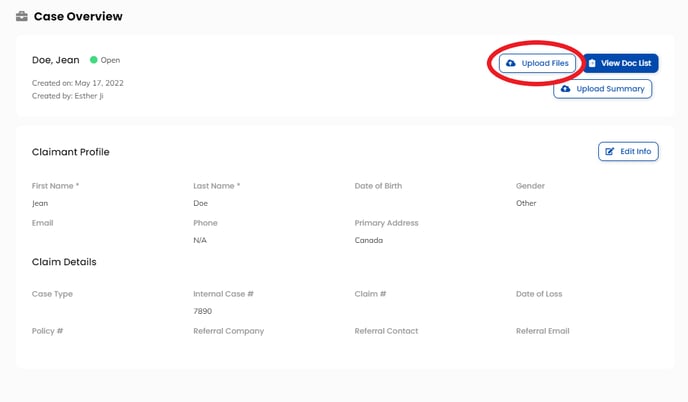
On the Case Overview page, the Upload Files button is located at the top of the page under Case Overview.
Adding files
To add additional files:
- In the Cases List page, select the Claimant name or the View Case button for the case you want to add additional files to
- Click on the Upload Files button

- Drag & Drop or Browse files into the pop up that appears on screen
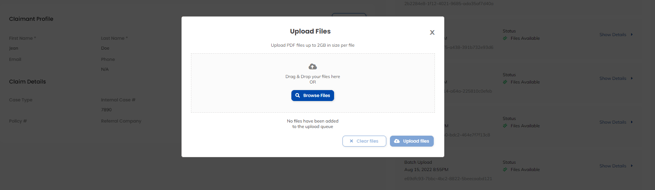
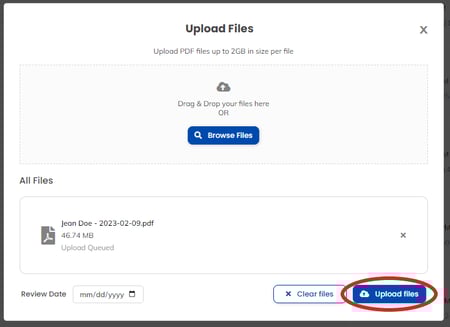
- You can select a 'Review Date' for these additional files. This is the specific review date you would like to have your document reviewed by. This date is used as a guideline to prioritize files in the pipeline and is an optional field
- Click 'Upload files' once all the files you want to upload have been added to the upload queue
- Ensure that all of the progress bars are green before you close the pop-up message
Demonstration:
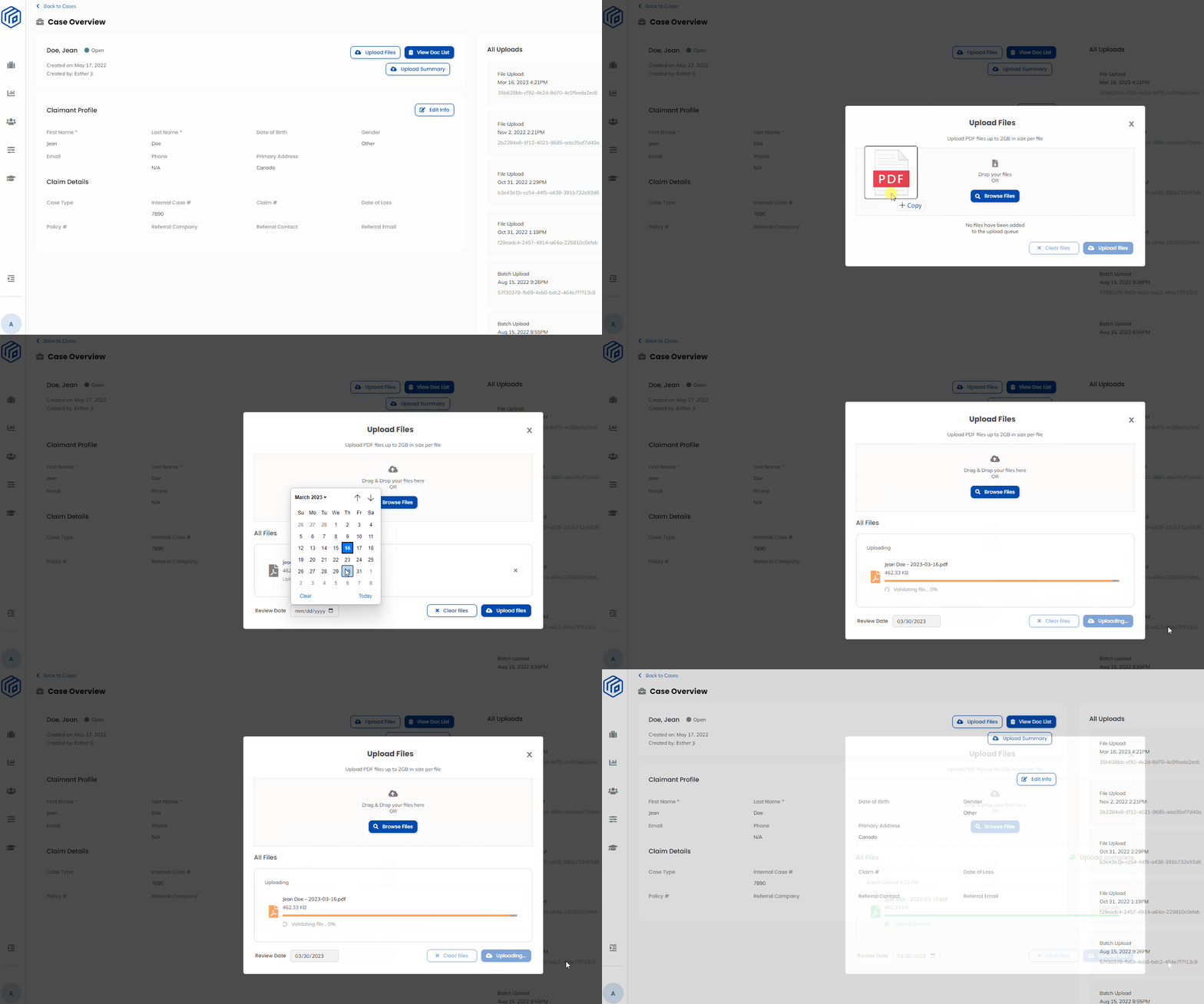
Note: The newly uploaded files always appear at the top of the Master Doc List as a new table.