
In Wisedocs' platform, you are able to add custom columns to your index list to customize the PDF output. This includes, Page Number, Document Number, and a Summaries section.
How do I add custom columns?
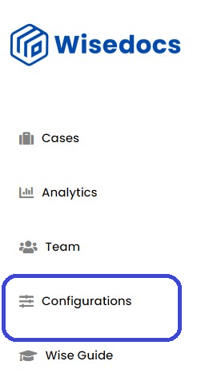
- To begin, open up the Wisedocs menu and go to the Platform Configurations page.
- Under the General tab, navigate to the "Add a Custom Colum" button.

- A pop up will appear, under "Column Name", enter what you wish the new column name and function to be.
See below for a demo:
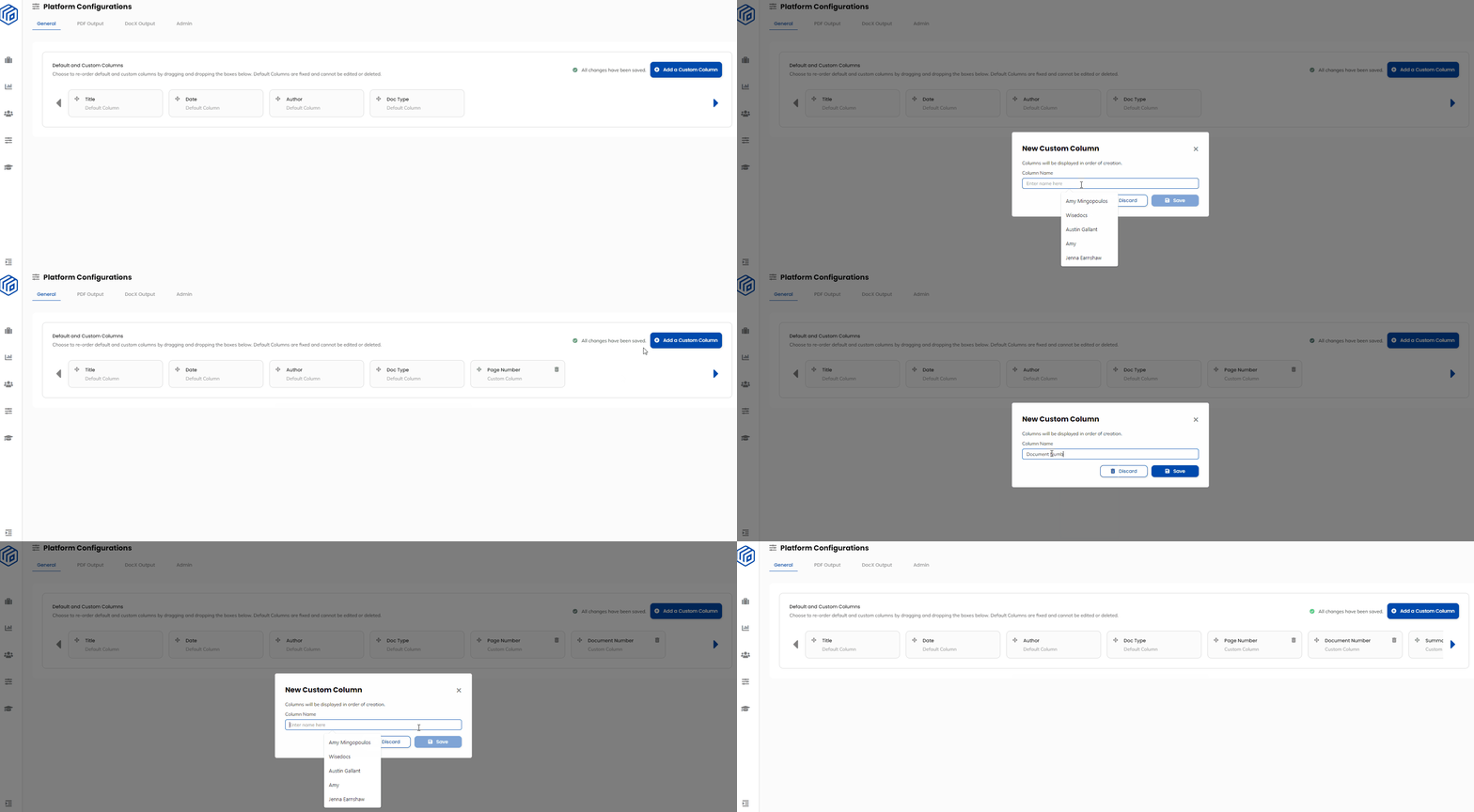
- Add a "Page Number" custom column to add the page numbers to your PDF output
- Add a "Document Number" custom column to add the document numbers (starting at document 1) to your PDF output
- Add a "Summary" custom column to add a notes or summary section to your PDF output
What will the PDF output look like?
Once you have added the custom columns, the pdf output will differ depending on the platform configuration settings you have enabled.
With Display Table of Contents as a Table
*Note this is a PRO feature. Please talk to Wisedocs at help@wisedocs.ai if you are interested in upgrading to this feature.
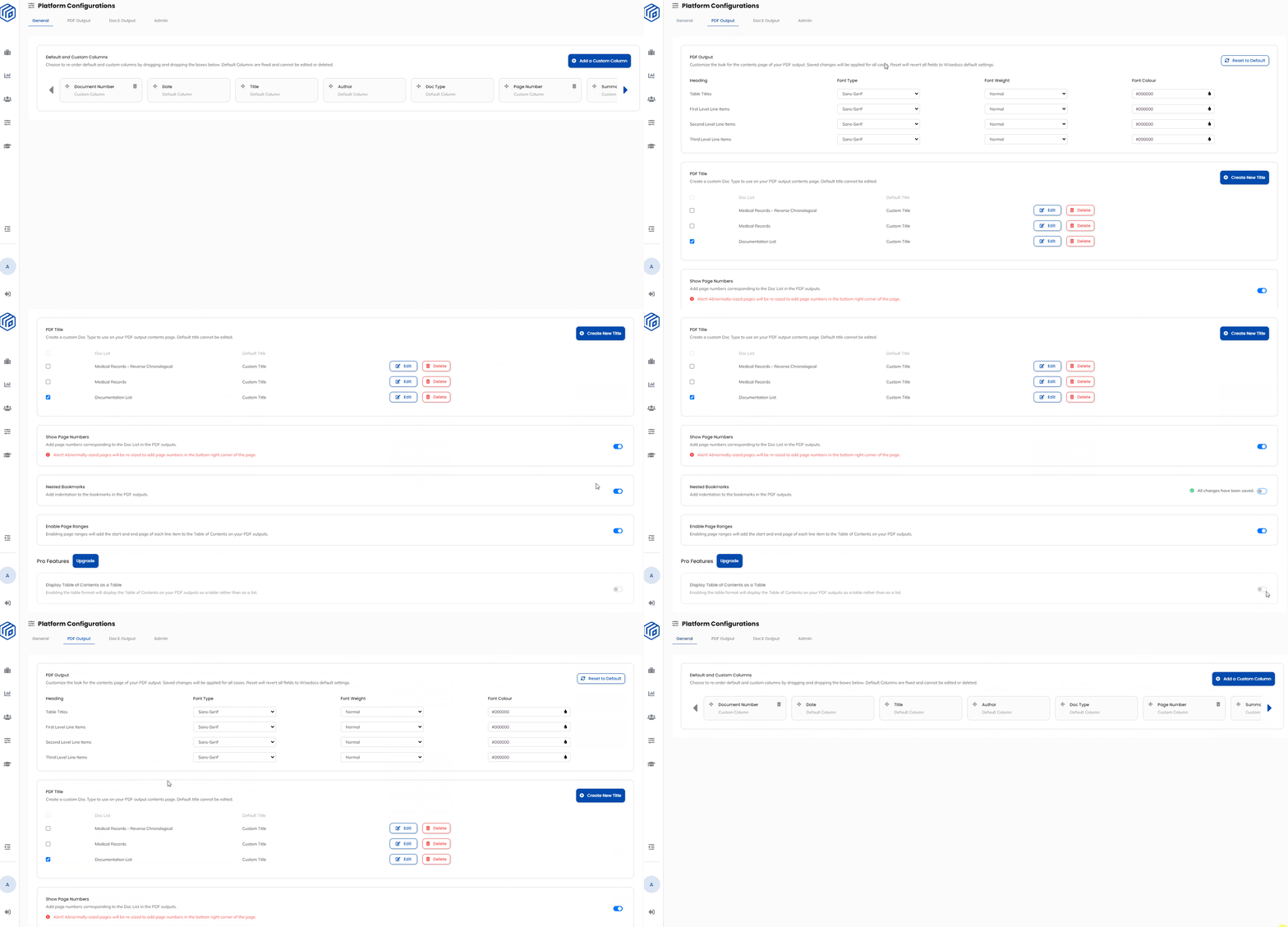
- Go to the Platform Configurations Page under the "PDF Output" tab
- Scroll down to the bottom and ensure the "Display Table of Contents as a Table" pro feature is toggled ON

- Ensure the "Nested Bookmarks" setting is toggled OFF

- Your settings will be saved automatically
See a Demo Below:
- Navigate back to the Cases Page and "View Doclist"
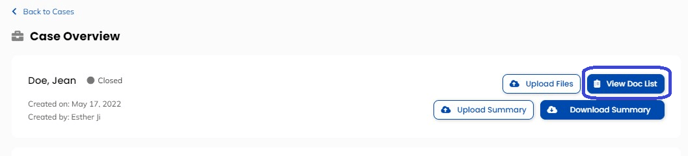
- Select "Download Doc List" to download the Doc List PDF output

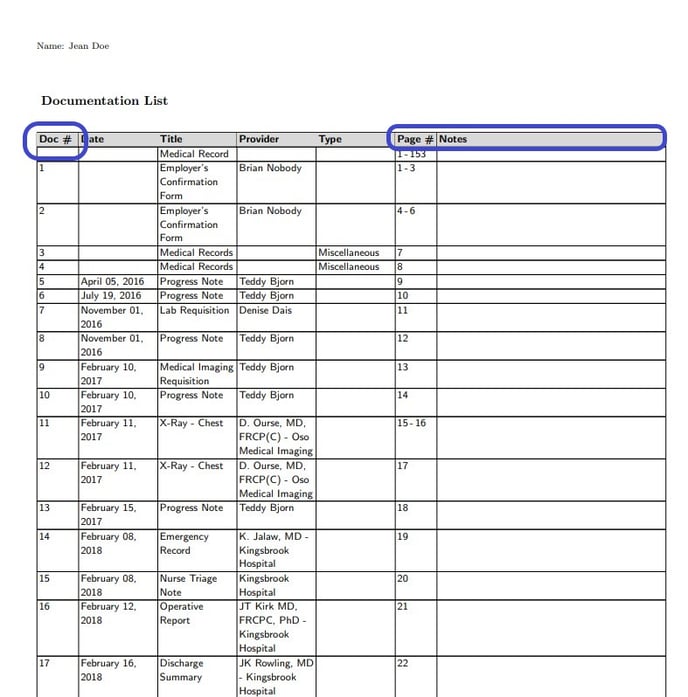
- The following PDF output will be downloaded with the added custom columns of Document Number, Page Number, and Notes section.
Without Display Table of Contents as a Table:
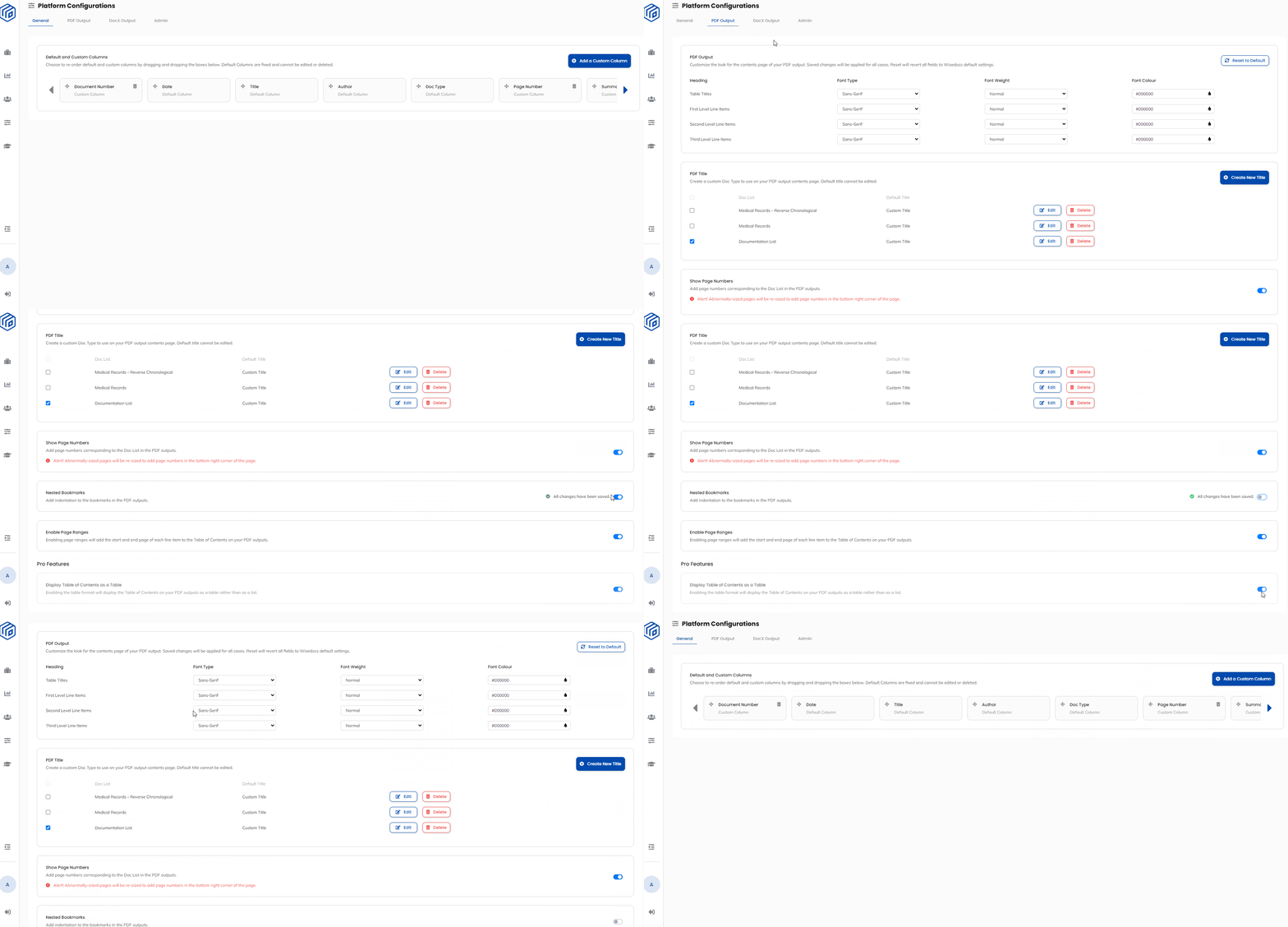
- Go to the Platform Configurations Page under the "PDF Output" tab
- Scroll down to the bottom and ensure the "Display Table of Contents as a Table" pro feature is toggled OFF
- Ensure the "Nested Bookmarks" setting is toggled OFF
- Your settings will be saved automatically
See a Demo Below:
-
Navigate back to the Cases Page and "View Doclist"
- Select "Download Doc List" to download the Doc List PDF output
- The following PDF output will be downloaded with the added custom columns of Document Number, Page Number, and Notes section.
