
Generate and Export Reports in Wisedocs
When handling complex cases loaded with documents, organization helps — but it isn’t enough. You need insight. Wisedocs Reports and Analyzers highlight key information, making it easy to understand your case and make quicker, more informed decisions. Here’s how to create and export reports for your cases.
Step 1: Click the Reports tab from the sidebar.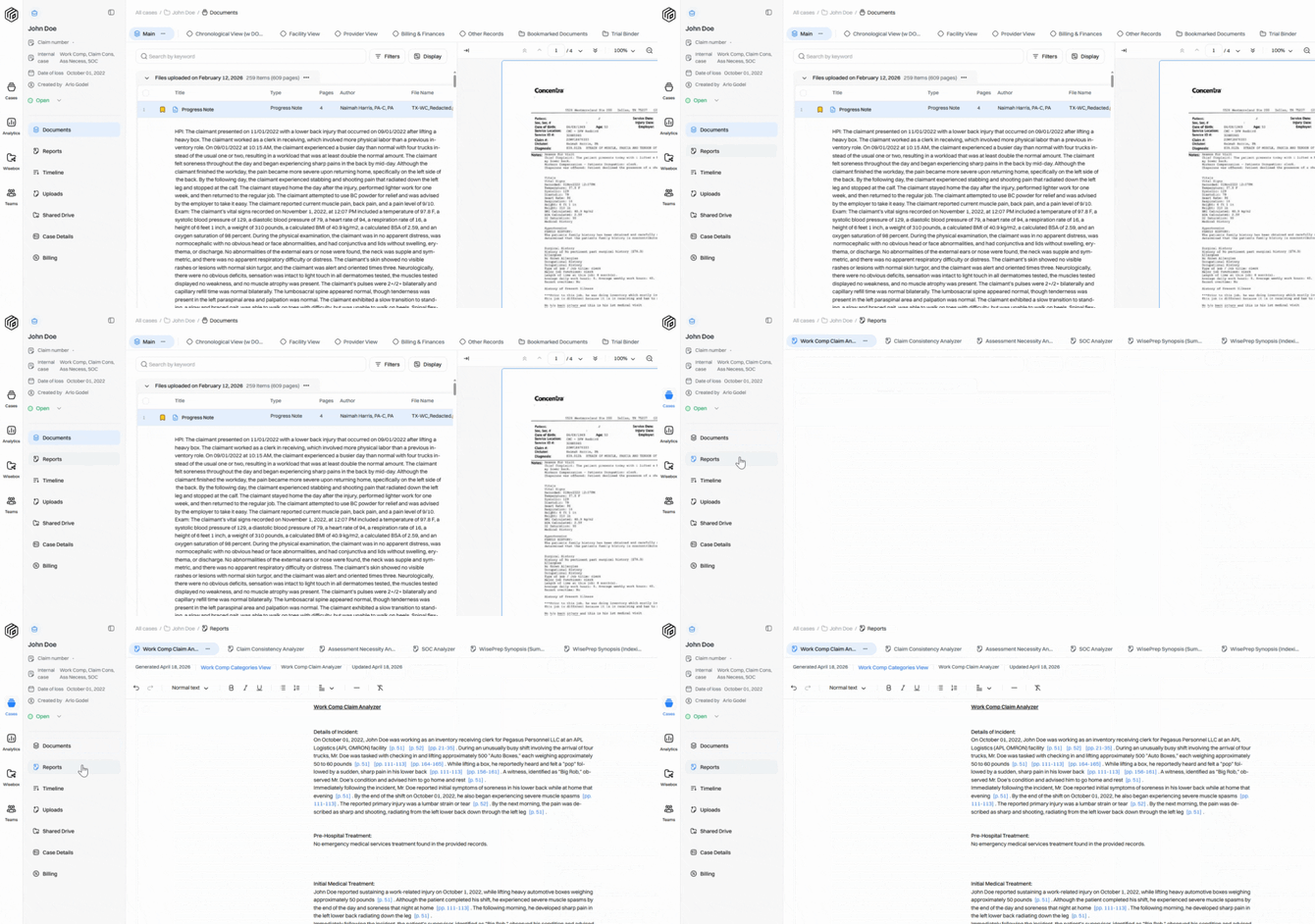
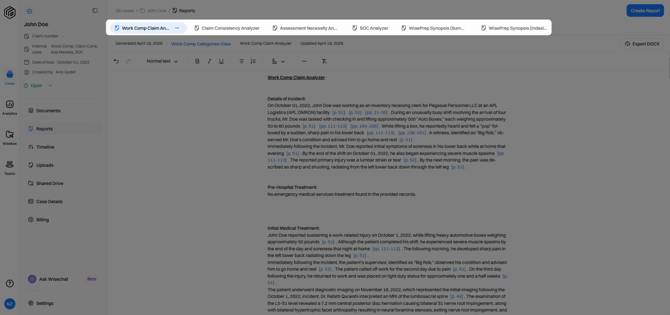
Step 2: View existing reports or analyzers, each summarizing your case details at a glance.
Step 3: Hover over any source citation in a report to see the summary it’s pulled from.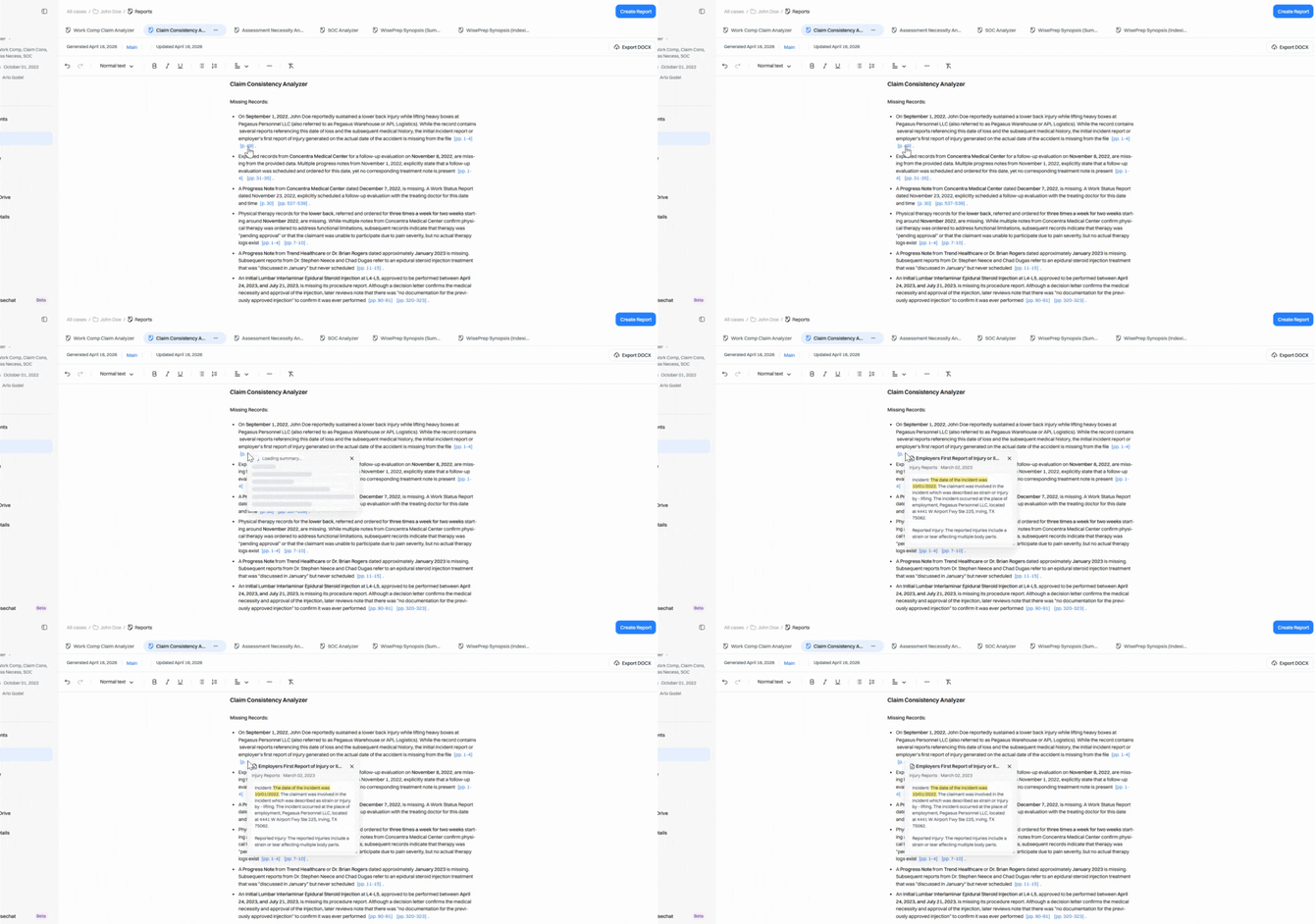
Step 4: Drag or resize the popup for better visibility.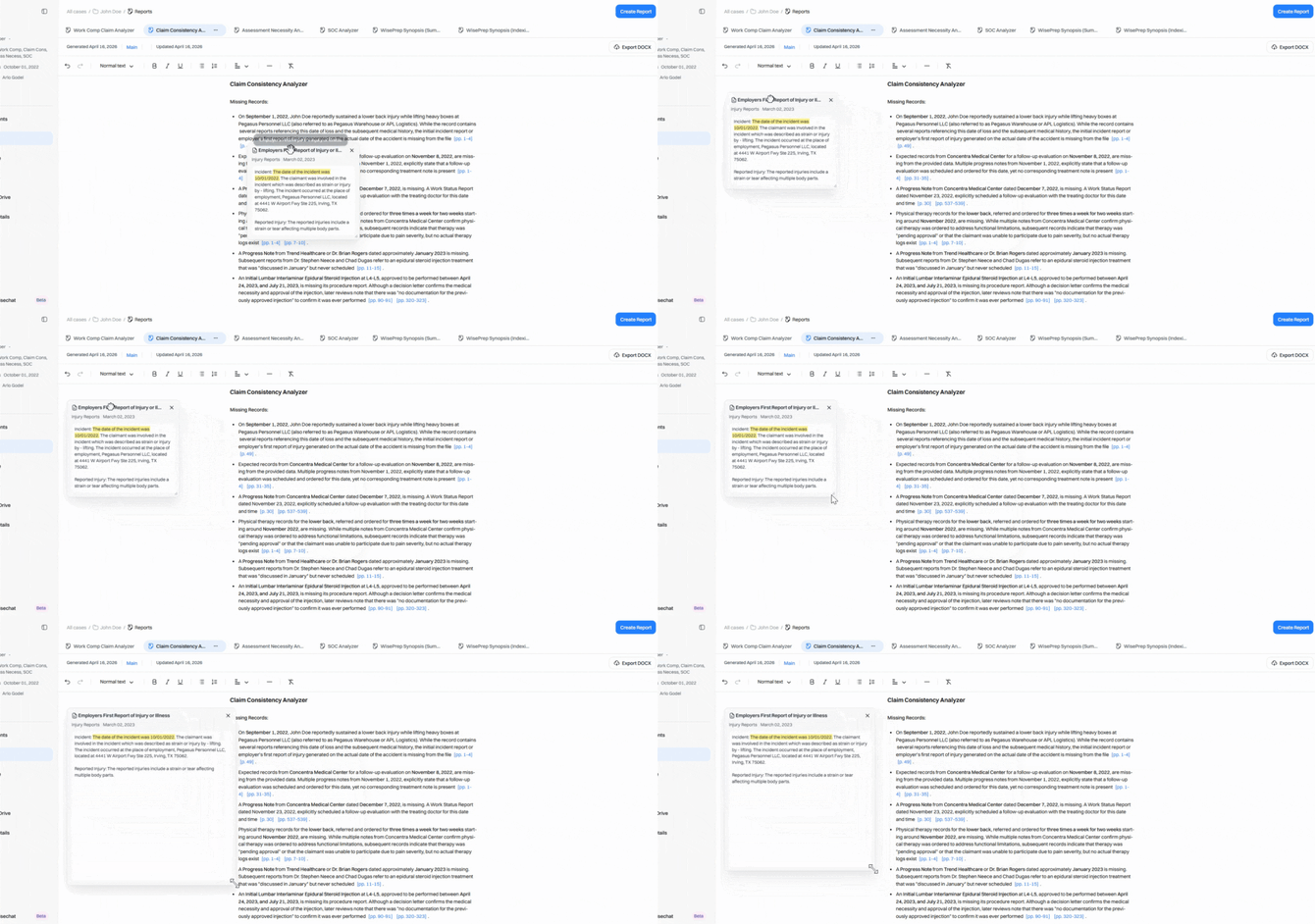
Step 5: Click the source citation to jump directly to the original document in the PDF viewer.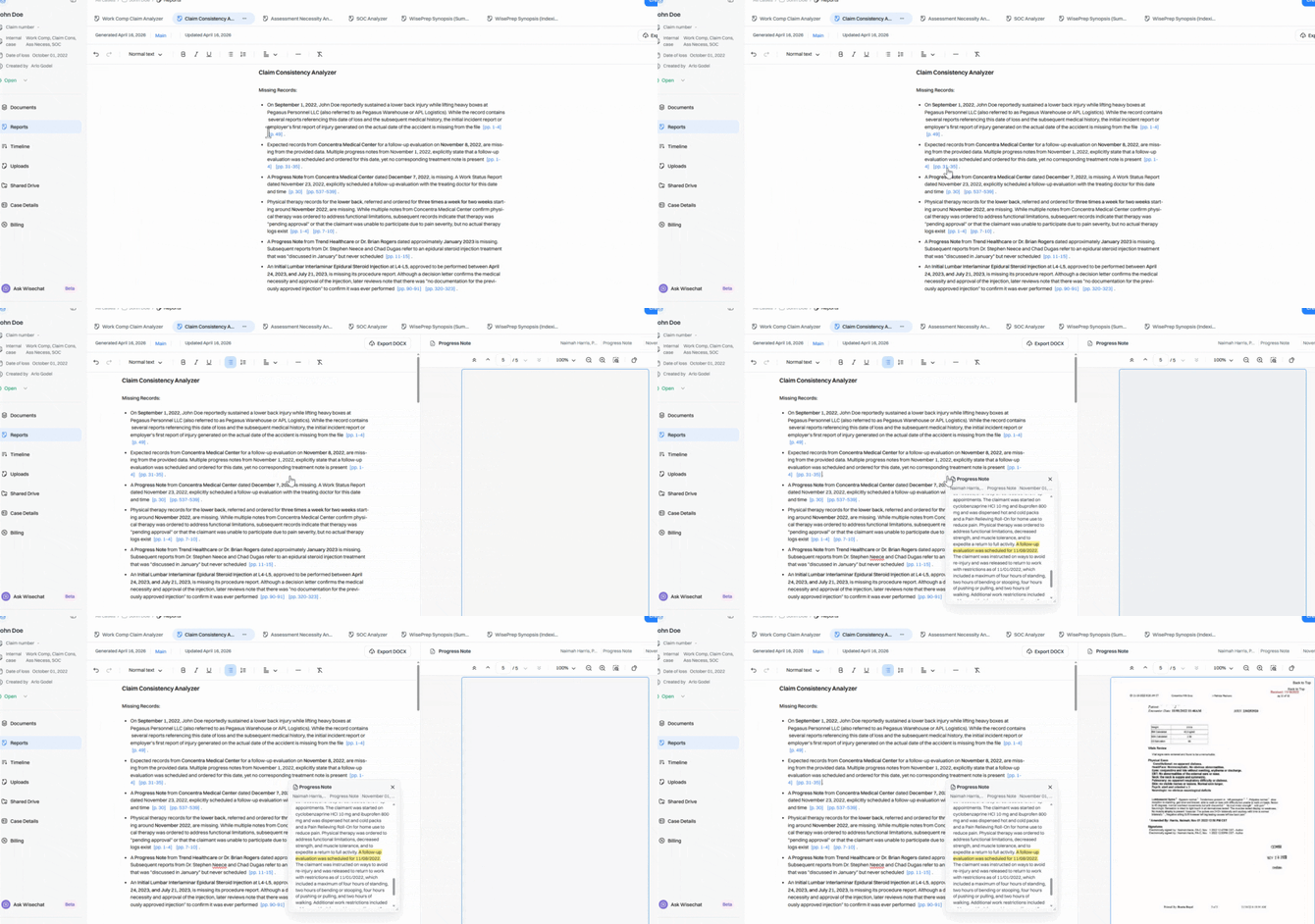
Step 6: Any report edits will automatically save.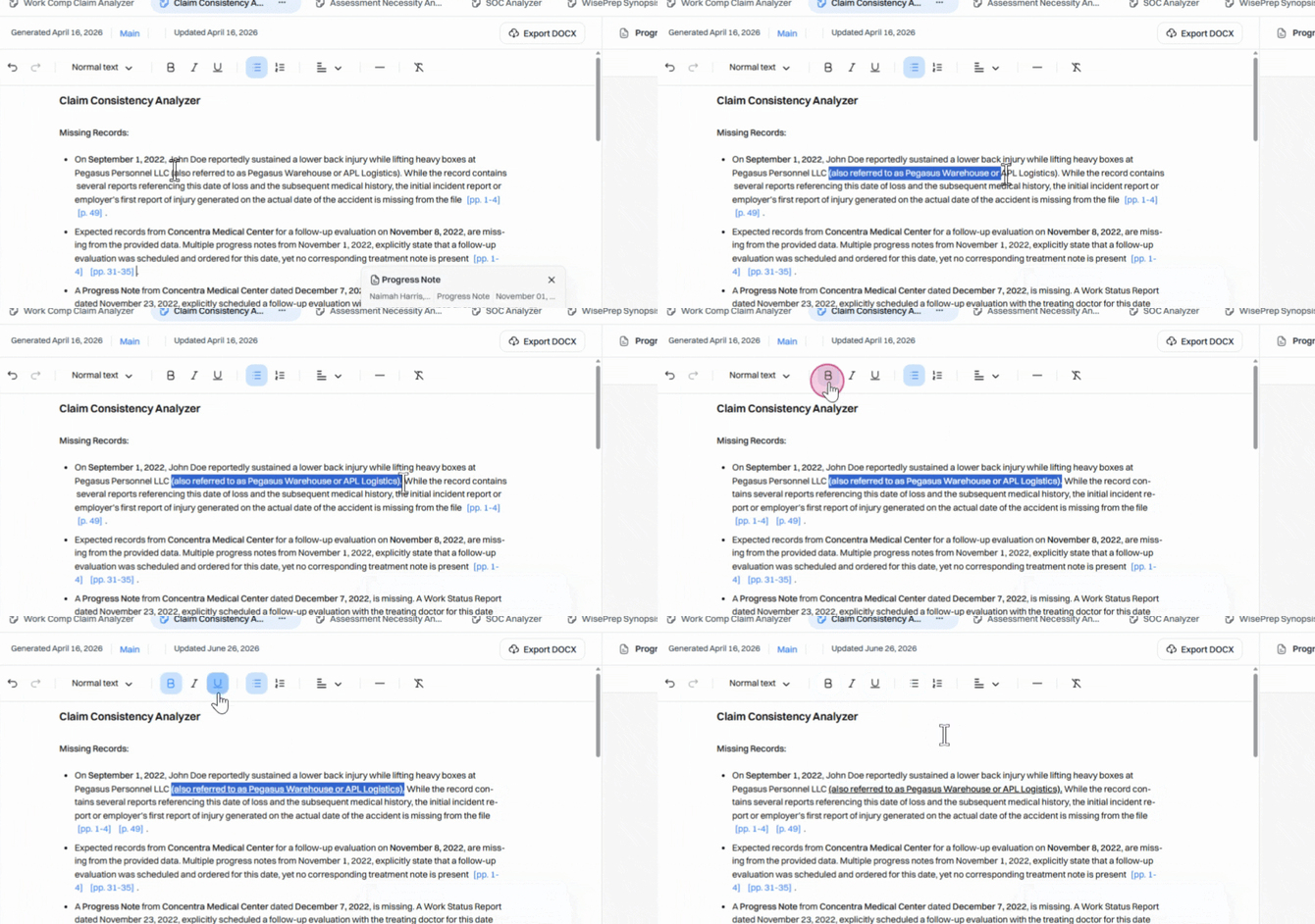
Step 7: Remember that reports don’t update if you add more documents — they’re static as of their generation date.
If you add more documents and need them reflected, create a new report. Click Create Report at the top right.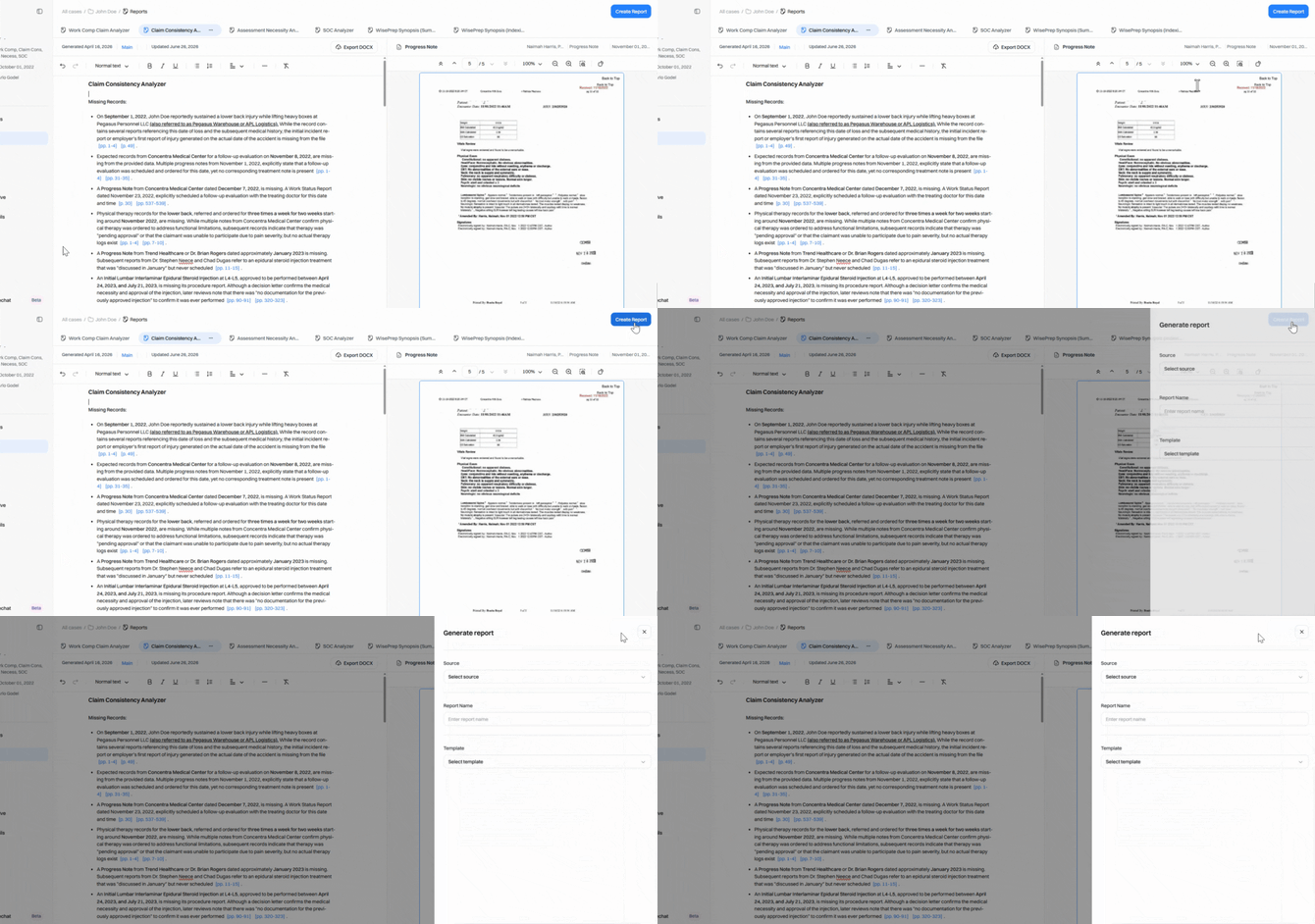
Step 8: Select the source collection you want summarized (for example, Chronological view).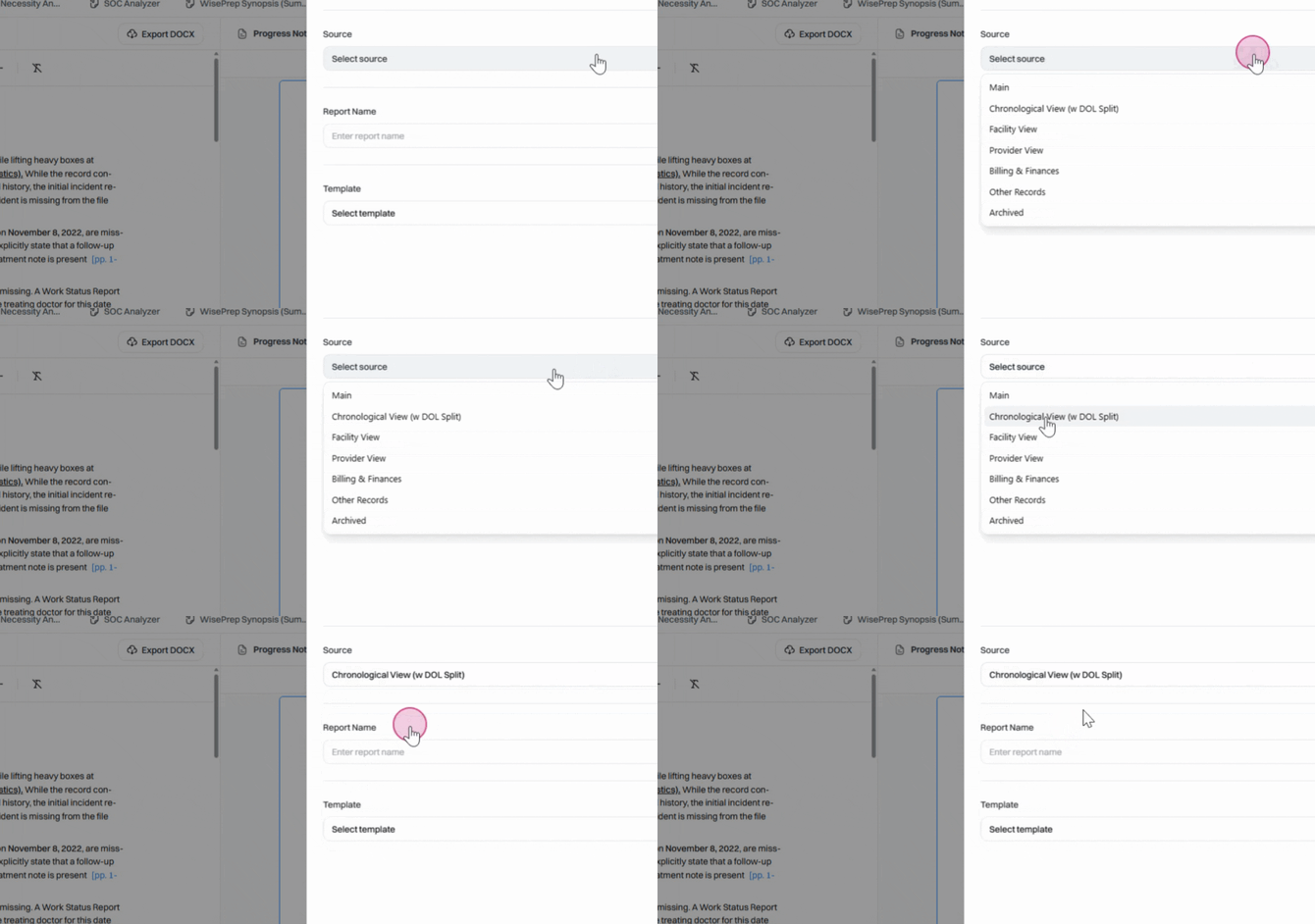
Step 9: Enter the report name when prompted.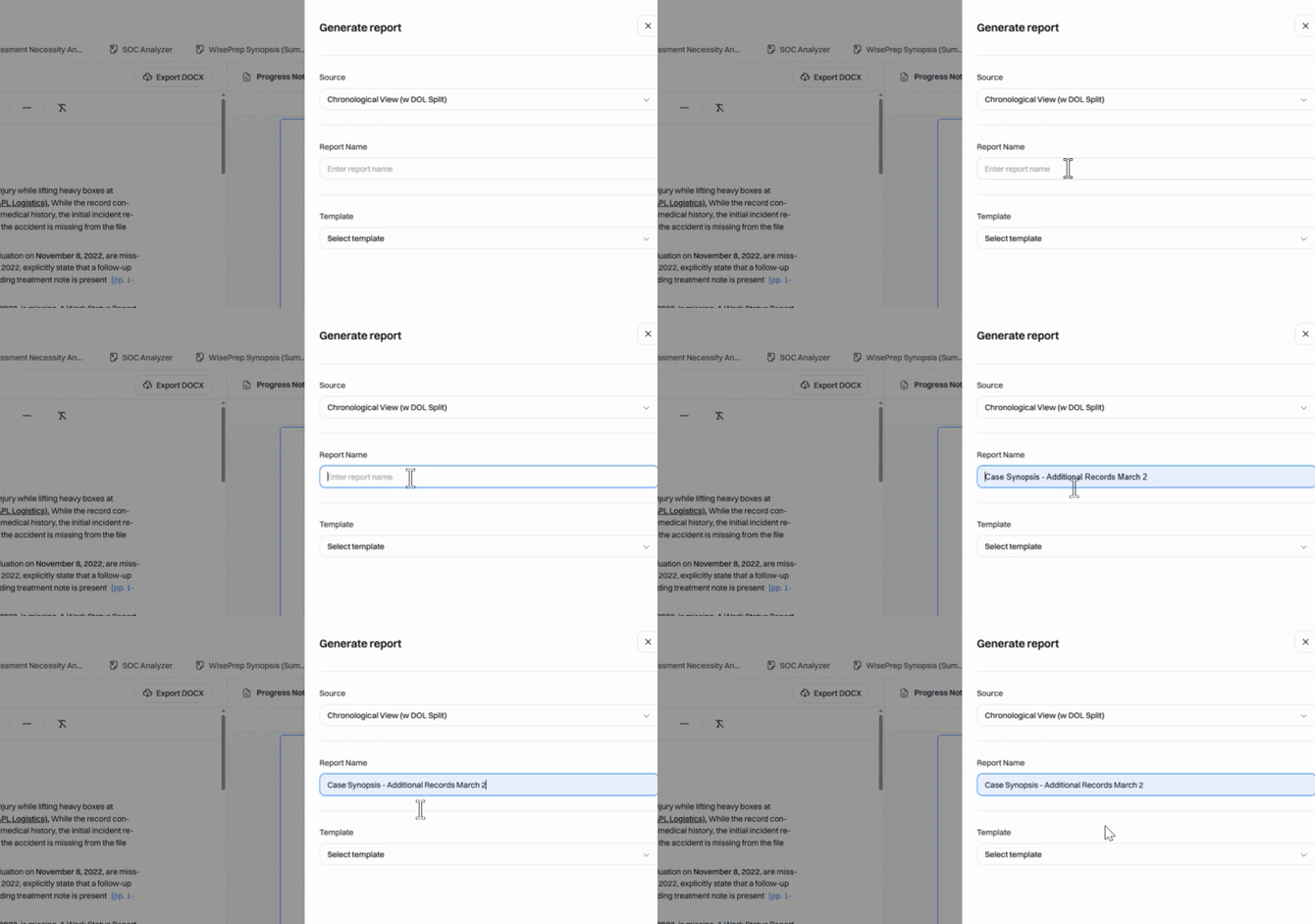
Step 10: Choose a report template from your account’s list.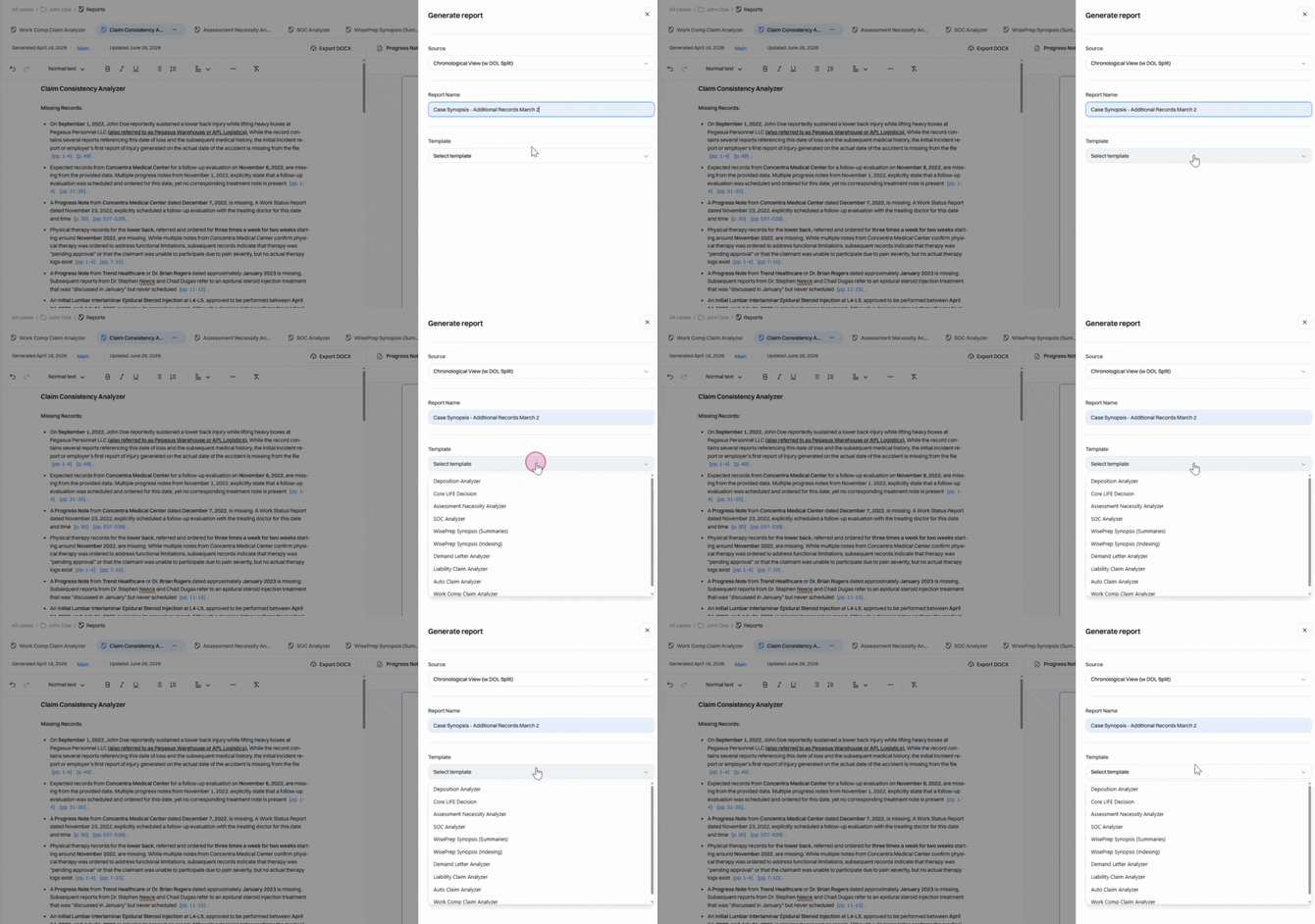
Step 11: Click Generate Report.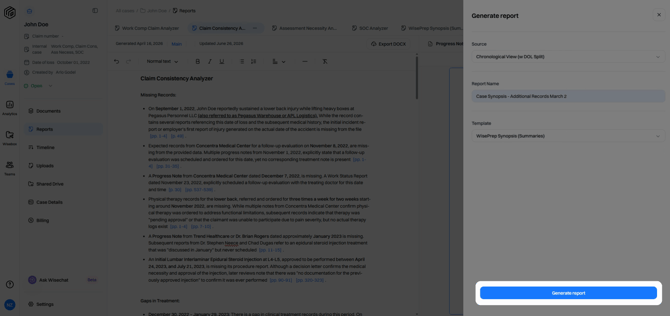
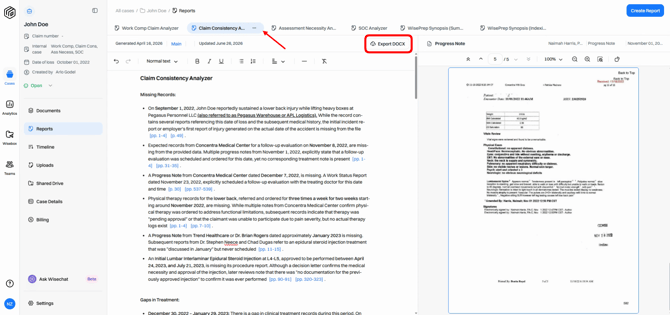
Step 12: To export a report, make sure you’ve selected the desired report, then click Export at the top. Here, reports export in DOCX format.
Exporting Reports in Different Formats
Step 1: Switch back to the Documents tab.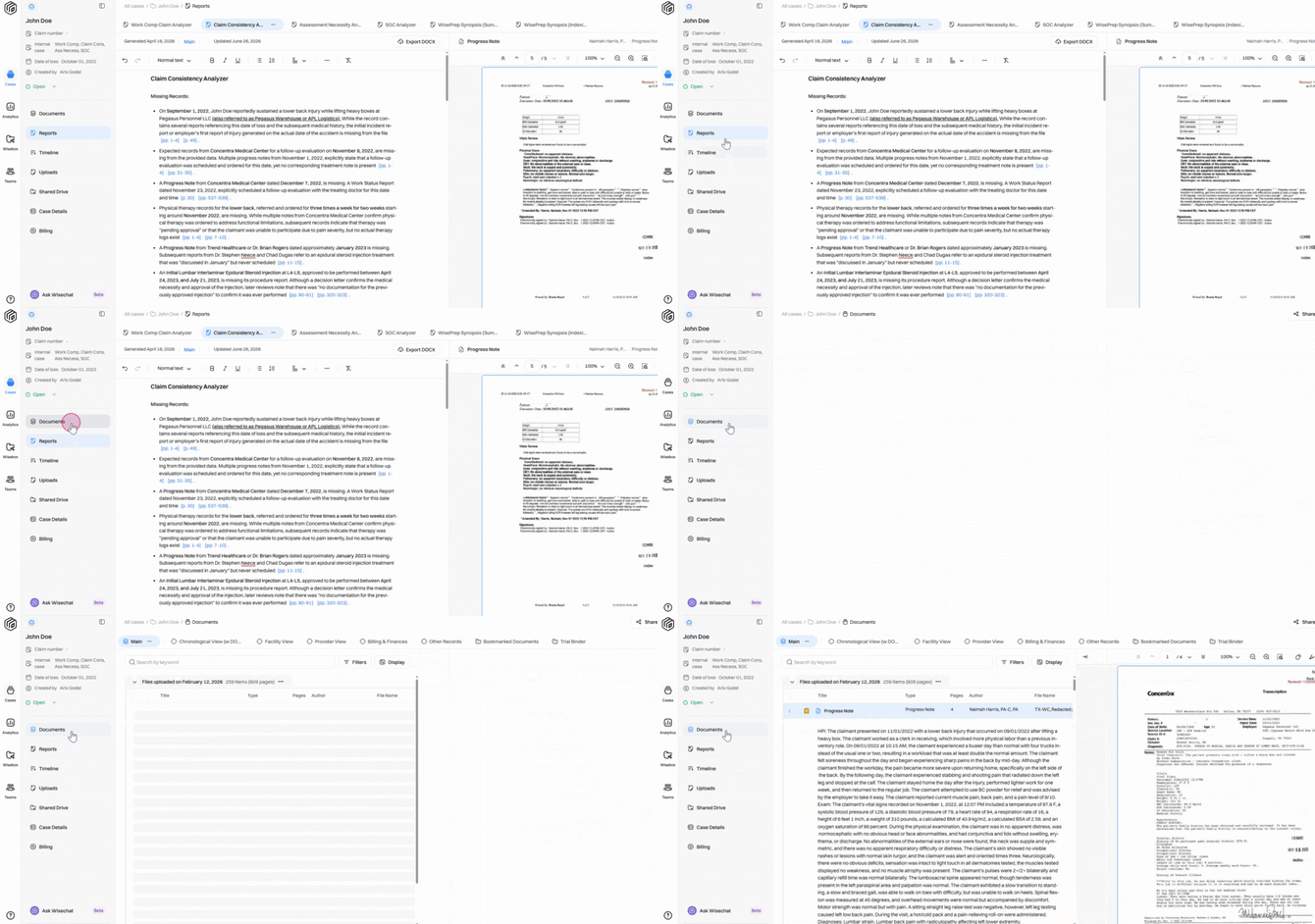
Step 2: Select the collection associated with your report.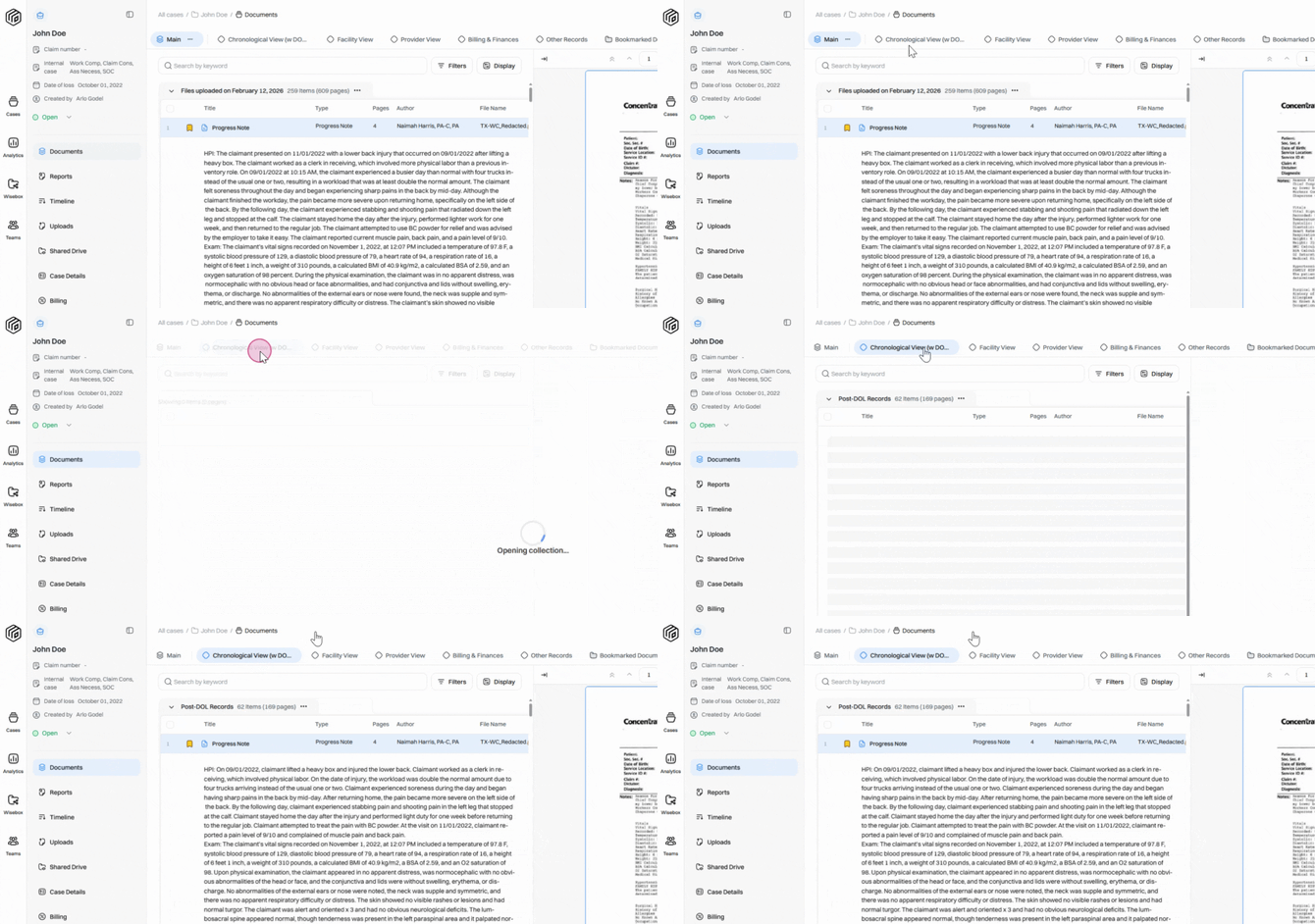
Step 3: Click the downward arrow next to Download for more options.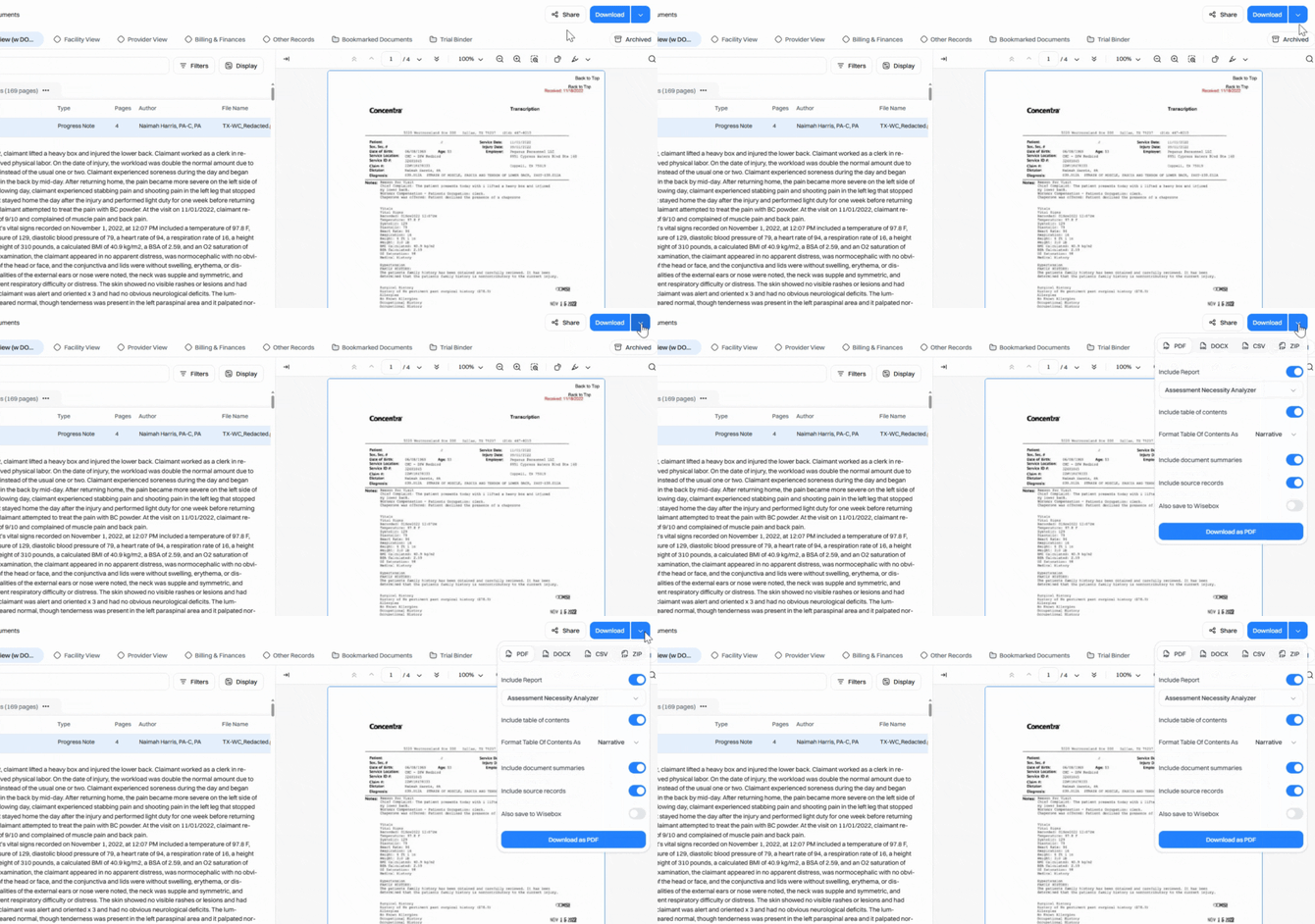
Step 4: Set your Download settings:
Pick your preferred format (PDF or DOCX for when you want to include a report).
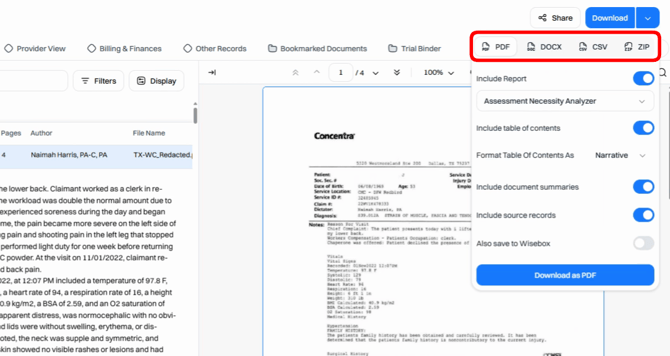
Choose to include a report and select which type.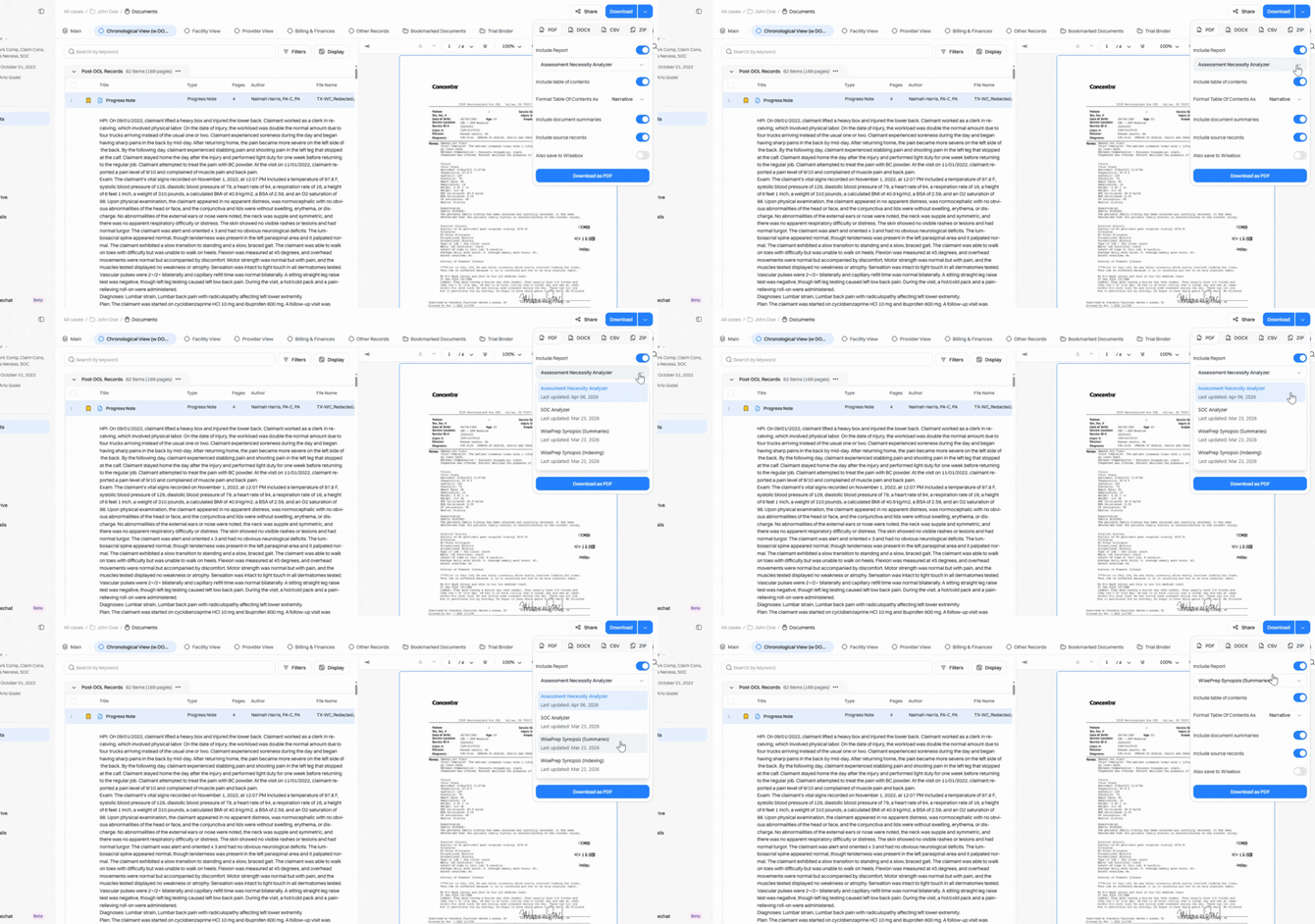
Customize the rest of your download.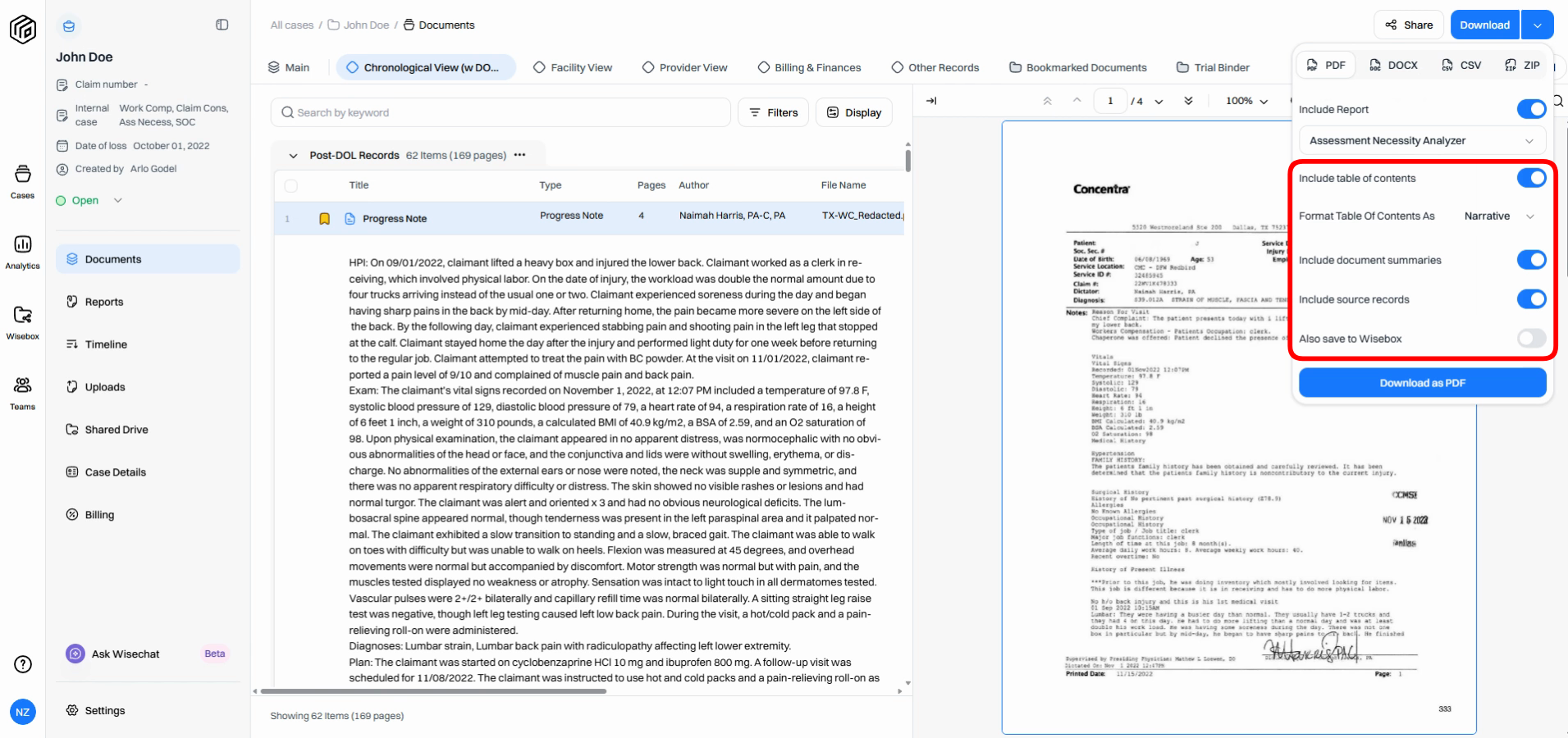
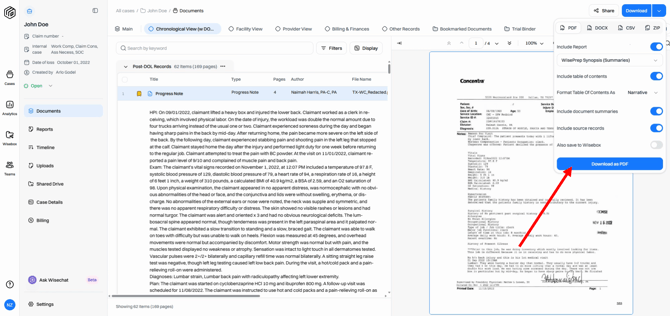
Step 5: Click Download to generate your customized report bundle.
With Wisedocs Reports and Analyzers, you don’t just manage documents – you gain insight. Generate, review, and export reports in the format you need to build stronger, smarter cases.