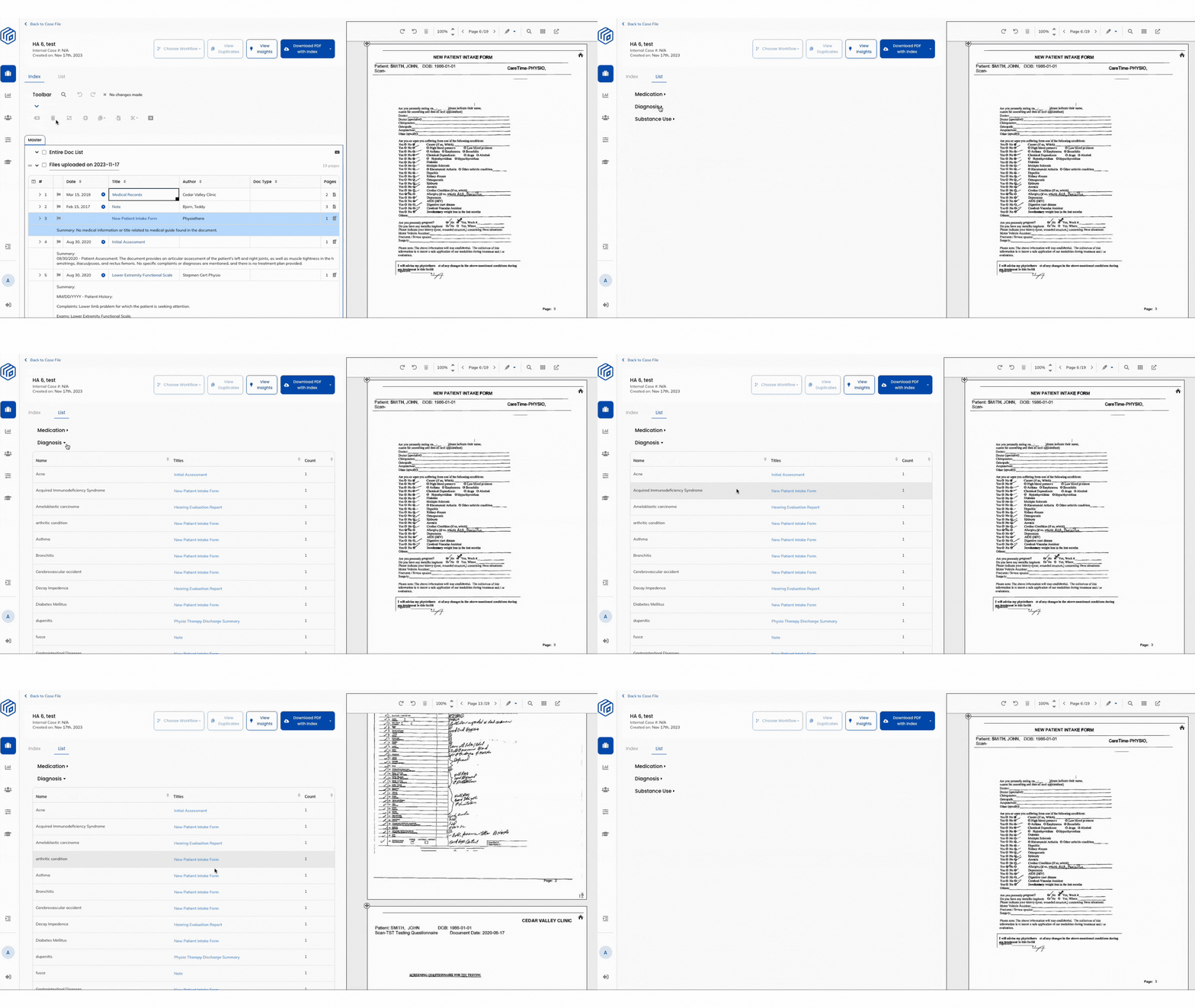
Wisedocs' Insights platform utilizes Wisedocs' AI to create comprehensive lists of key terms, compiling all occurrences within the medical document for efficient reference.
How to Navigate to List View
- Navigate to the case you would like to view and select the "View Case" button on the Cases Page


- Once in the Case Overview Page, select the "View DocList" button in the right corner to be taken to the DocList Page


- Within the Wisedocs DocList page you will see the "List" feature in the top toolbar.
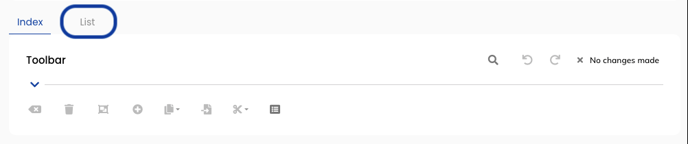
- Select "List" to access the List View Insights feature.
- It is important to note that the Insights platform will be dependent on the certain DocList you have currently selected at the time.
How To Use List View
- Navigate to the List View feature in the case you would like to view, using the steps above.
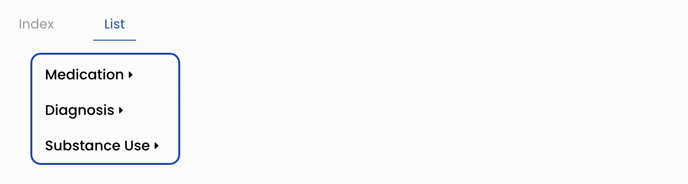
- Within the List View page, you will find three default lists. These pre-populated lists contain key terms and categories that will ensure for a swift review of documents with mentions of these terms.
- Diagnosis List
- Medications List
- Substance Use List
- To view each list, users can toggle down and will find information associated with each key term listed.
- The information displayed will be:
- Name of key term
- Title of source document
- Frequency of key term appearance
- Hyperlink to the source document
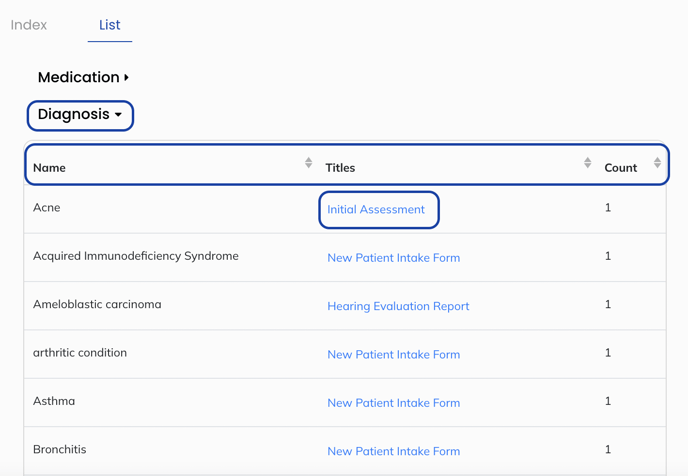
- Users are able to click on the title of the document to surface the source document on the side-by-side page viewer for quick review and further analysis of medical information.
- Custom Lists are available upon request with the Wisedocs team. If you are interested in customizing your List View options, please contact your dedicated Customer Success Manager or email the team at help@wisedocs.com.