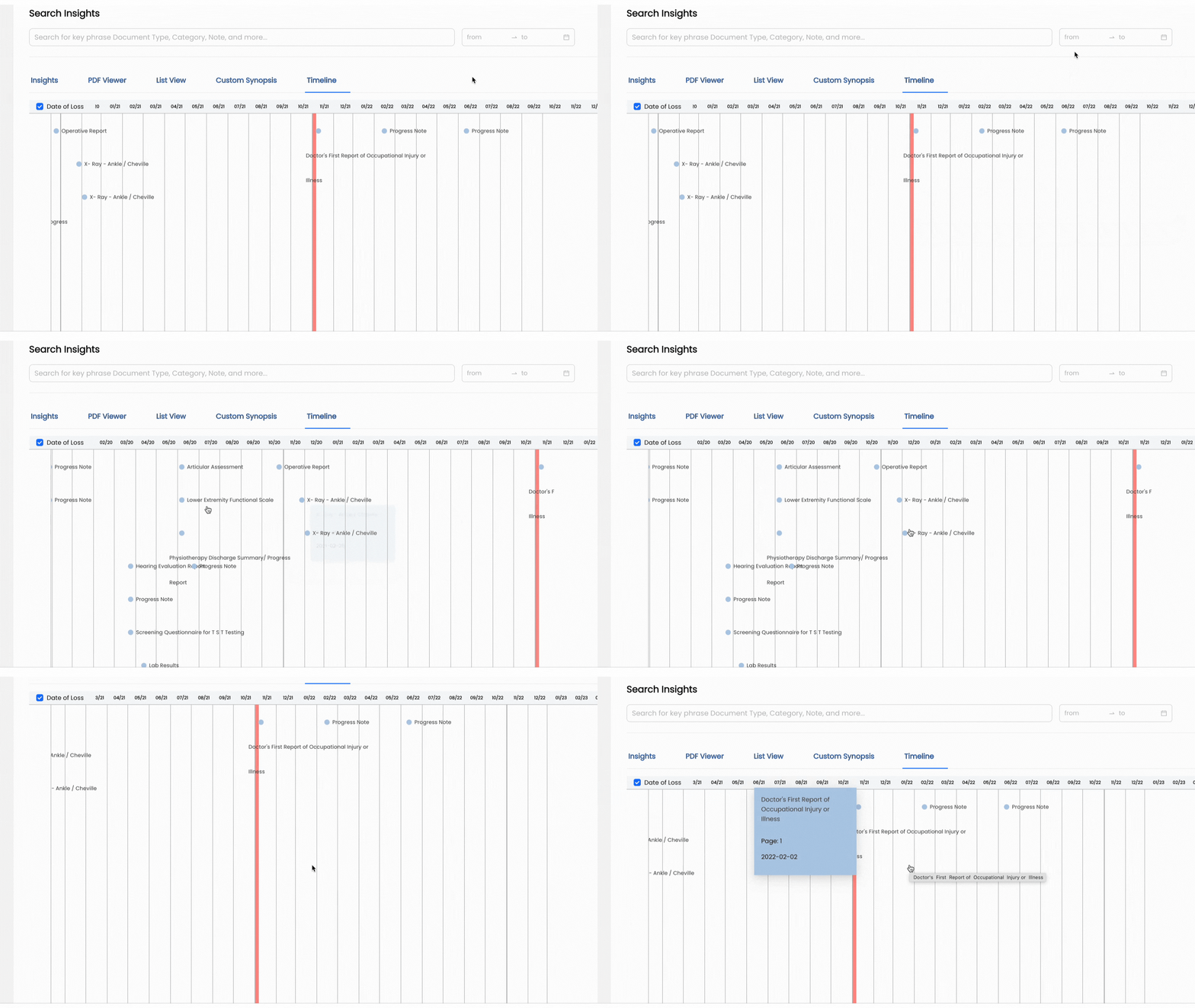
With Wisedocs Insights platform, gain a comprehensive understanding of the medical record in a timeline format, highlighting important assessments, examinations, and injury occurrences.
How to Navigate to Timeline View
- Within the Wisedocs Insights platform, you will see the "Timeline" feature in the top toolbar.
- Select "Timeline" to access the Timeline Insights feature
To learn how to navigate the Insights Platform, see our Insights help article.
How To Use Timeline View?
- Navigate to the search bar within the Timeline page.

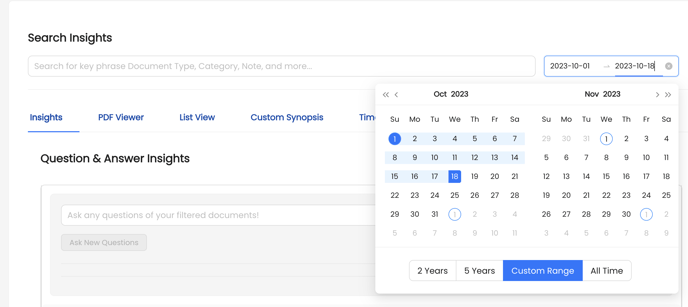
- Select the date range you would like to view in the top right corner. This will surface all the documents and important assessments, injury occurrences, and examinations from this time frame.
- In the top left corner, you can toggle on and off the Date of Loss from the claim case, this will display as a red line on the timeline view.
 With this feature, users are easily able to see events preceding and following the claim date of loss and get a quick snapshot of the claimant's medical history.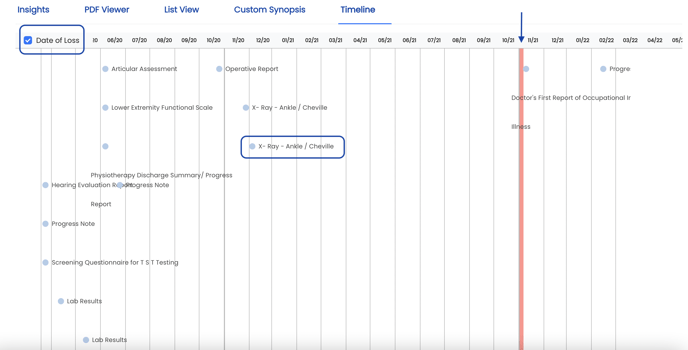
- Each important event within the medical document will display as an icon with the corresponding title of the document.
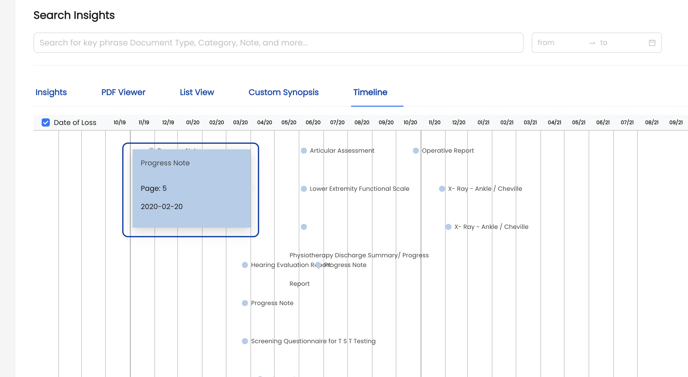
- Hover over any event in the timeline to see additional information. The default information that will display will be:
- Document title
- Page number within the medical document
- Date of event
- Within the PDF Viewer feature, you are able to extract text and snapshots of source documents to customize your medical summary. These annotations will also display in these corresponding event notes.
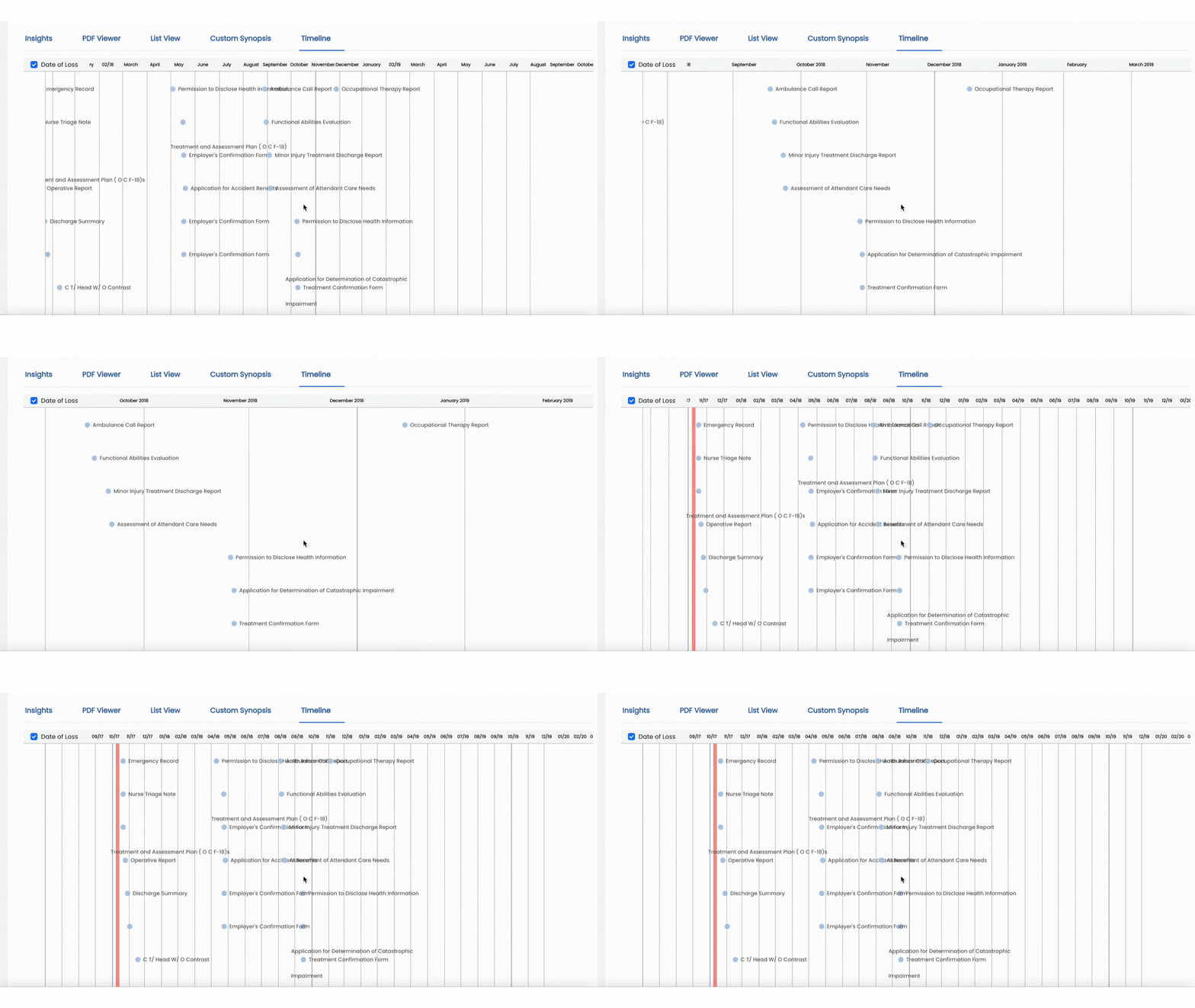
- Users are able to zoom into the timeline view to see each event clearly by using the trackpad or by holding ctrl + using your mouse to scroll.
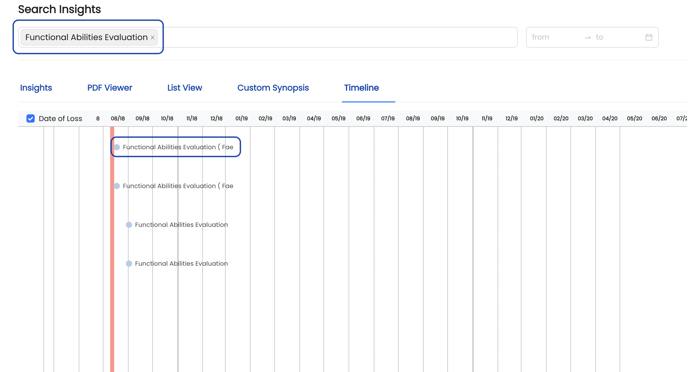
- To filter your Timeline View, you can use the Search Bar to search for certain document types or events only.
- Navigate to the Search Bar at the top of the page and enter in your query. Users can select from the standard entries or enter a custom search.
- The Timeline View will populate with all events pertaining to that certain search only for swift review.
See a demo of Timeline View below: