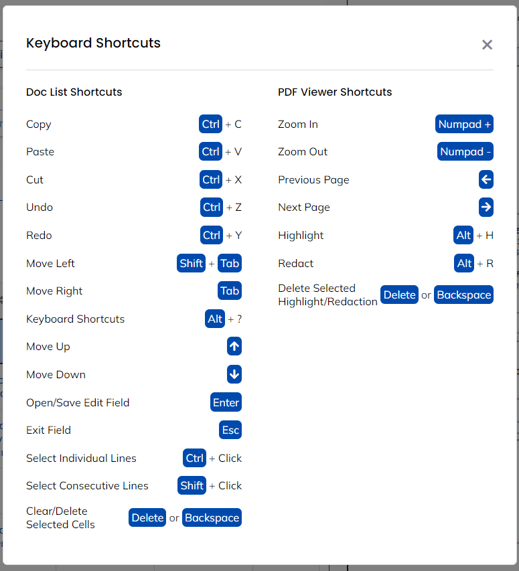
There are a number of keyboard shortcuts that can be used on the Doc List and the PDF Viewer to work more efficiently.
Keyboard shortcuts
Doc List keyboard shortcuts
The Doc List keyboard shortcuts allows users to navigate through the Doc List editing actions in a quick manner. Below is a table with the Doc List shortcuts:
|
Keyboard Shortcut |
Action |
|
Ctrl + C |
Copy contents of selected cell(s) |
|
Ctrl + V |
Paste from clipboard into current cell(s) |
|
Ctrl + X |
Cut contents of selected cell(s) |
|
Up, Down, Left, Right |
Navigate around doc list in chosen direction |
|
Tab |
Navigate forward horizontally in doc list (equivalent to right arrow) |
|
Shift + Tab |
Navigate backwards horizontally in doc list (equivalent to left arrow) |
|
Backspace / Delete |
Clear contents from current or selected cell(s) |
|
Enter |
Open and continue editing in current cell |
|
Esc |
Stop editing current cell |
|
Ctrl + Z |
Undo last edit |
|
Ctrl + Y |
Redo last edit |
PDF Viewer shortcuts
The PDF Viewer also has a list of actions that can be used to efficiently work with the PDF pages. Below is the list of the PDF Viewer keyboard shortcut actions:
|
Keyboard Shortcut |
Action |
|
Left arrow key |
Navigate PDF pages in descending order |
|
Right arrow key |
Navigate PDF pages in ascending order |
|
Up & Down arrow key |
Scroll through the PDF |
|
Numpad plus arrow key |
Zoom into pages |
|
Numpad minus arrow key |
Zoom out of pages |
Note: The list of keyboard and PDF shortcuts can be found at all times in the right corner of the Doc List tabs.