Reordering Pages in Documents
Last updated: October 16, 2026
Keep Your Document Pages Organized
When working with documents that change over time, keeping pages in the correct order is essential. If pages are out of sequence or scanned in the wrong order, you can easily rearrange them using the built-in page reordering feature. Here’s how to move, group, and reverse pages so your records stay organized.
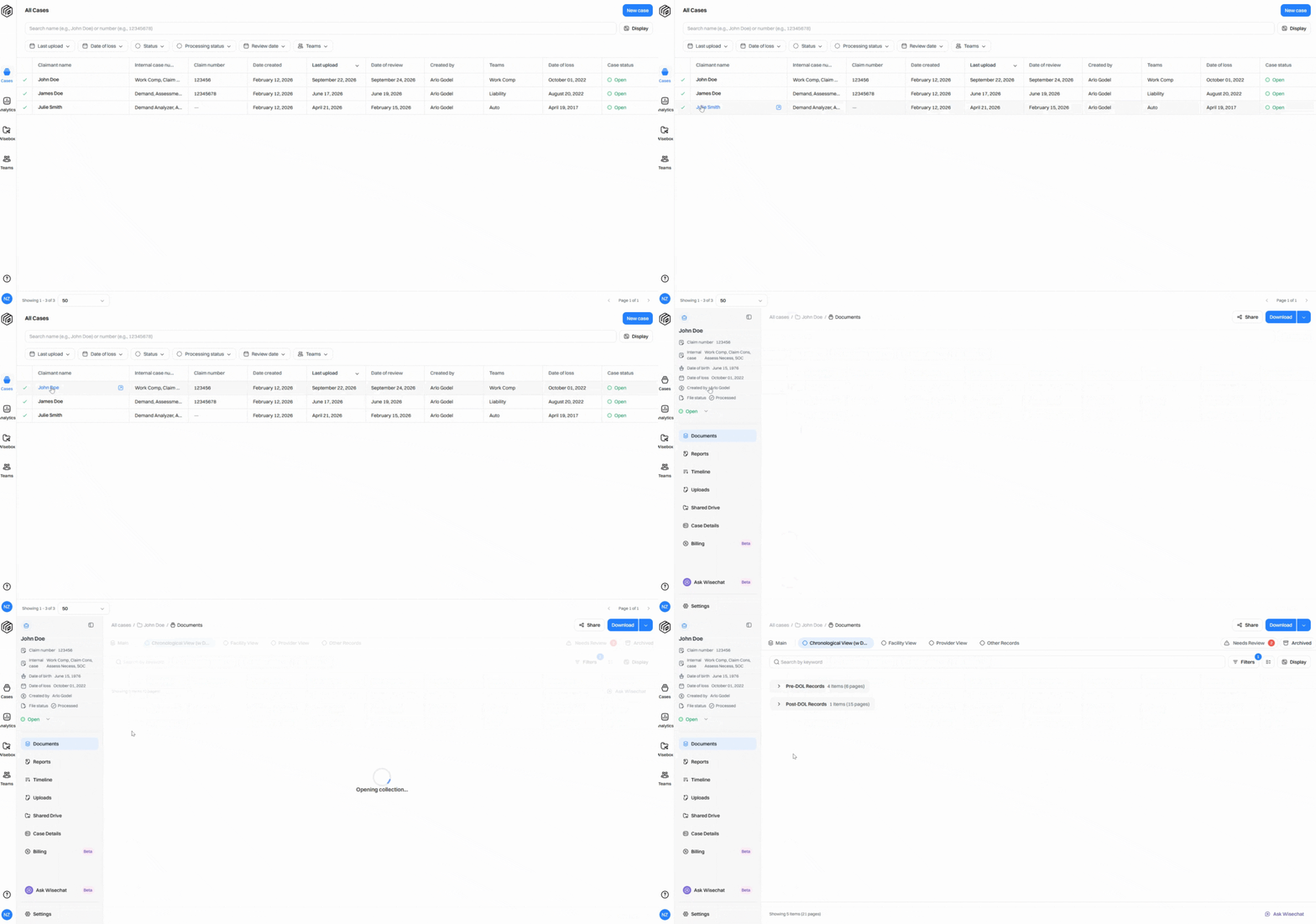
Step 1: Open your case and locate the relevant document collection.
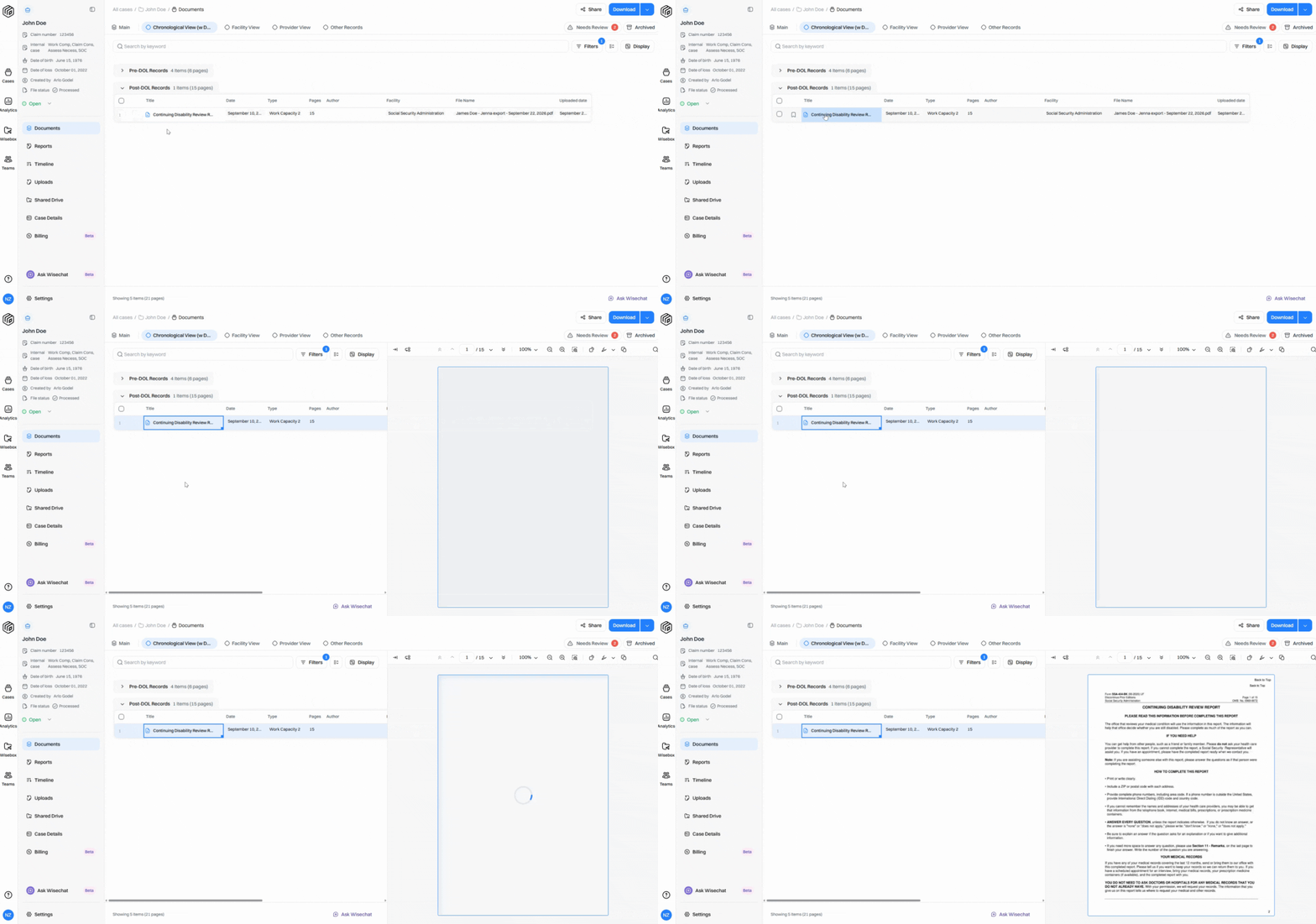
Step 2: Click into the document you want to review. This loads the PDF viewer.
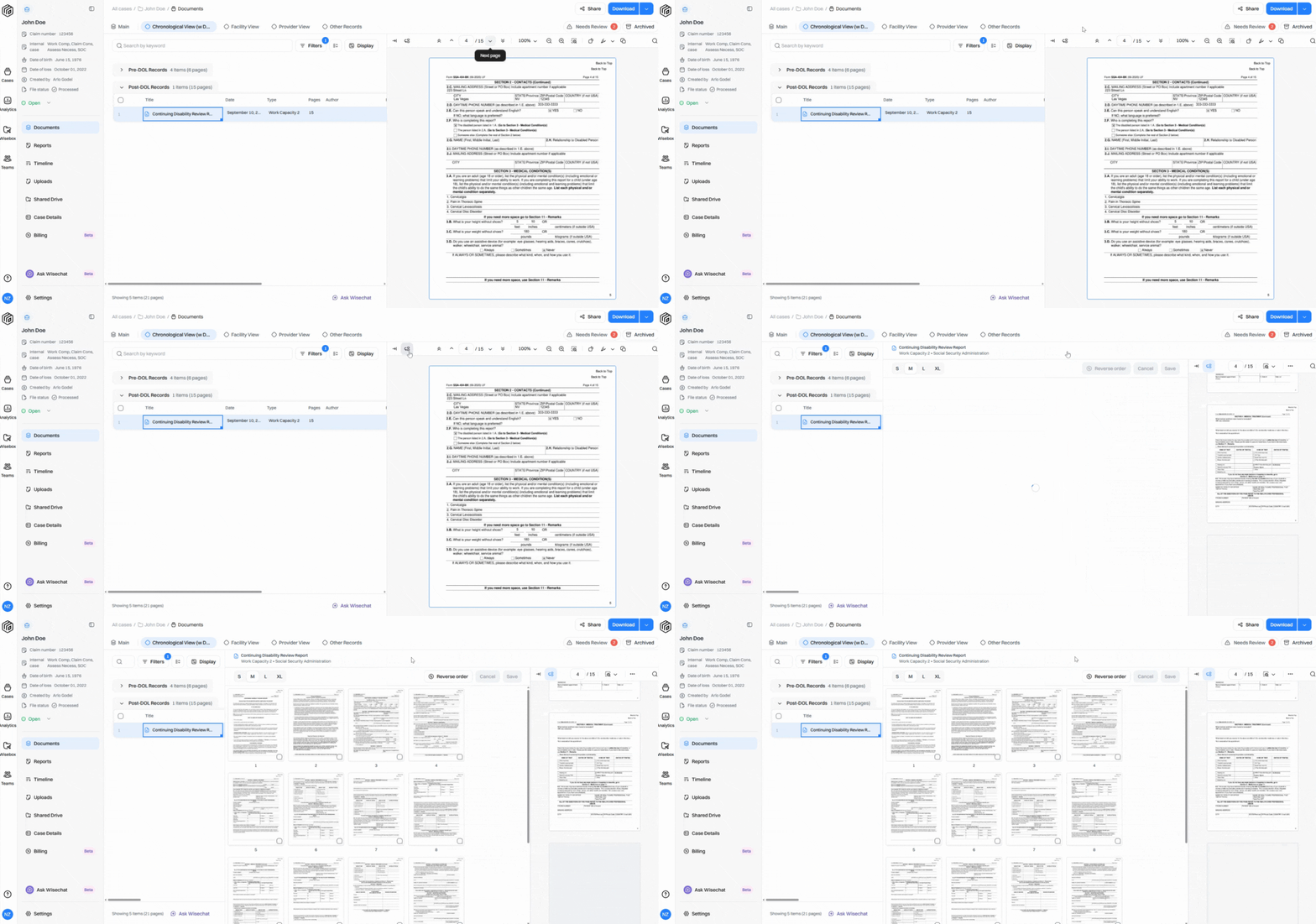
Step 3: If you notice pages out of order, click the Reorder Pages icon in the top left corner of the viewer (beside the collapse button).
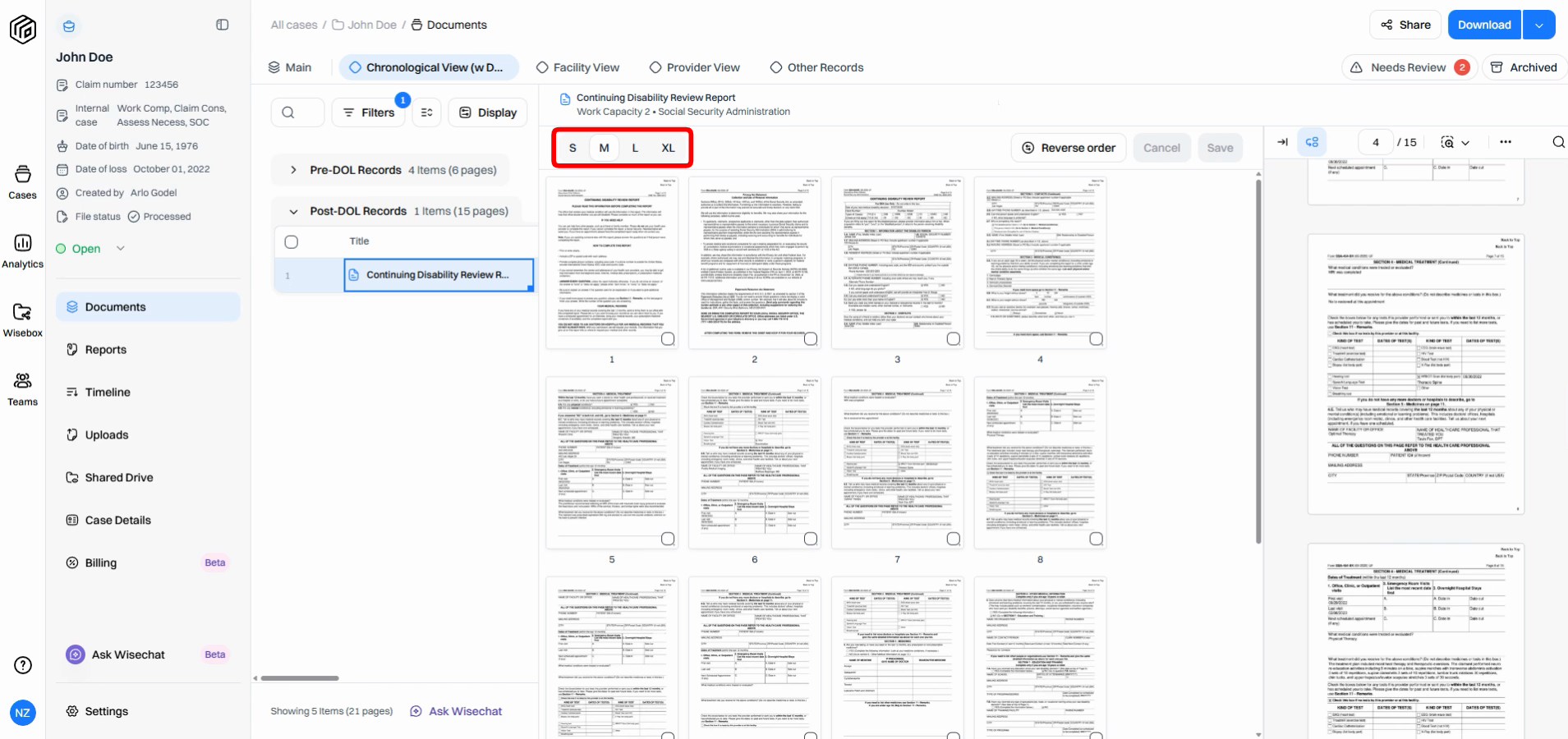
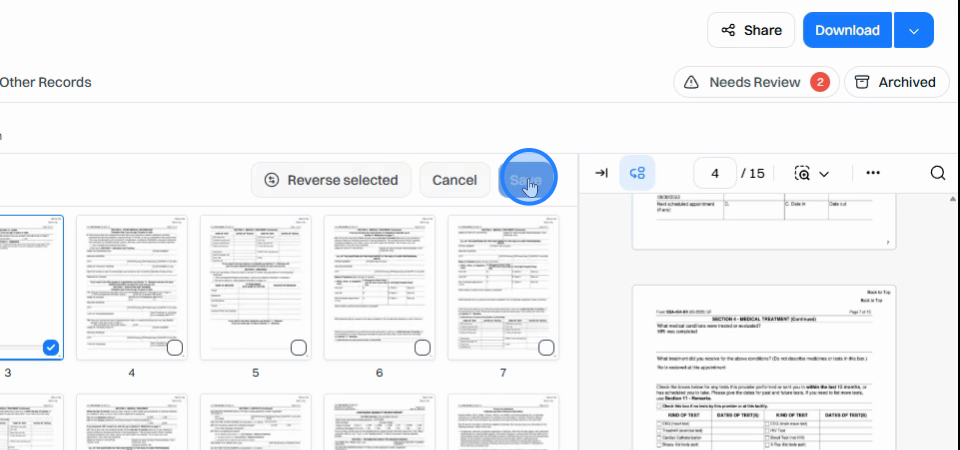
Step 4: In the page reordering view, preview all pages at once. Adjust thumbnail sizes as needed for easier navigation—choose small for lengthy documents or larger sizes for detailed review.
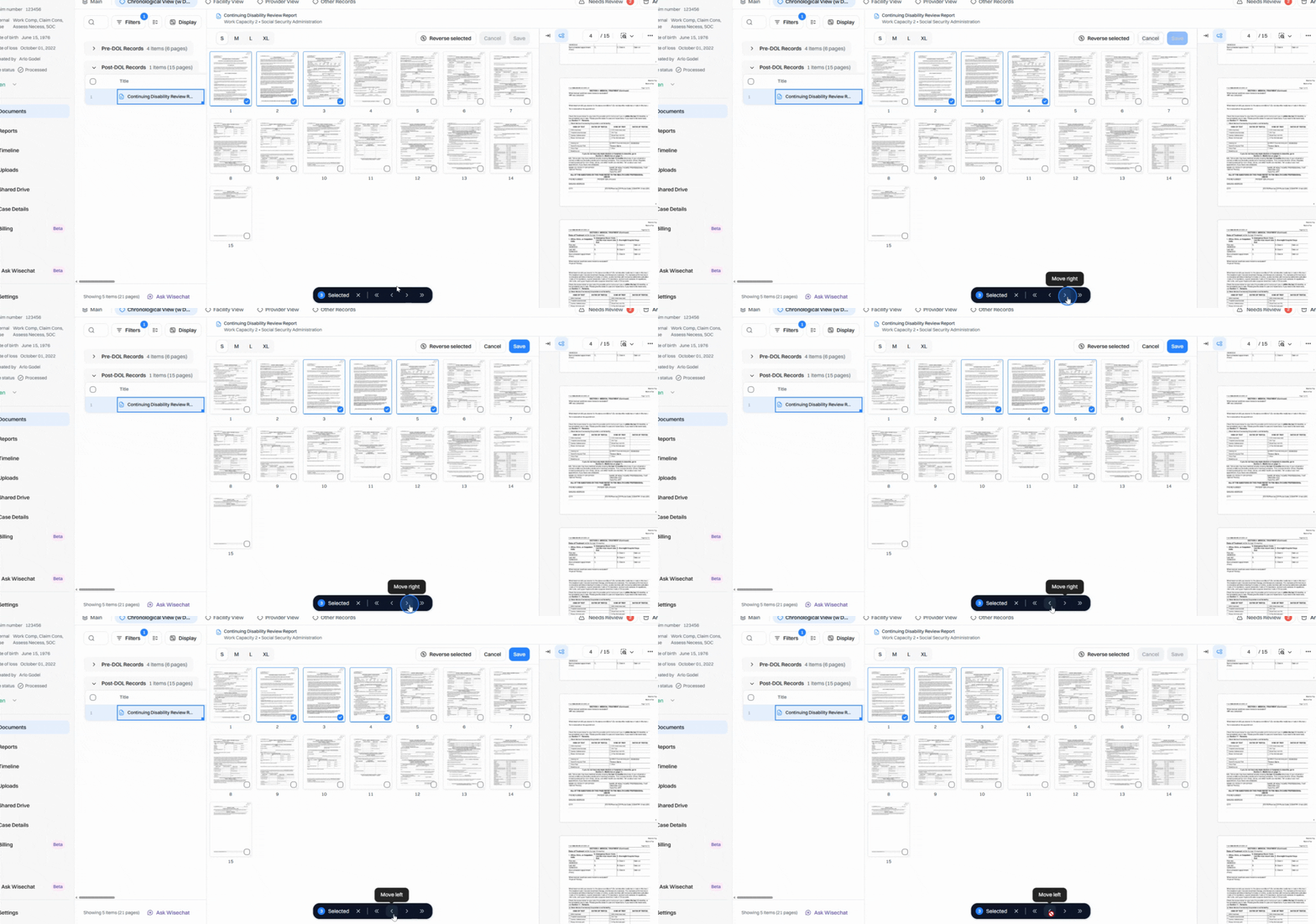
Step 5: To move pages, select one or more thumbnails. From the action bar that appears at the bottom, use the single arrow controls to move pages left or right one position at a time, or double arrows to send them directly to the beginning or end.
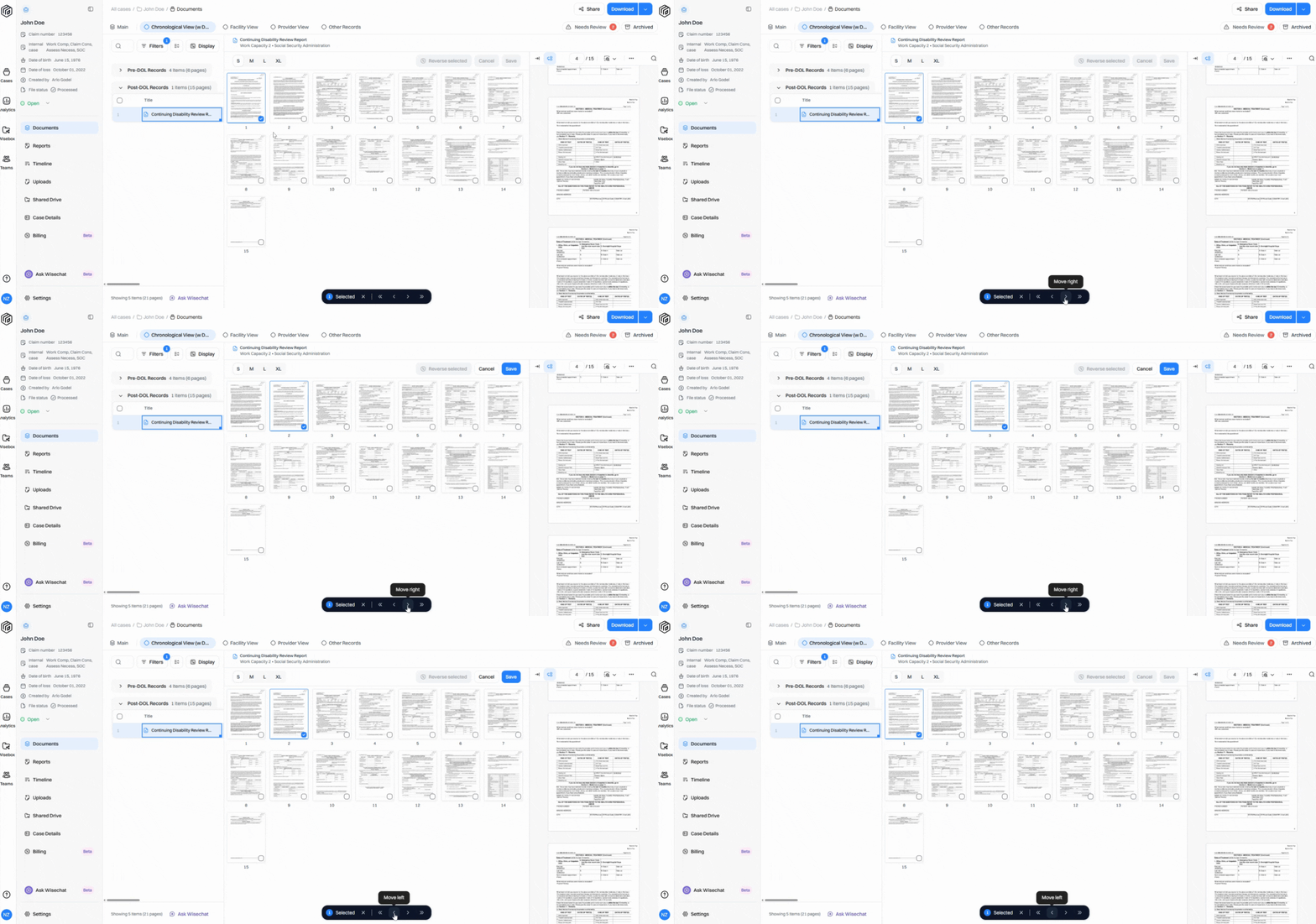
Step 6: You can move multiple pages at once. All selected pages keep their order and move together in the document.
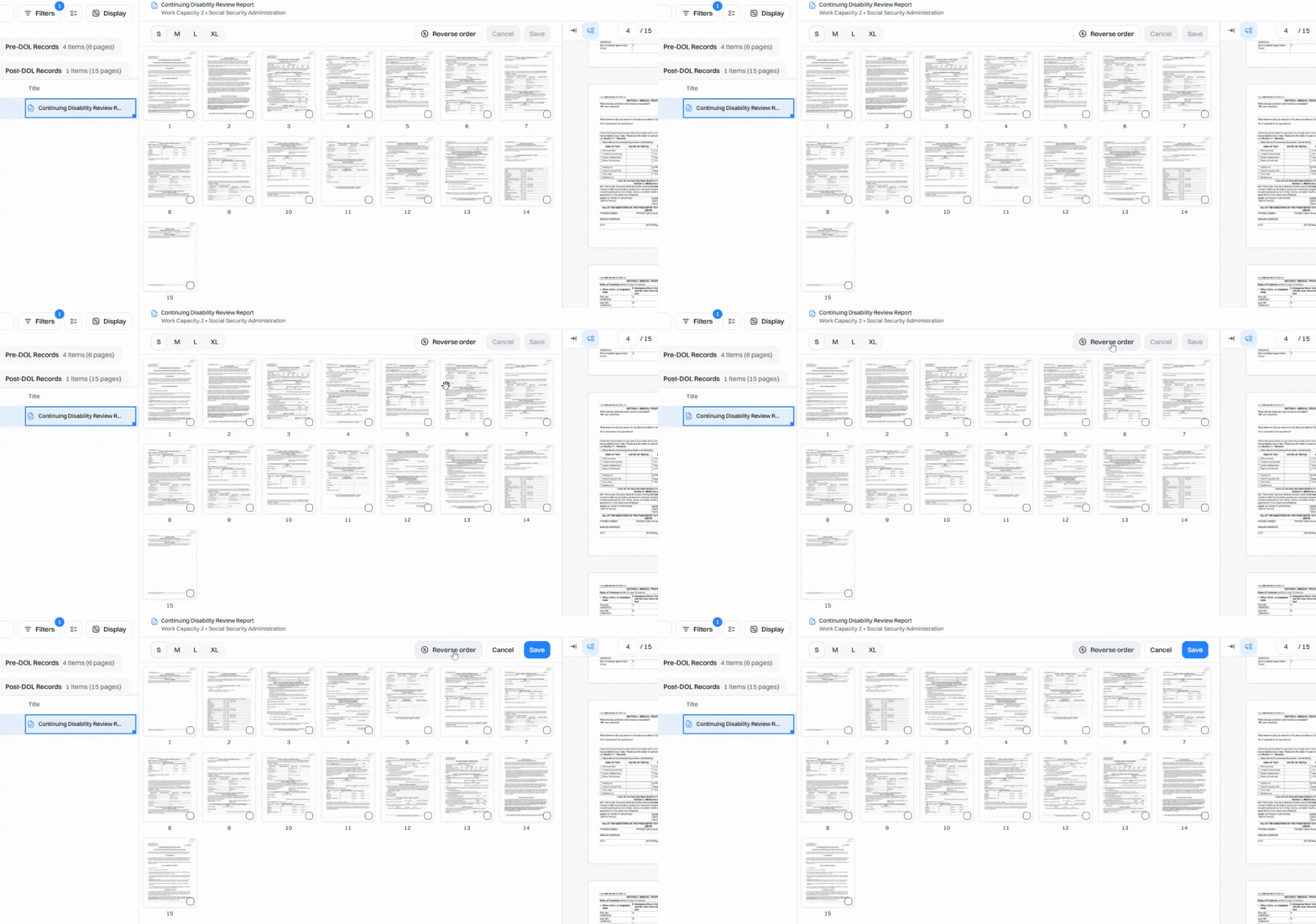
Step 7: To quickly reverse an entire document scanned backward, click Reverse Order to flip every page.
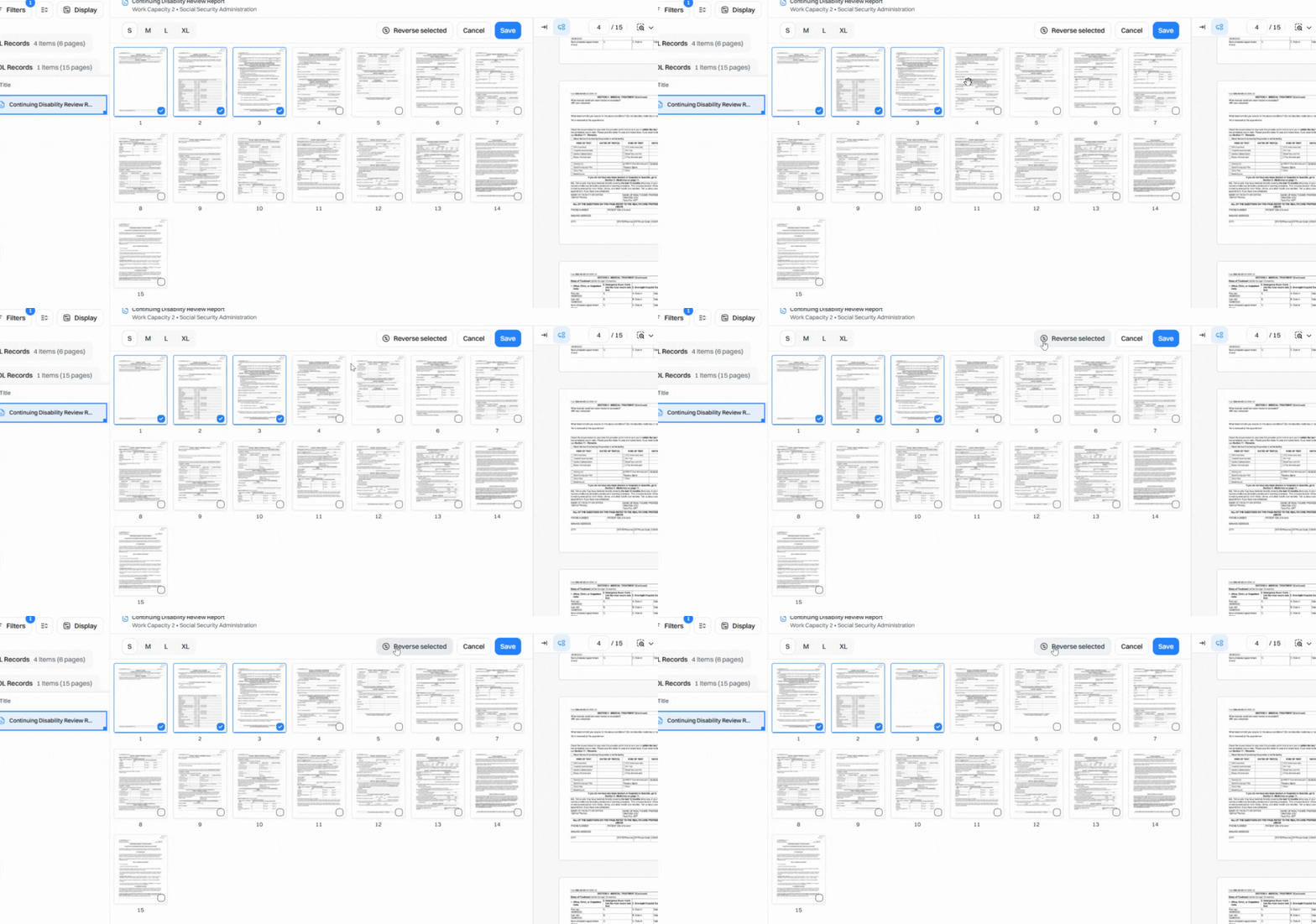
Step 8: To reverse only specific pages, select them, then click Reverse in the action bar.
Step 9: Once you're satisfied with the page order, click Save at the top. The document updates instantly in the PDF viewer.
Reordering pages is a simple way to fix scanning mistakes, group related pages, and keep your documents in the right order. This tool keeps your records accurate, organized, and easy to review.