
Once you have added your custom columns to your index under platform configurations, you can reorder the columns to your preference.
See here for how to add custom columns if you have not already
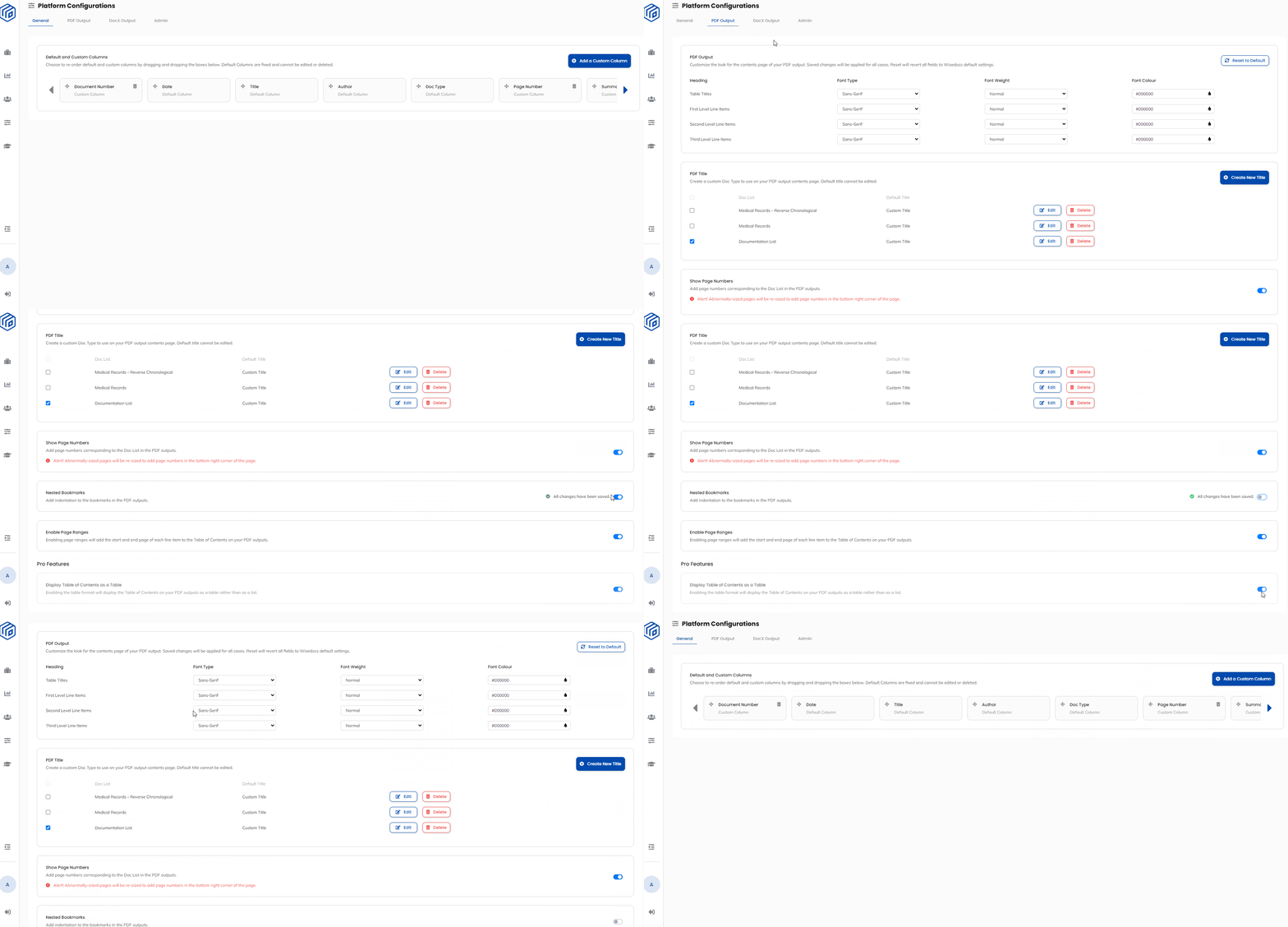
- To begin, open up the Wisedocs menu and go to the Platform Configurations page.
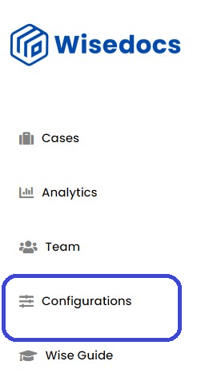
- Go to the "General" tab under the Platform Configurations page.

- Click on the "Move Button"
 to drag the columns to the desired order.
 - We recommend sorting your index in the following order:
Document Number, Date, Title, Author, Doc Type, Page Number, Summary - Now your Doc List PDF output will appear in the selected order, all changes will be saved automatically.
See below for a demo:

What will the PDF output look like?
Once you have added the custom columns, the pdf output will differ depending on the platform configuration settings you have enabled.
With Display Table of Contents as a Table
*Note this is a PRO feature. Please talk to Wisedocs at help@wisedocs.ai if you are interested in upgrading to this feature.
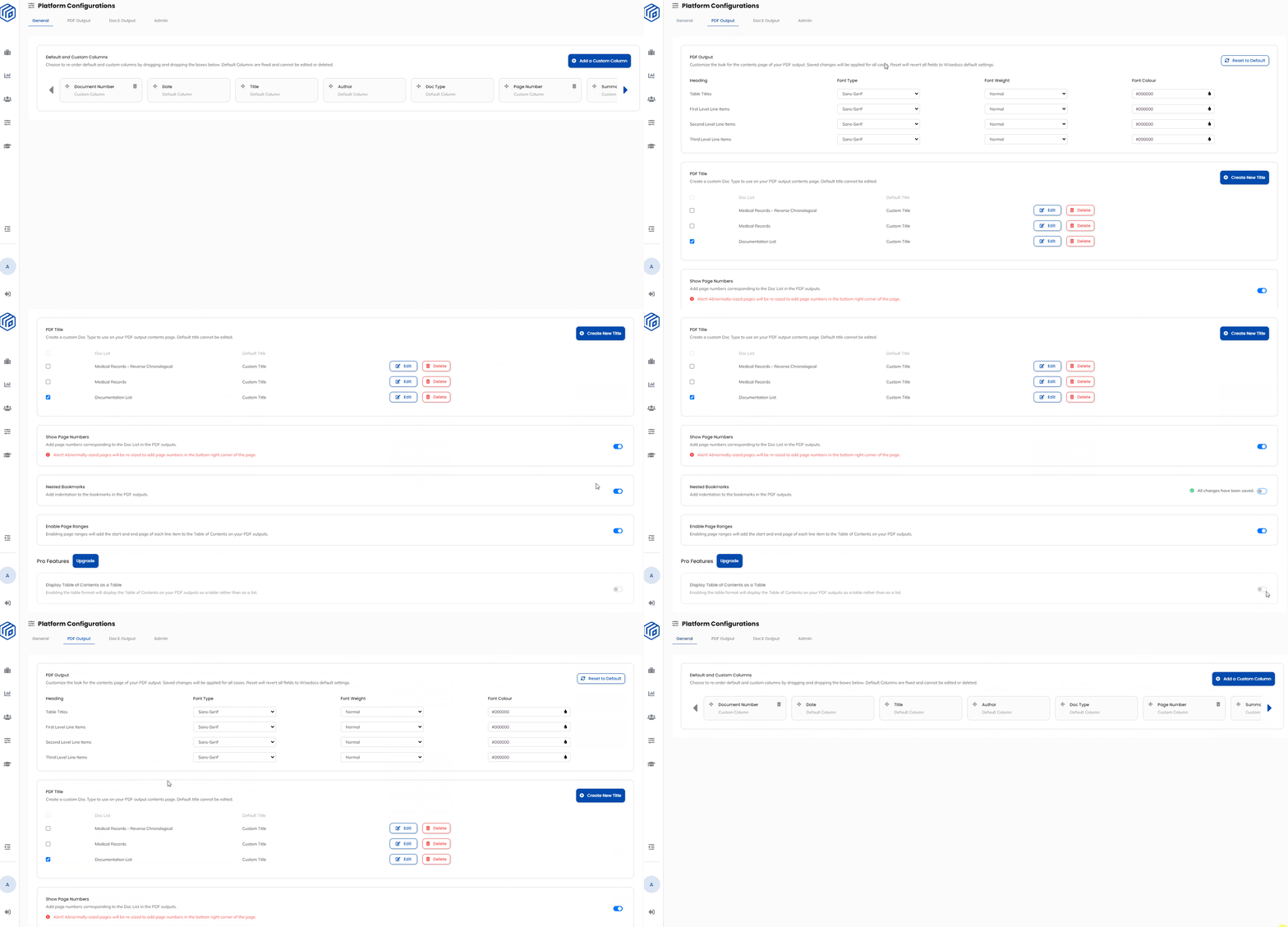
- Go to the Platform Configurations Page under the "PDF Output" tab
- Scroll down to the bottom and ensure the "Display Table of Contents as a Table" pro feature is toggled ON

- Ensure the "Nested Bookmarks" setting is toggled OFF

- Your settings will be saved automatically
See a Demo Below:
- Navigate back to the Cases Page and "View Doclist"
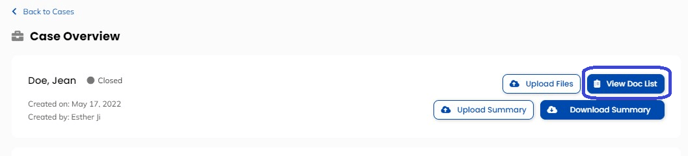
- Select "Download Doc List" to download the Doc List PDF output

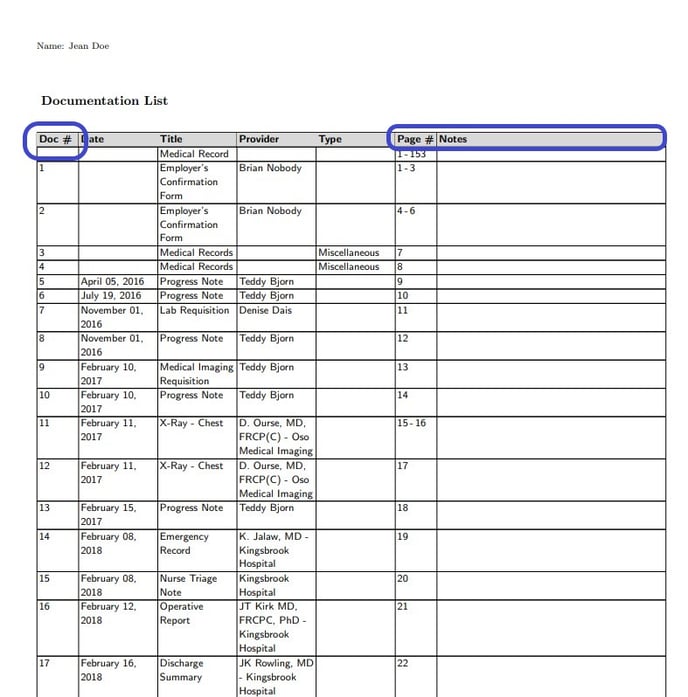
- The following PDF output will be downloaded with the added custom columns of Document Number, Page Number, and Notes section.
Without Display Table of Contents as a Table:
- Go to the Platform Configurations Page under the "PDF Output" tab
- Scroll down to the bottom and ensure the "Display Table of Contents as a Table" pro feature is toggled OFF
- Ensure the "Nested Bookmarks" setting is toggled OFF
- Your settings will be saved automatically
See a Demo Below:
-
Navigate back to the Cases Page and "View Doclist"
- Select "Download Doc List" to download the Doc List PDF output
- The following PDF output will be downloaded with the added custom columns of Document Number, Page Number, and Notes section.
