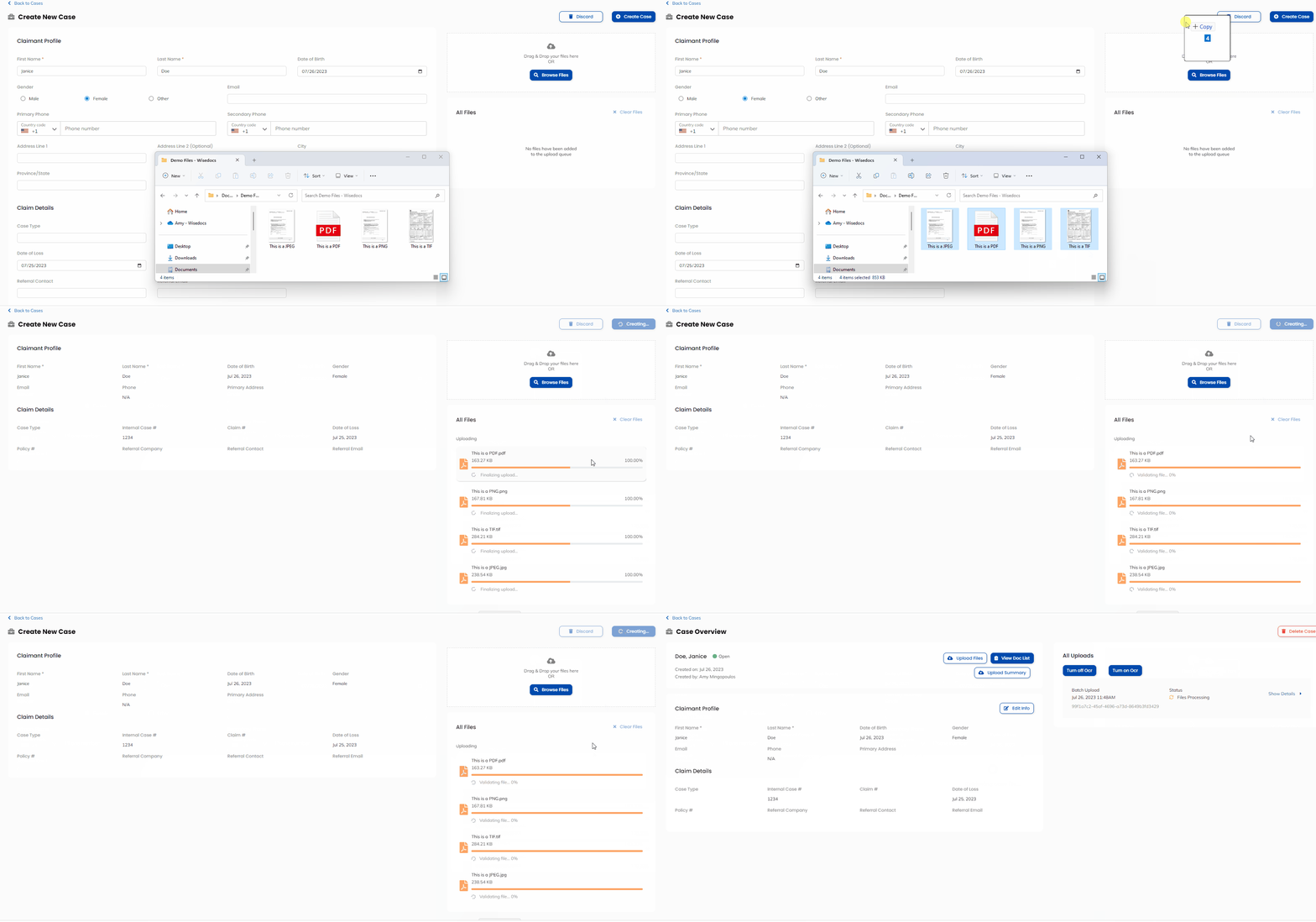
Wisedocs' platform now allows you to upload multiple different file types at once and have them automatically converted to a PDF for case review.
With Automatic File Conversion, streamline your team's workflow by eliminating the need for manual file conversion. This feature accelerates your turnaround times and guarantees a flawless upload process, preventing any unintended inclusions of other file types.
What is Automatic File Conversion
*Note this is a PRO feature. Please talk to Wisedocs at help@wisedocs.com if you are interested in upgrading to this feature.
- This feature supports the conversion of docx, tiff, png, and jpeg files into PDFs before uploading to your case.
- With this PRO Feature, customers will also be able to select multiple files at once to upload and result in a mass conversion of files - saving you time on manually converting files before uploading!
How to use Automatic File Conversion
- To use this feature, you will either have to Create a New Case or Upload Additional Files to an already existing case.
- Select "Create New Case" on the Cases page


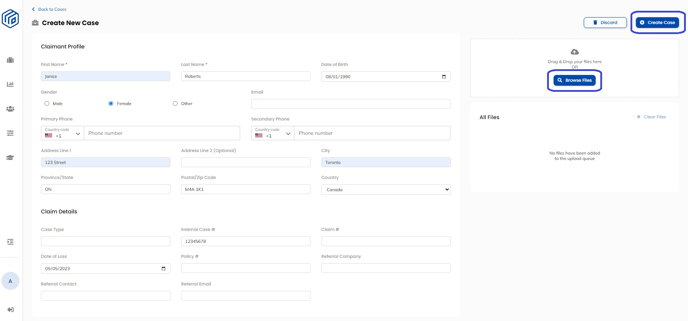
- In the Create New Case Page, fill out the appropriate information for the claimant profile and claim details.
- To add your case files of different file types, simply drag and drop to the dropbox on the right side of the screen or select the "Browse Files" button

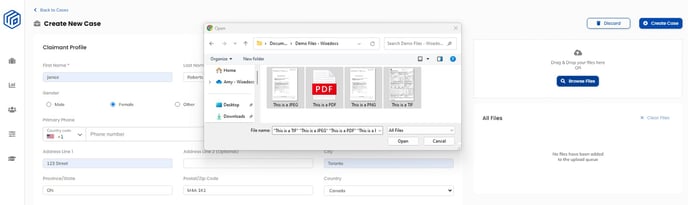
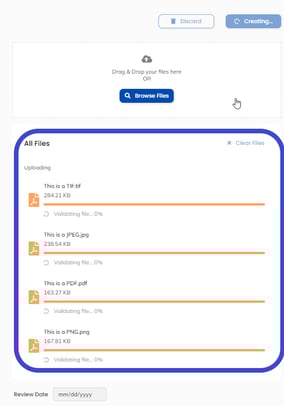
- Next select the files you wish to upload, in this example we will upload a jpeg, pdf, png, and tiff file at once.
- Once the files have been selected, they will be queued to upload and appear grey until you select the "Create Case" button
 to create the claimant's case and upload the files.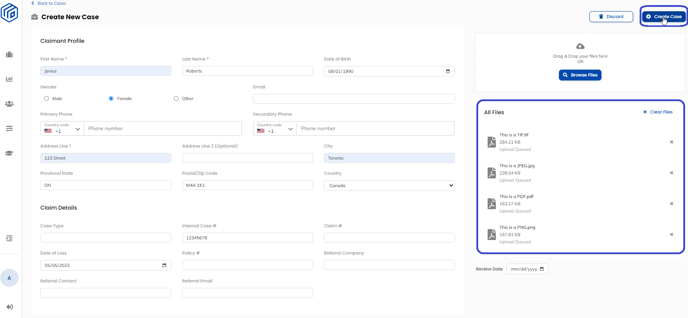
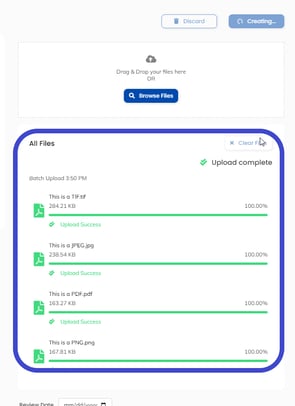
- The case files will automatically be converted into PDFs and uploaded. The files will appear orange while we validate the file and then green when the upload is successful.
See below for a demo: