
Wisedocs' Summaries On Demand allows clients to select only certain cases to be summarized, offering you the flexibility to select specific services on demand.
What is Summaries On Demand?
Wisedocs Summaries On Demand gives customers the option to choose which cases they'd like to be summarized with the options of files to be indexed only or to be indexed and summarized.
This newly launched offering empowers teams who leverage Wisedocs' medical indexing platform to now summarize thousands of pages in a medical record in a fraction of the time - without committing to a medical summary subscription for a small number of cases.
When uploading case files, users can now select which cases are to be summarized to gain quick comprehensive medical insights from the entire medical record.
Summaries On Demand are done on a Case-by-Case basis!
Wisedocs Summaries On Demand offering is applied on a case-by-case basis, meaning any changes made to the selection of Summaries On Demand services will be applied at case creation or when additional files are uploaded to a case.
Once the Summaries On Demand Service has been selected for a case, this new selection will be the new default for all additional files uploaded to the case - unless manually changed.
How to Use Summaries On Demand?
- On the "Cases Page", navigate to the "Create New Case" button in the top right of the screen.


- When Creating a New Case, fill in the required case information and upload your PDF files.

- On the right side of the page, under "Upload Settings", you will now see "Service"
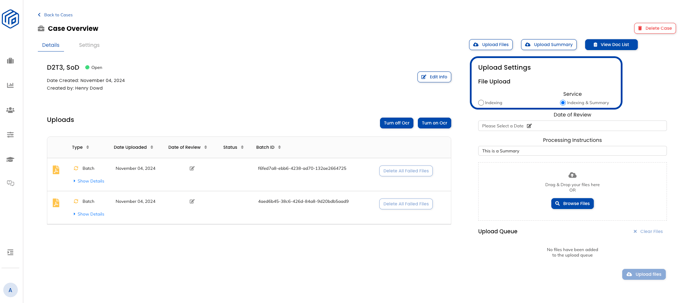
- In this area, you can now choose the Wisedocs Summaries On Demand service you wish to process your files under by using the radio buttons.
- Indexing: By selecting this option, your files will be processed with Wisedocs Medical Indexing only, returning your files in an indexed doclist with date, title, author, and document type.
- Indexing & Summaries: By selecting this option, your files will be processed with Wisedocs' Medical Indexing and Medical Summaries, returning an indexed doclist and corresponding summaries per document.
- This service selection will apply to all future document uploads within this case as a default. To change the service setting per batch of additional documents uploaded, simply choose the correct service you wish to process.
- Once you have selected which service you would like to process your files under, click the "Create Case" button in the top right to submit the files.

To Note: if you select the incorrect service, the files will be processed accordingly as files cannot be rescinded from the processing pipeline after upload. - When your files have been processed, under the "Case Overview" page, you will be able to see the service you selected per batch of files.
- Under "Uploads", beside each bach of files upload there will be a "Summary" tag beside the files that have been summarized, and no tag beside the indexed only baches.
To learn more about setting your Wisedocs Summaries On Demand Settings, please contact your customer service manager or implementation contact.
How to Use Summaries On Demand on Additional Files
Summaries On Demand can be applied to additional files of an existing case as well, continue reading for how to apply Summaries On Demand when uploading additional files.
- On the "Cases Page" select the case you will be uploading additional files to by clicking the "View Case Button"

- Once in the "Case Overview" page, upload additional files as usual. See our knowledge base article on How to Upload Additional Files for more information.
- On the right side of the page, under "Upload Settings", you will now see "Service"
- In this area, you can now choose the Wisedocs Summaries On Demand Service you wish to process your additional files under by using the radio buttons.
- Indexing
- Indexing & Summaries
- When uploading additional files, you can choose a different Summaries On Demand service than the original case setting.
- Once you change the Summaries On Demand Service, this selection will be the new default moving forwards for any additional files uploaded to this specific case.
See a demo of Summaries On Demand:

Default Service Settings
- The selected service will be set to a default of either "Indexing" or "Indexing & Summary", based on your organization's choice on a per-case basis. To change your default setting, please contact your Wisedocs customer success or implementation team members.
- Once the service has been selected for a case upload, this updated selection will be the new default for all additional files uploaded to the case.
- Ex. if your organization's default upload service setting is "Indexing" and a user uploads a case for John Smith as "Indexing & Summary", all future additional files uploaded to John Smith's case will be processed as "Indexing & Summary", unless manually changed by the user at upload.
- Any mistakes in Summaries On Demand service selection will not be remedied as files cannot be rescinded once uploaded to the system. Please ensure the correct service is selected before case creation & uploading of files.