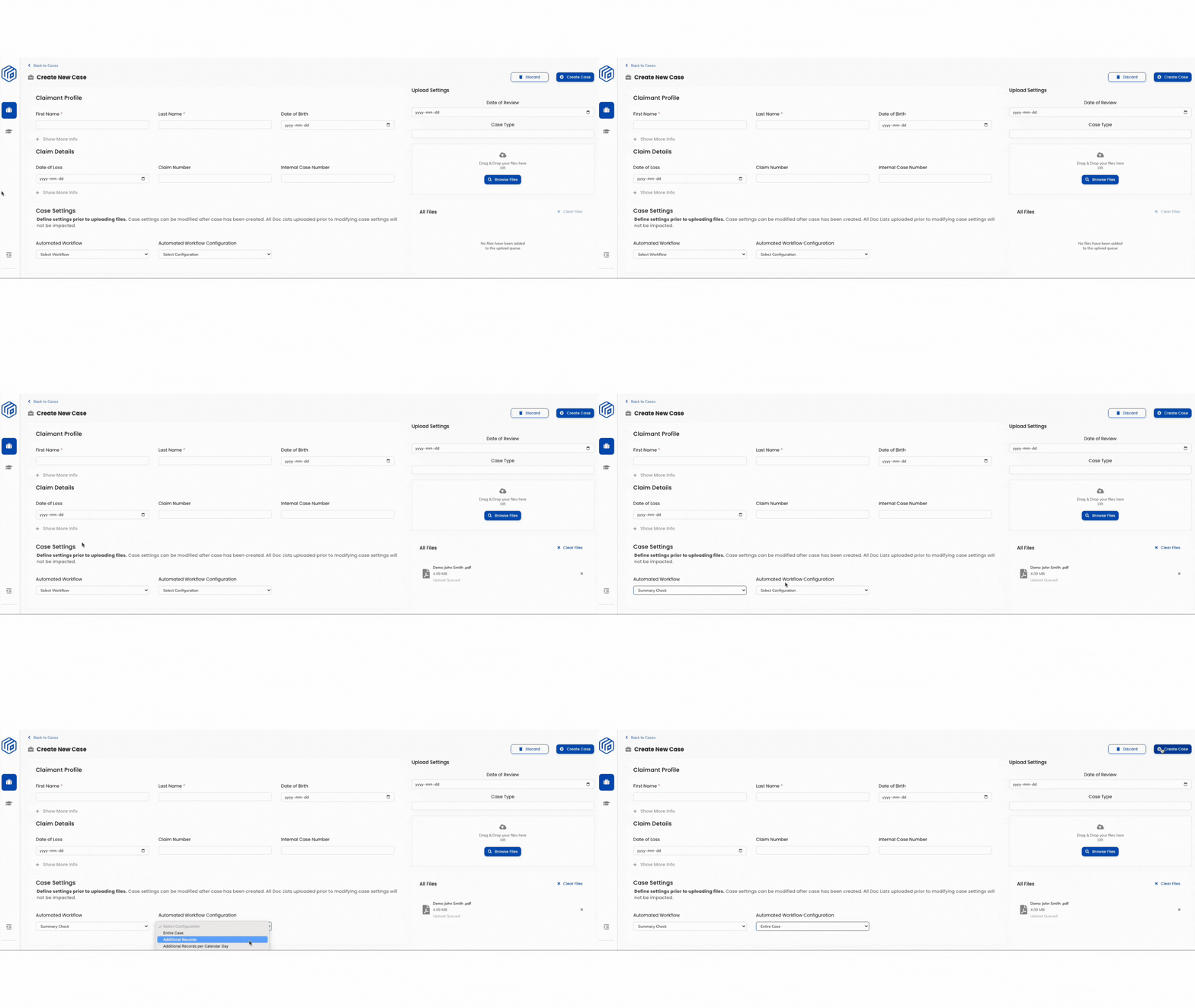
With Automated Workflow Configurations, users are able to decide when to run their Automated Workflows across their uploaded files in each case. With 3 options, users can select the configuration that best aligns with their needs.
What are Automated Workflow Configurations?
Automated Workflow Configurations provides users the capability to assign selected Automated Workflows to certain files within the uploaded case. With these flexible options, users have the freedom to choose when to run the workflow - whether it's for the entire uploaded case, additional documents uploaded after the original case, or specifically for additional documents within a given calendar day.
How is this different from Automated Workflows?
Automated Workflow Configurations works in tandem with Automated Workflows. While Automated Workflows allow users to create custom sort orders to automatically rearrange the medical record, Automated Workflow Configurations allows these users to dictate when to run the workflow across files uploaded to a single claims case.
These configurations offer enhanced control, enabling users to efficiently manage custom sorting of additional records when uploading multiple batches of documents. With our Automated Workflows, Wisedocs automatically sorts and organizes your medical documents according to your preferences upon upload. This not only ensures a seamless process but also results in significant time savings for your team!
Dive into the new Automated Workflow Configurations below:
*Note: Workflows are a PRO feature. Please talk to your Customer Success Manager if you are interested in upgrading to this feature.
How to use Automated Workflow Configurations?
- Select the "Create New Case"
 button in the top right to navigate to the Create New Case page.
 - Create your new case by filling in the claimant profile and claim details as usual.
- Under "Case Settings" you will find the Automated Workflow and Automated Workflow Configurations.
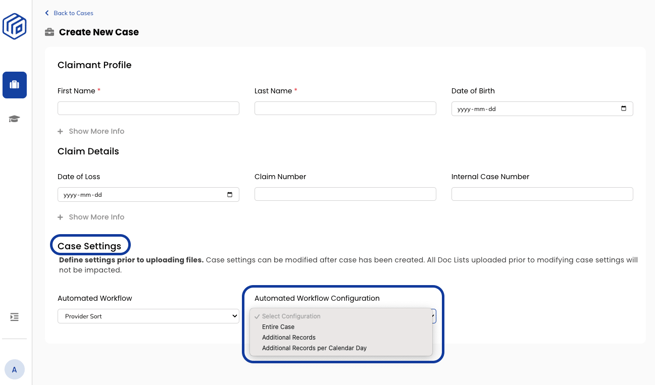
- Select your desired Automated Workflow you'd like to run on files.
- Next, select from the following 3 Automated Workflow Configuration options prior to uploading your files:
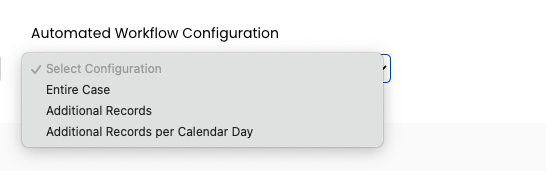
- Entire case (default) - all new batches of uploaded files are merged and sorted according to your selected Automated Workflow - creating a single "Medical Records" Doc List table for your review. The Automated Workflow will only run once all files have been indexed.
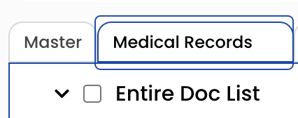
- Additional Records - all new uploaded file batches will be sorted accordingly in a new Doc List tab called "Additional Records". The Automated Workflow will run across these files once they have been indexed. These additional records will be separated from the initial "Medical Record" file upload in a separate Doc List table.
In this example, two batches of files were uploaded, resulting in the separate Doc List tables of "Medical Records" and "Additional Records".
- Additional Records per Calendar Day - all new file batches uploaded on a calendar day after your initial medical record upload will be sorted in a new Doc List table called "Additional Records 1" and "Additional Records 2" if additional files are continuously added to the case. Each new upload will create a new Doc List table for the files and the Automated Workflow will be run at the end of the calendar day, once all files have been uploaded and indexed.
If additional files are uploaded within the same day, it will be sorted as "Entire Case" by default.
In this example, 3 batches of files were uploaded on 3 separate days, resulting in the separate Doc List tables of "Medical Records", "Additional Records 1", and "Additional Records 2".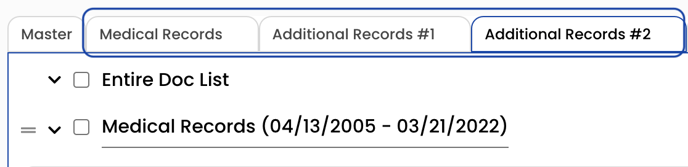
- Entire case (default) - all new batches of uploaded files are merged and sorted according to your selected Automated Workflow - creating a single "Medical Records" Doc List table for your review. The Automated Workflow will only run once all files have been indexed.
By default, Automated Workflow Configurations are set to run for the Entire Case. For personalized configurations, kindly reach out to your dedicated Customer Success Manager.
Please reach out to your Customer Success Manager should you need any changes to your already completed workflows.